Inside a day
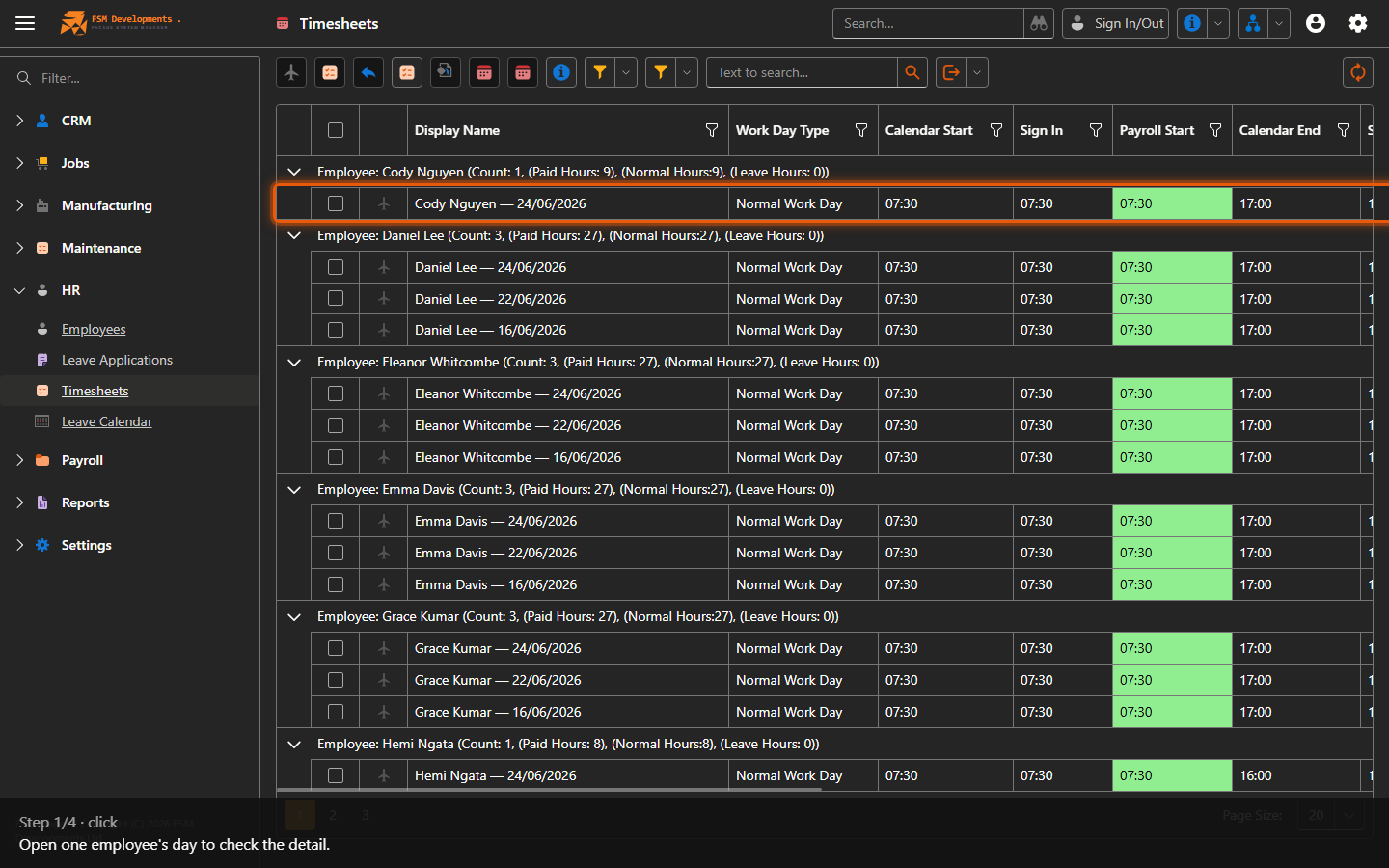
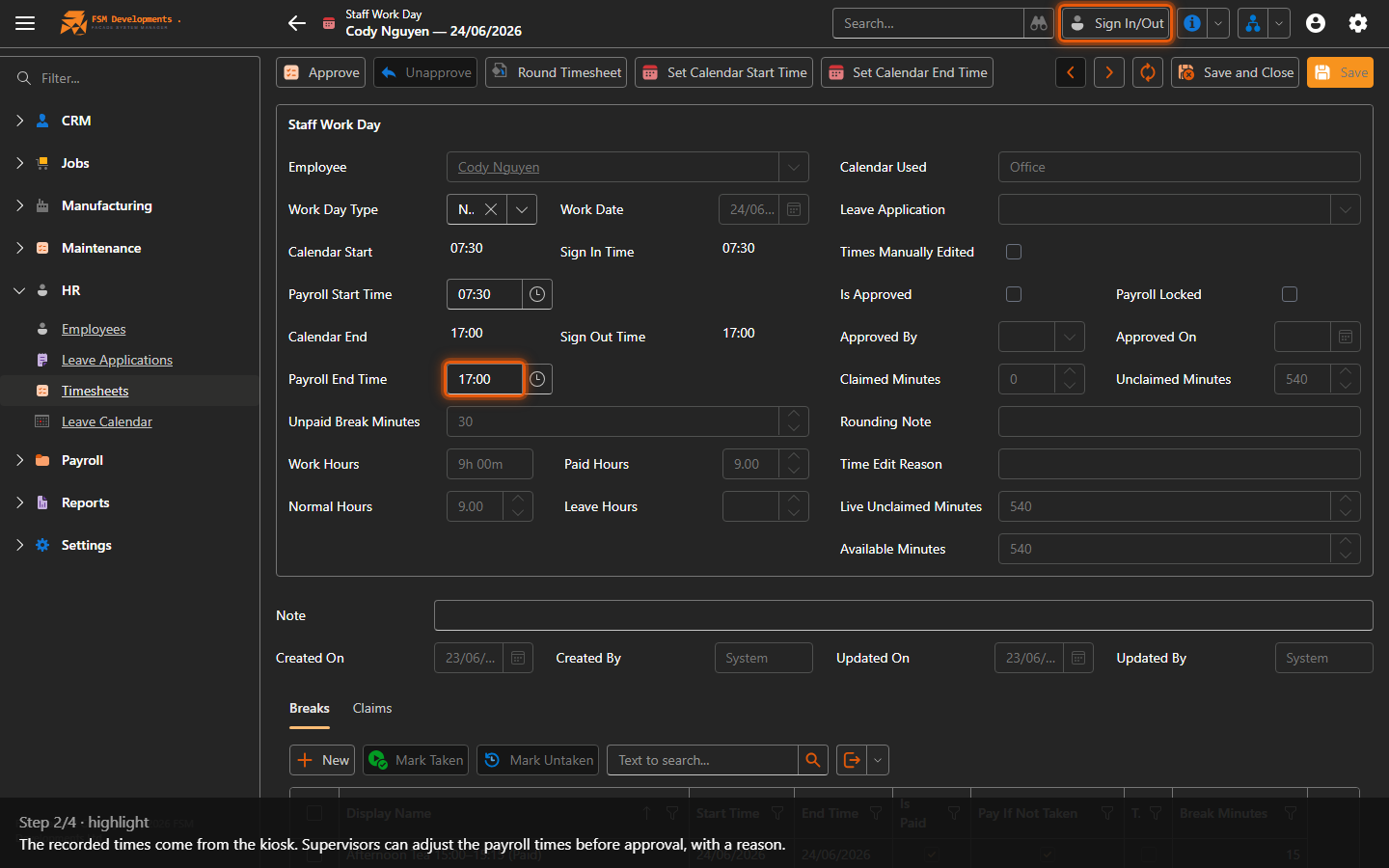
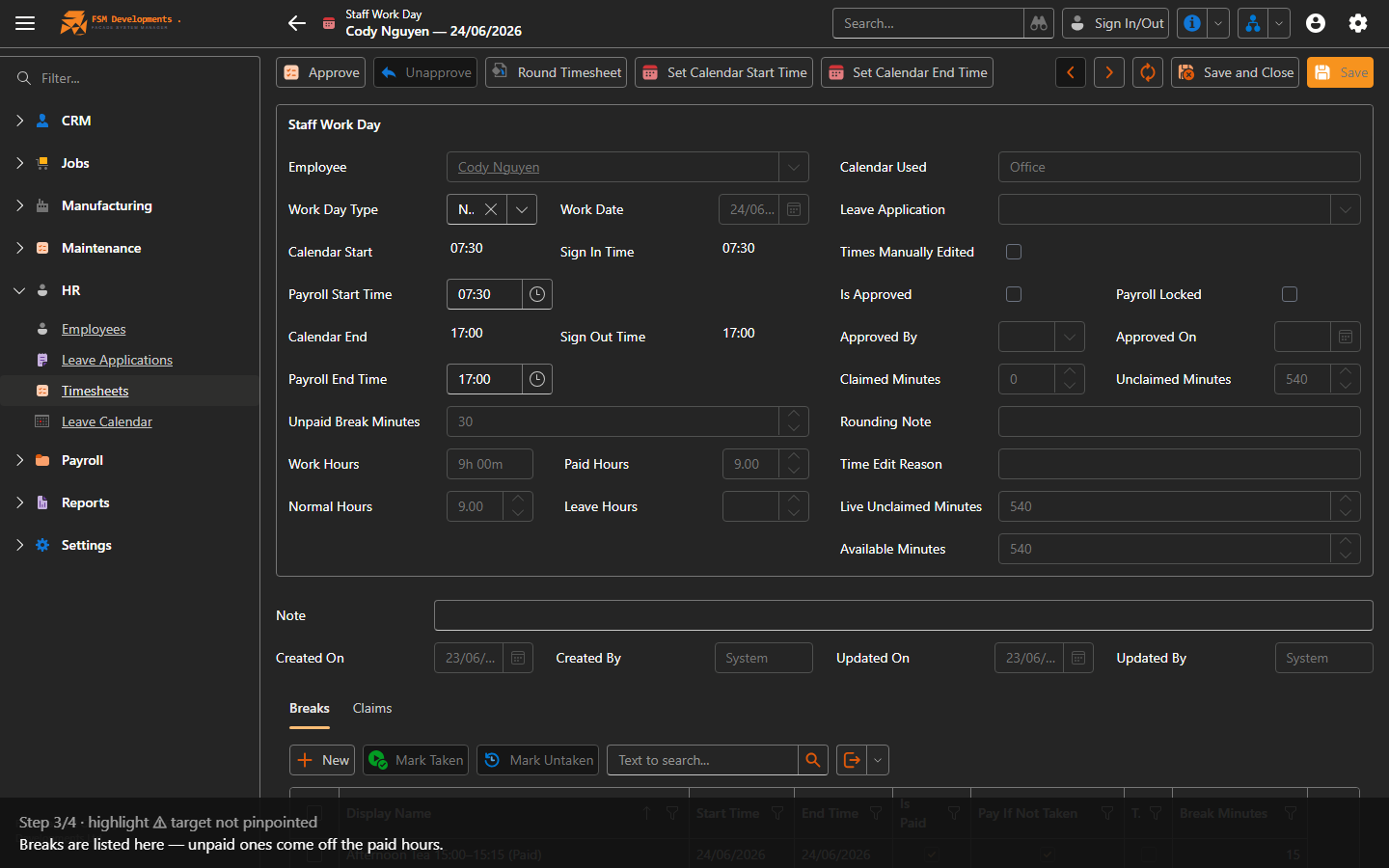
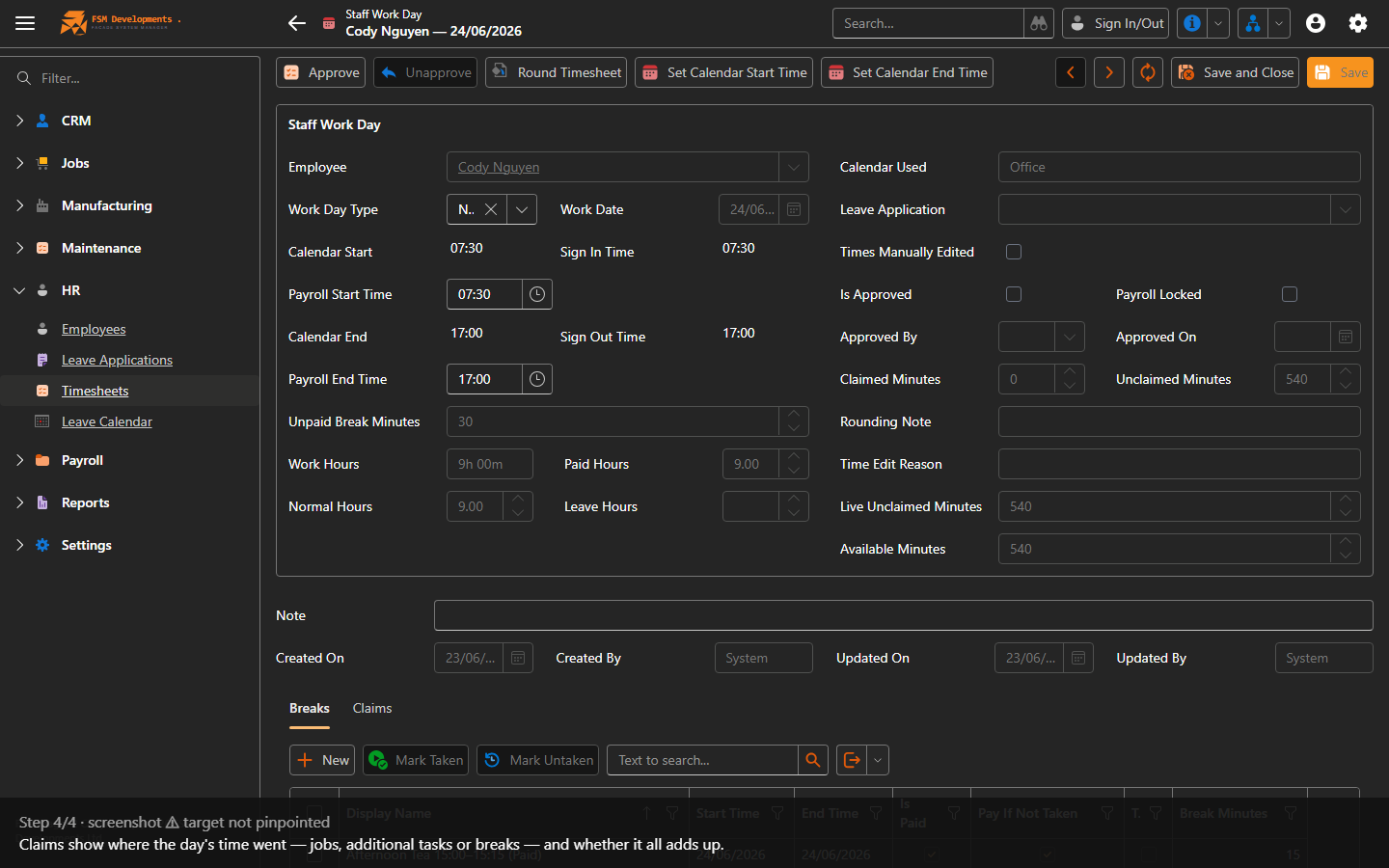
Lite+A single employee’s working day in detail — their recorded and payroll times, breaks, and the time claims that account for the day.
When to use
To check or correct one person’s day before approving it.
Step by step
The day’s toolbar tools
The toolbar on a day has a few supervisor shortcuts for tidying the payroll times before you approve:
- Round Timesheet — rounds the day’s payroll start/end to your rounding rules in one click.
- Set Calendar Start Time / Set Calendar End Time — snap the payroll times to the employee’s rostered calendar times, rather than typing them.
- Unapprove — reopen a day that’s already been approved so it can be corrected, then approve it again.
These act on the payroll times, not the kiosk-recorded Sign In/Out — the recorded times are always kept so you have the original to compare against.
Last updated on