Skip to Content

Add an employee

Lite+

Creates a staff record — their details, where they work, what they’re allowed to do, and how they’re paid.

When to use

Onboarding a new staff member.

Step by step
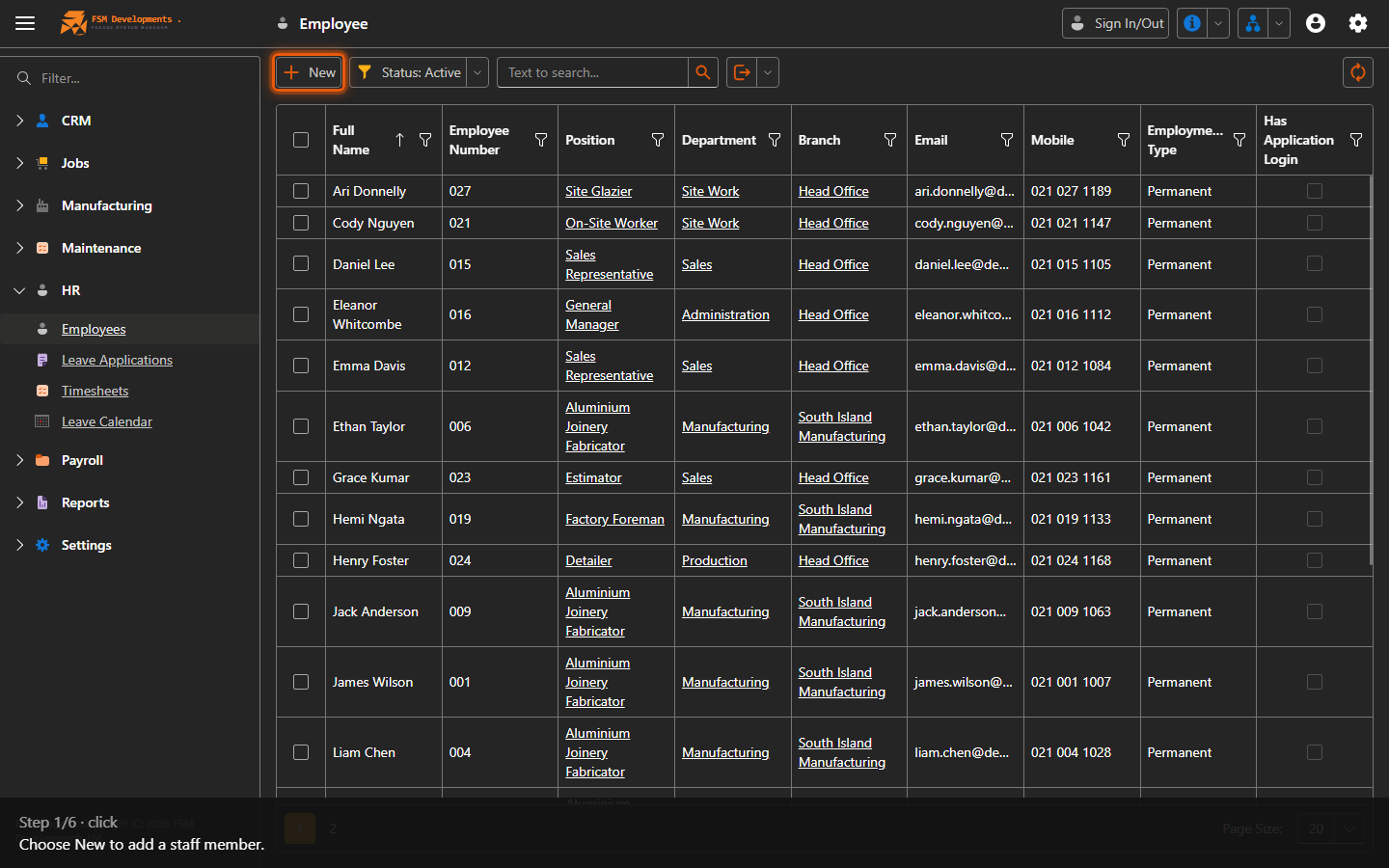
New (toolbar button)
1. Choose New to add a staff member.
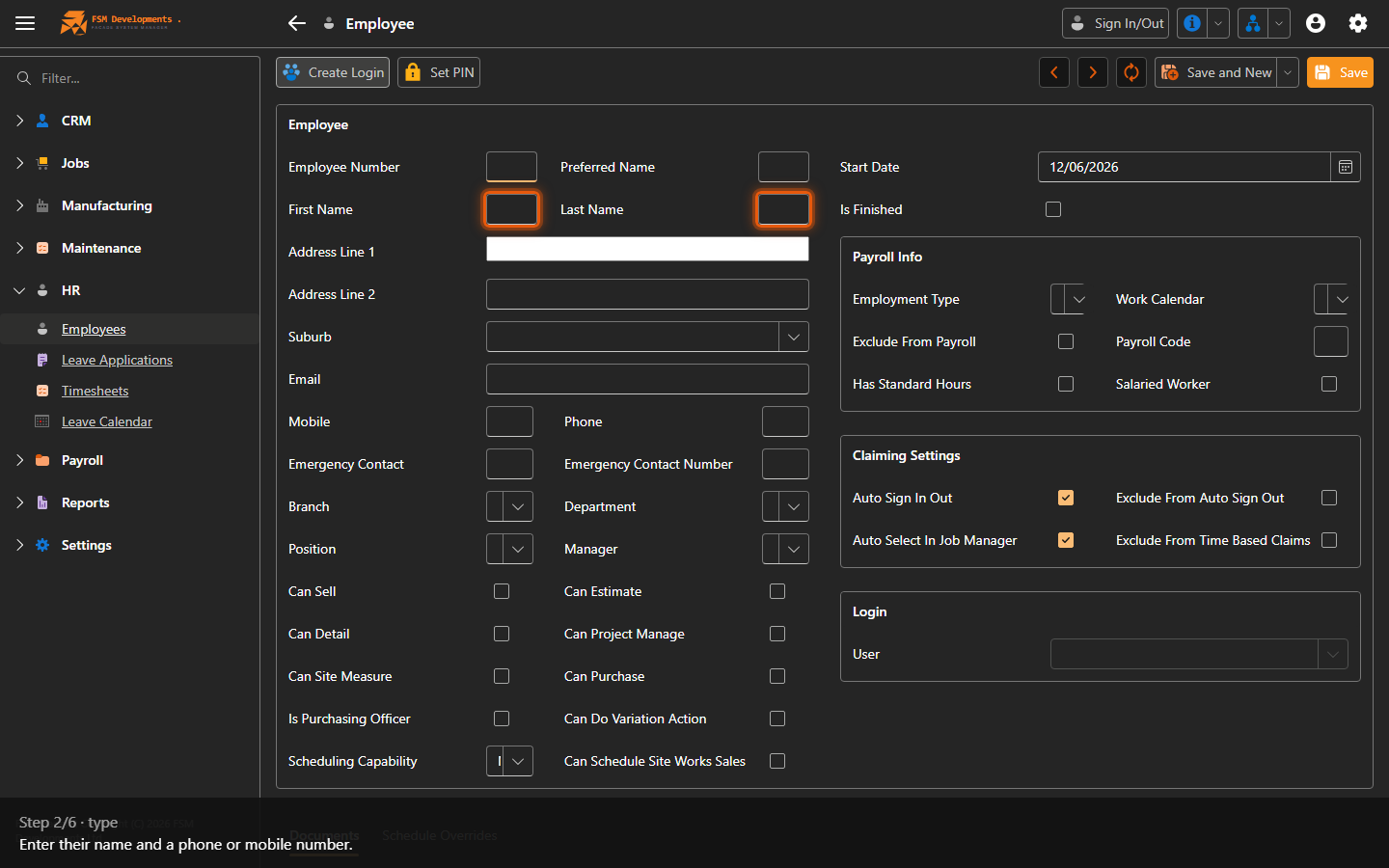
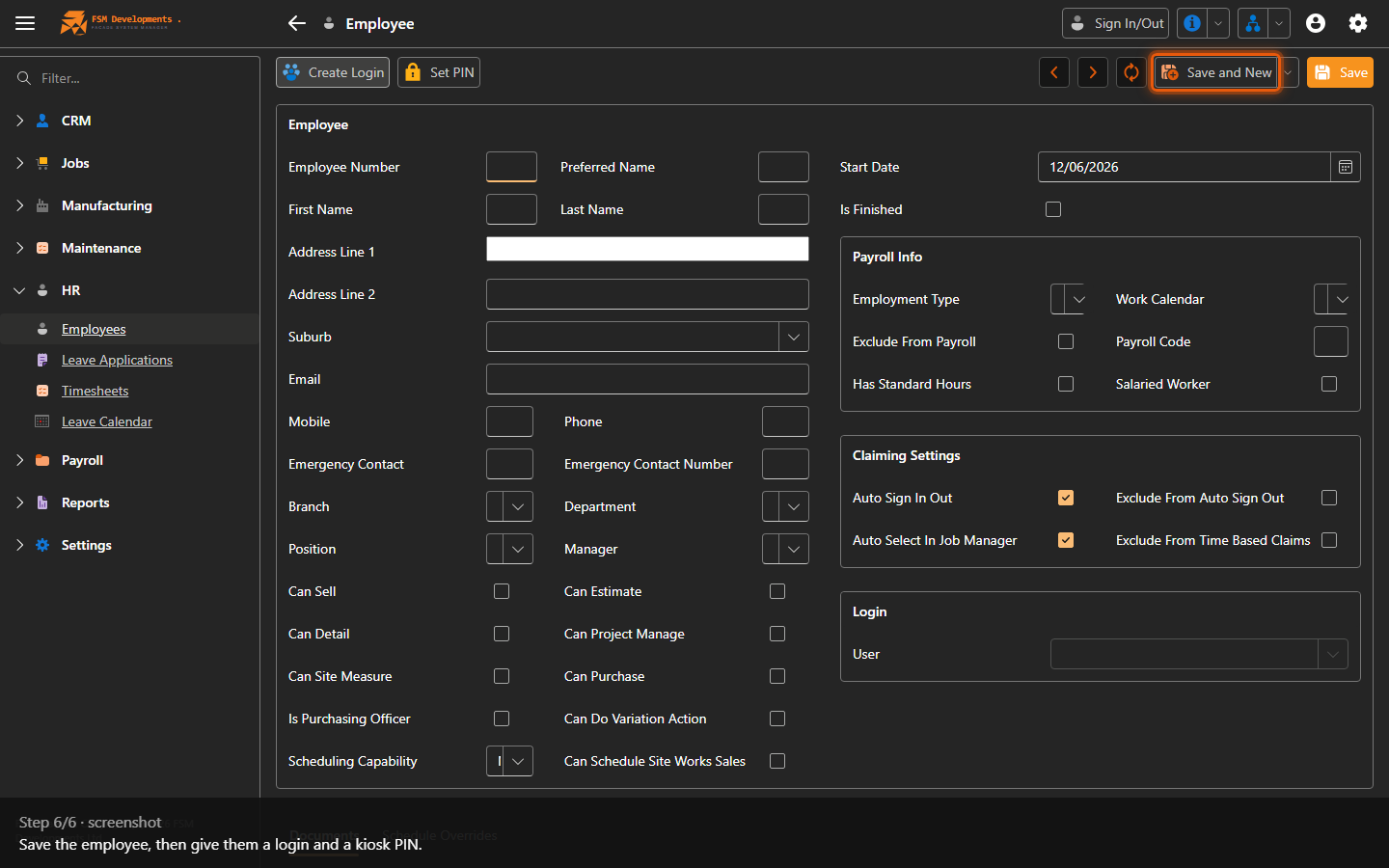
First Name / Last Name (textboxes)
2. Enter their name and a phone or mobile number.
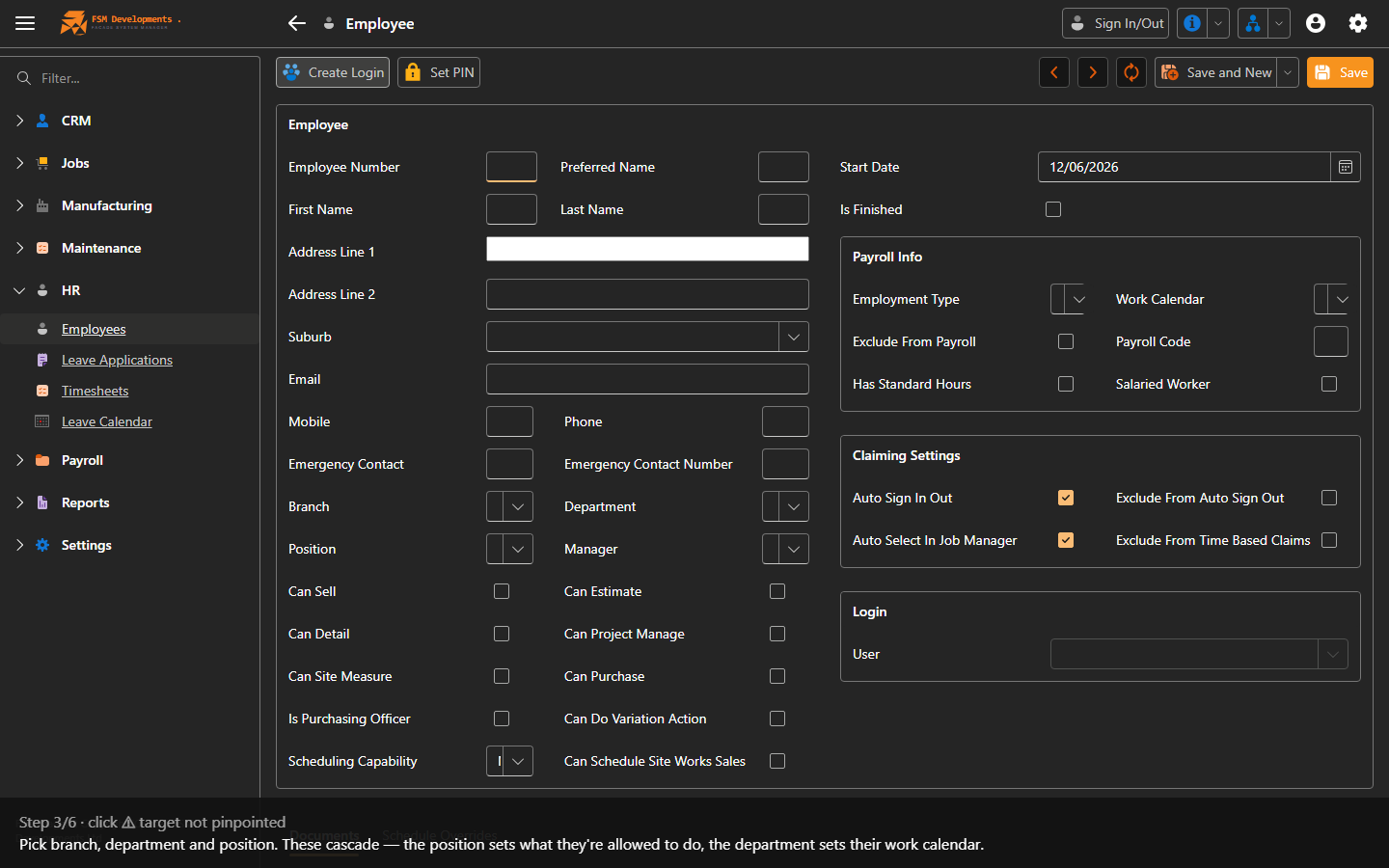
Branch → Department → Position (comboboxes)
3. Pick branch, department and position. These cascade — the position sets what they're allowed to do, the department sets their work calendar.
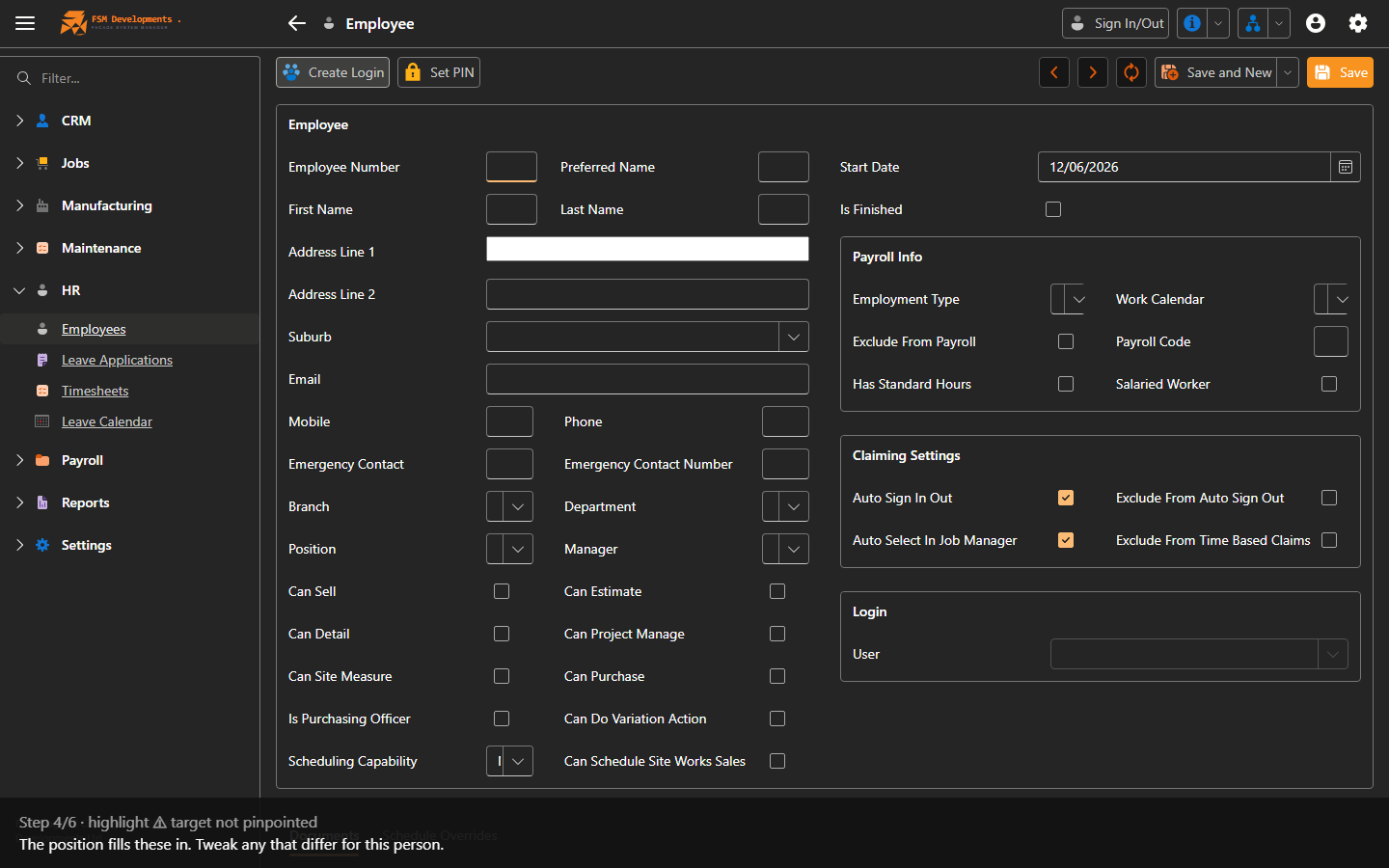
Capability flags (CanSell, CanEstimate, CanSiteMeasure…)
4. The position fills these in. Tweak any that differ for this person.
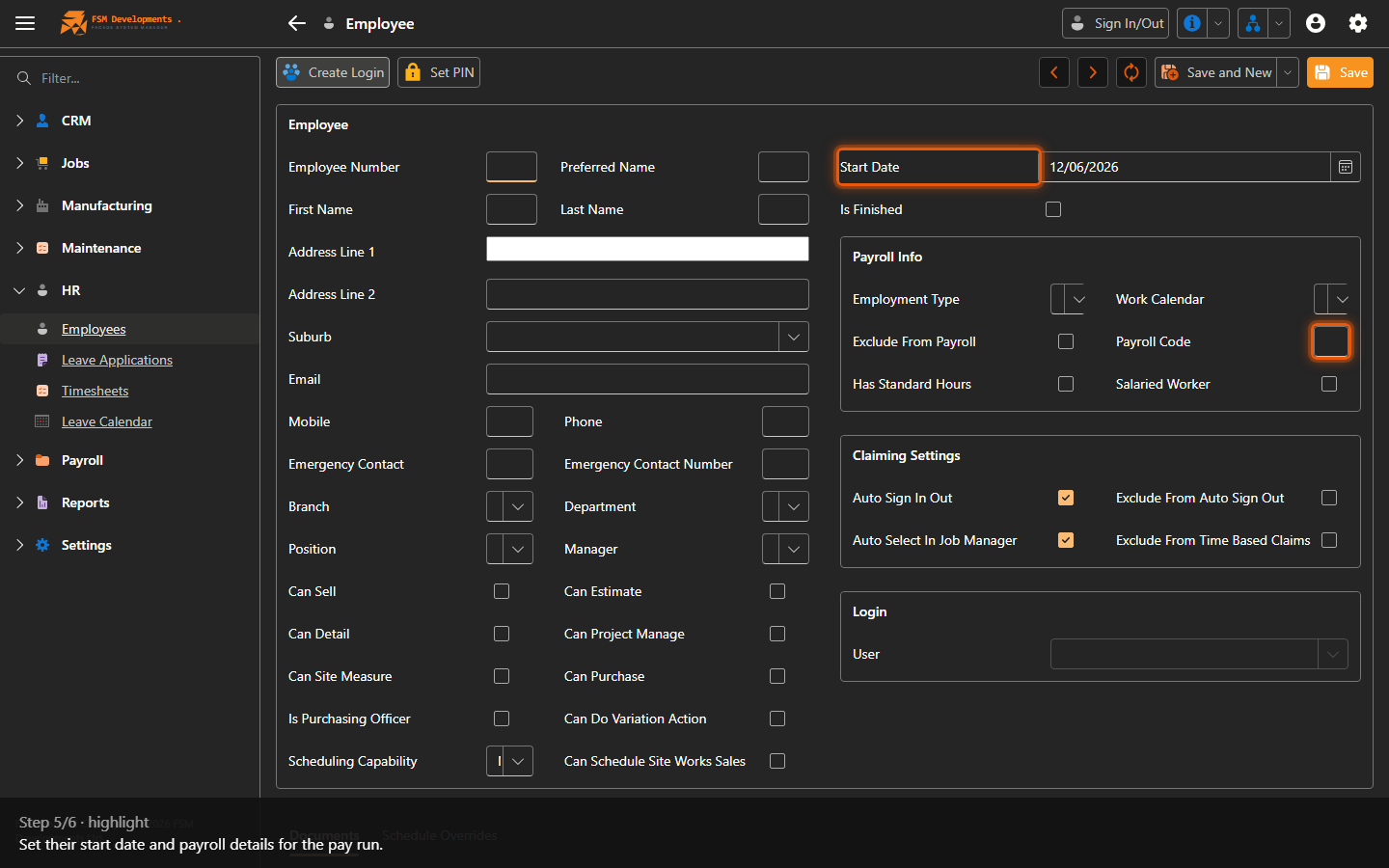
Start Date / Payroll Code
5. Set their start date and payroll details for the pay run.
Save (toolbar button)
6. Save the employee, then give them a login and a kiosk PIN.
Last updated on