Skip to Content

The dashboard

Lite+

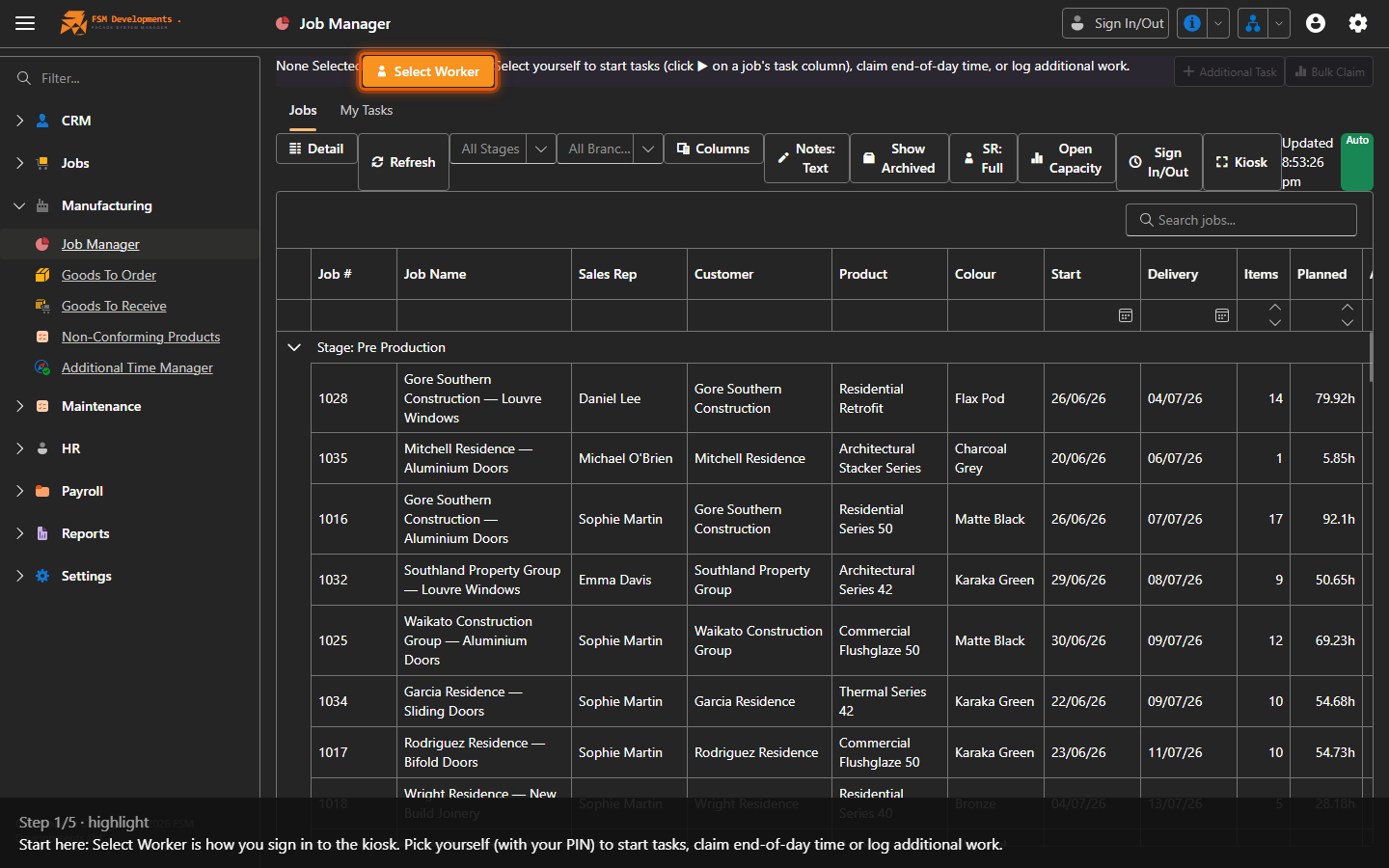
The Job Manager is the shop-floor dashboard: every job part in production, grouped by stage, with its product, colour, dates, item count and planned hours. Workers sign in with Select Worker (and their PIN) to start and stop tasks, claim time and log additional work. Filters, columns and a Kiosk mode tailor it to the team and the screen.

Step by step
Select Worker (toolbar button)
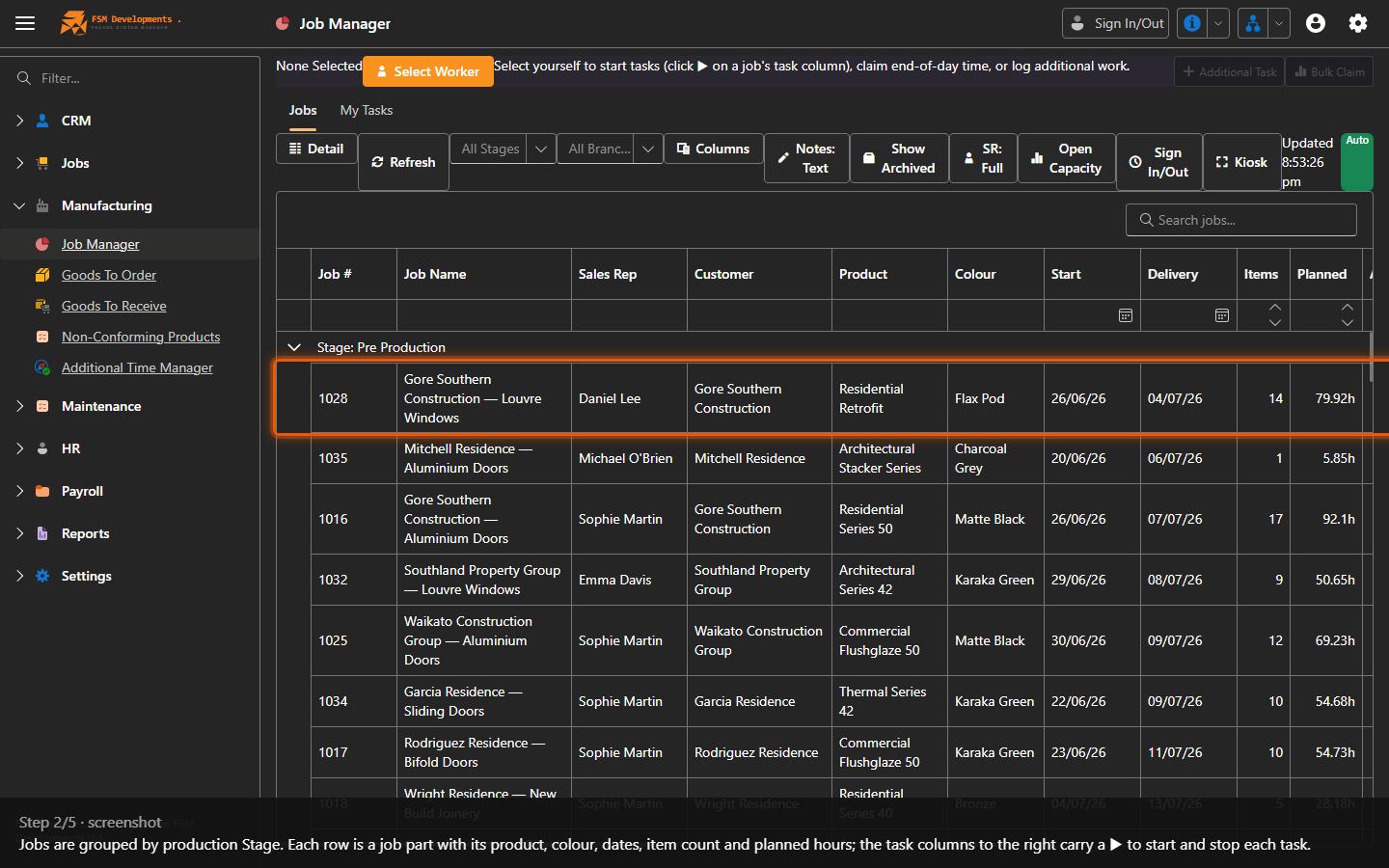
1. Start here: Select Worker is how you sign in to the kiosk. Pick yourself (with your PIN) to start tasks, claim end-of-day time or log additional work.
Jobs grid grouped by Stage (Job #, Job Name, Customer, Product, Colour, Start, Delivery, Items, Planned hours)
2. Jobs are grouped by production Stage. Each row is a job part with its product, colour, dates, item count and planned hours; the task columns to the right carry a ▶ to start and stop each task.
All Stages / All Branches
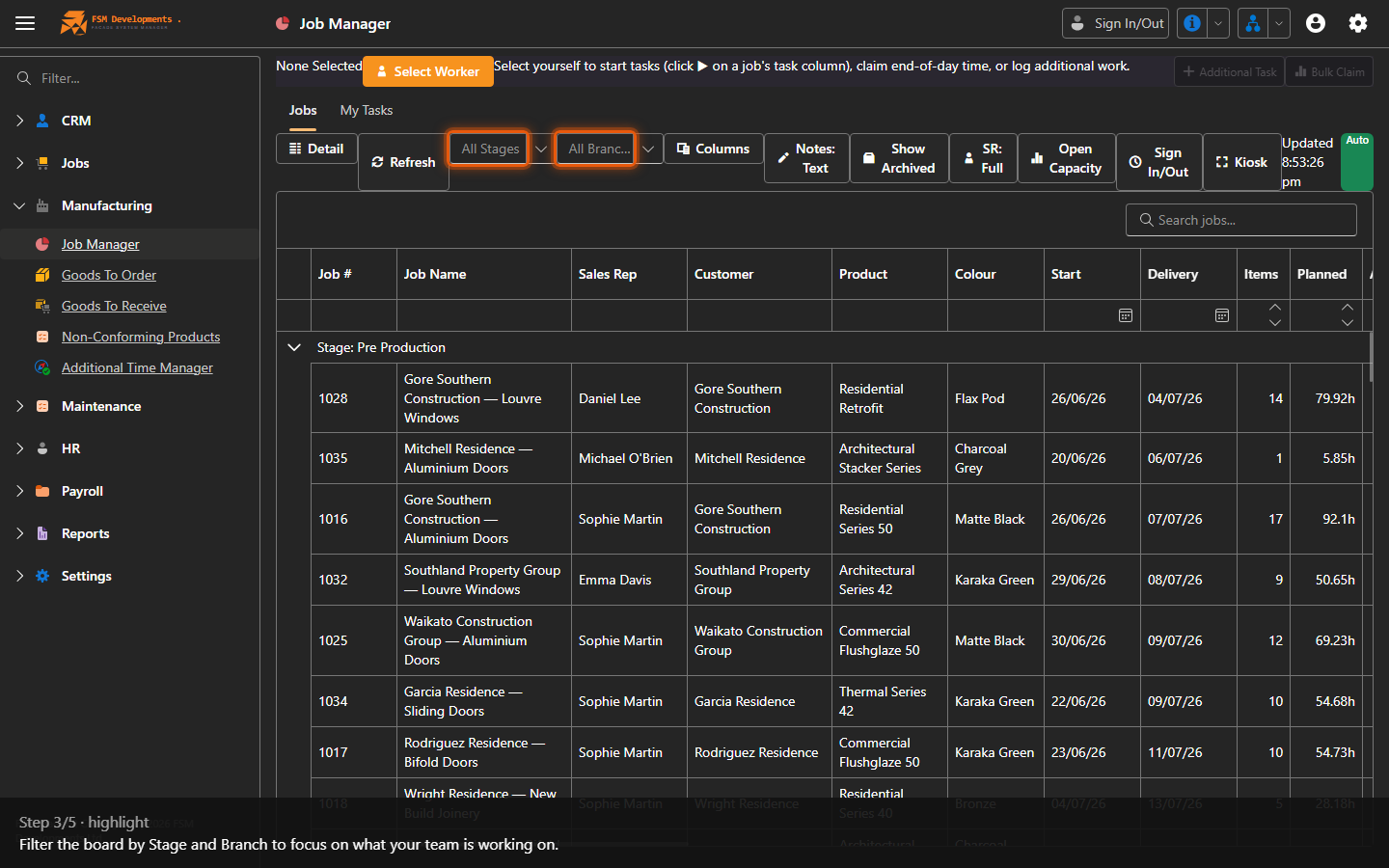
3. Filter the board by Stage and Branch to focus on what your team is working on.
Detail / Columns / Show Archived
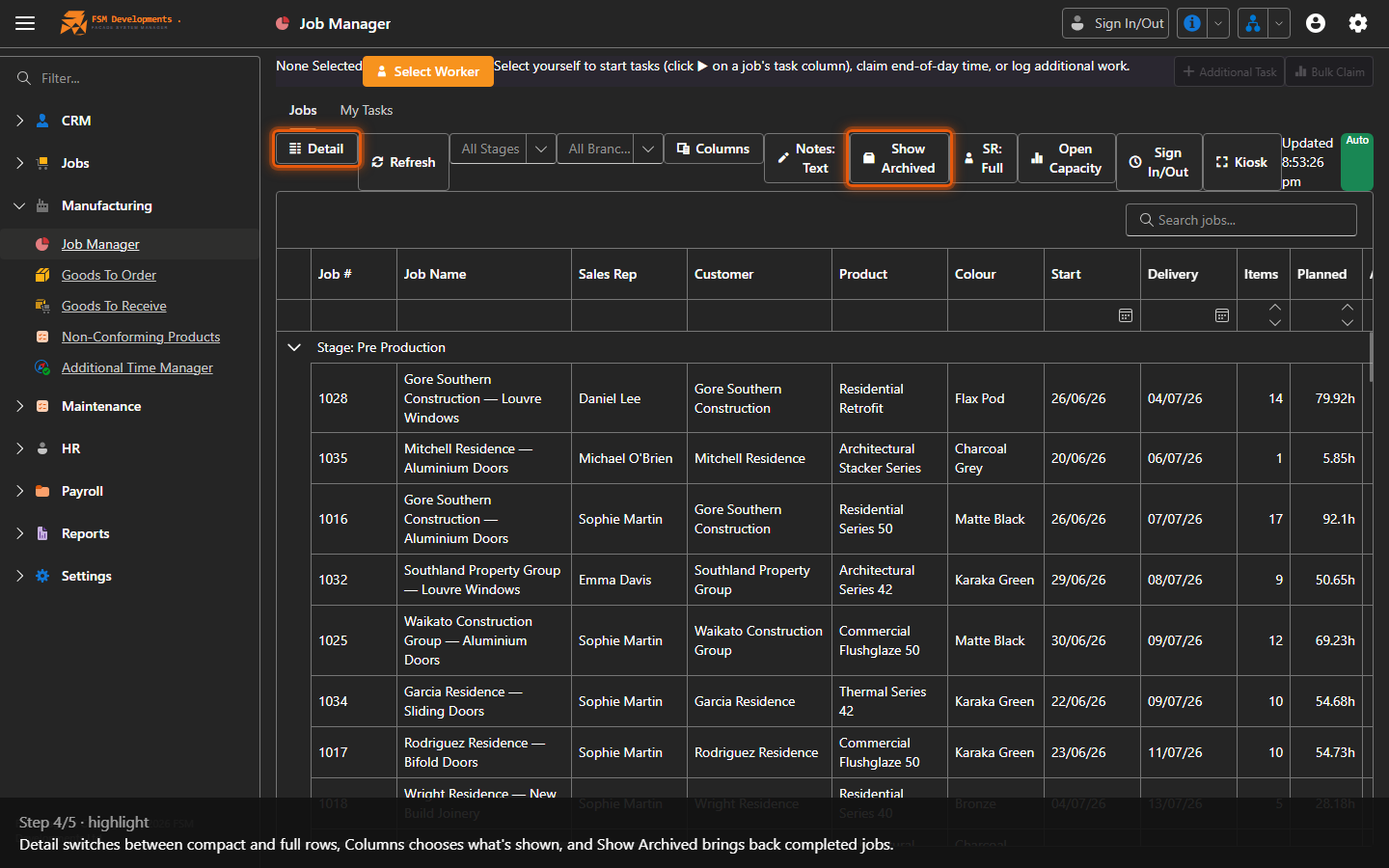
4. Detail switches between compact and full rows, Columns chooses what's shown, and Show Archived brings back completed jobs.
Open Capacity / Kiosk
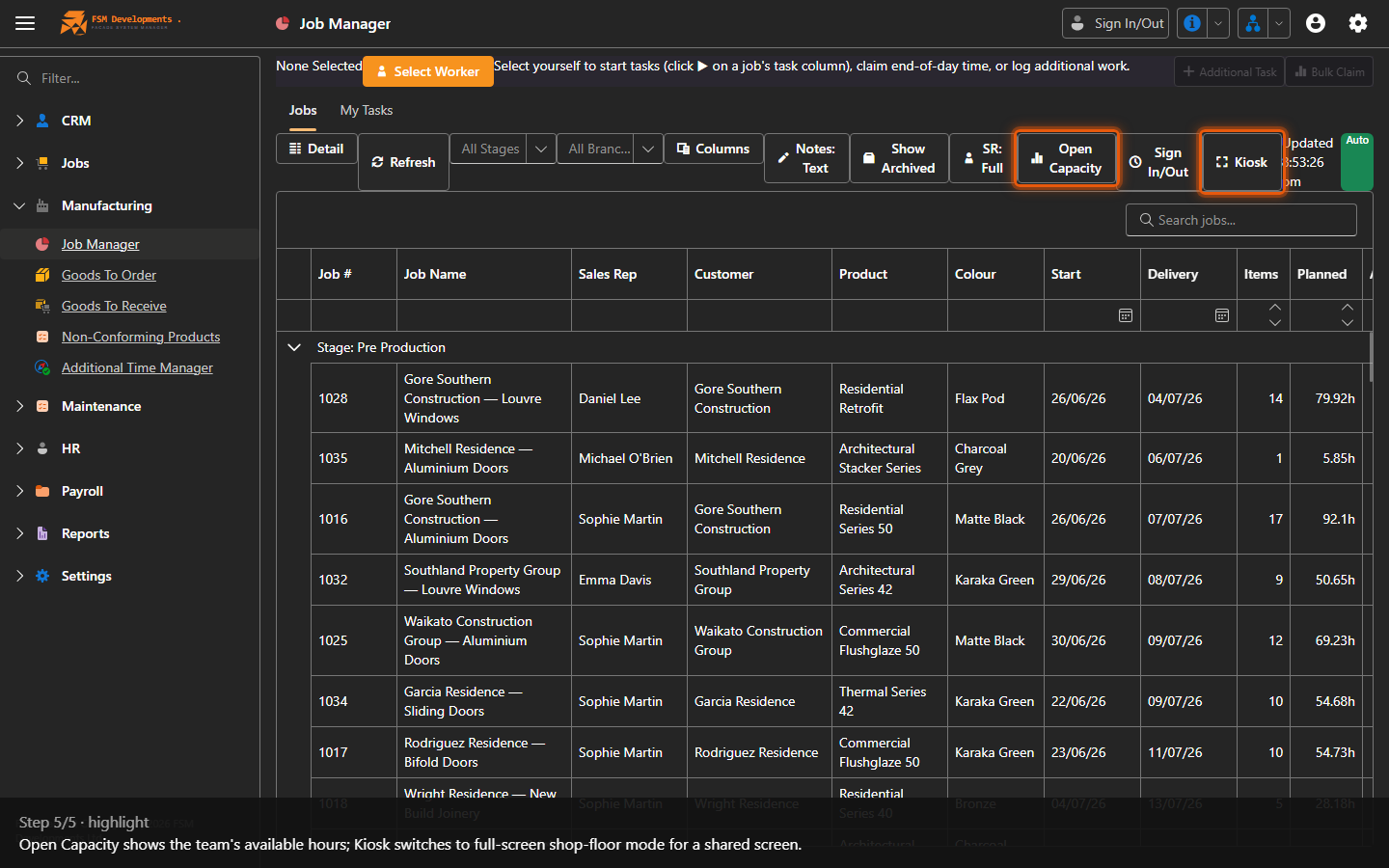
5. Open Capacity shows the team's available hours; Kiosk switches to full-screen shop-floor mode for a shared screen.
Last updated on