Skip to Content
How-to (step by step)CustomersBrowse & find customers

Browse & find customers

Lite+

The Customers list is the master grid of every customer (homeowners, builders, architects, and trade accounts) on your account. It’s the starting point for opening a customer record, checking their account type or sales rep, and finding duplicates before you merge them.

When to use

Whenever you want to look someone up — before raising an opportunity, to check who their sales rep is, or to confirm a customer already exists so you don’t create a duplicate.

Step by step
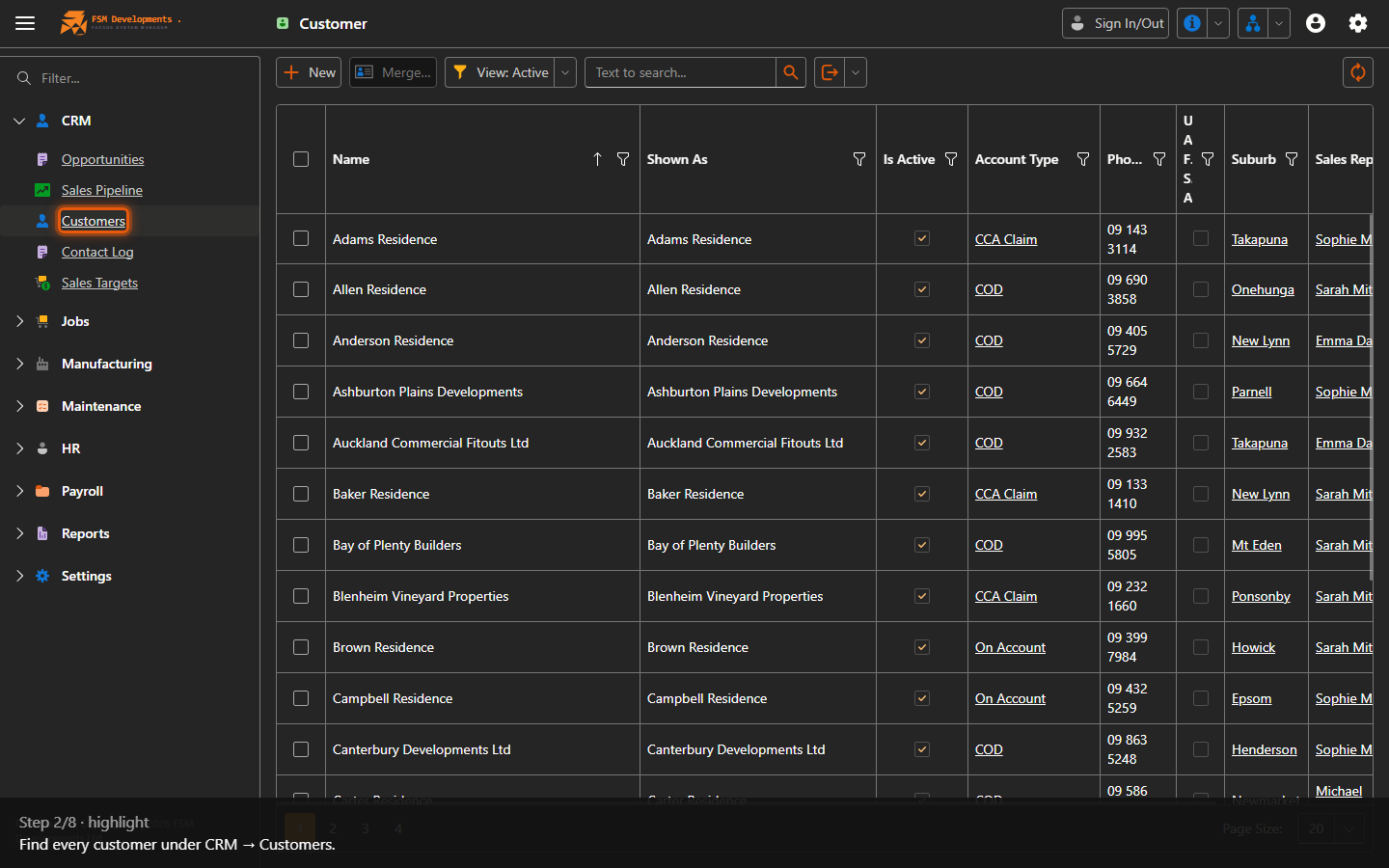
Customers (CRM navigation item)
1. Find every customer under CRM → Customers.
Customer grid (treegrid)
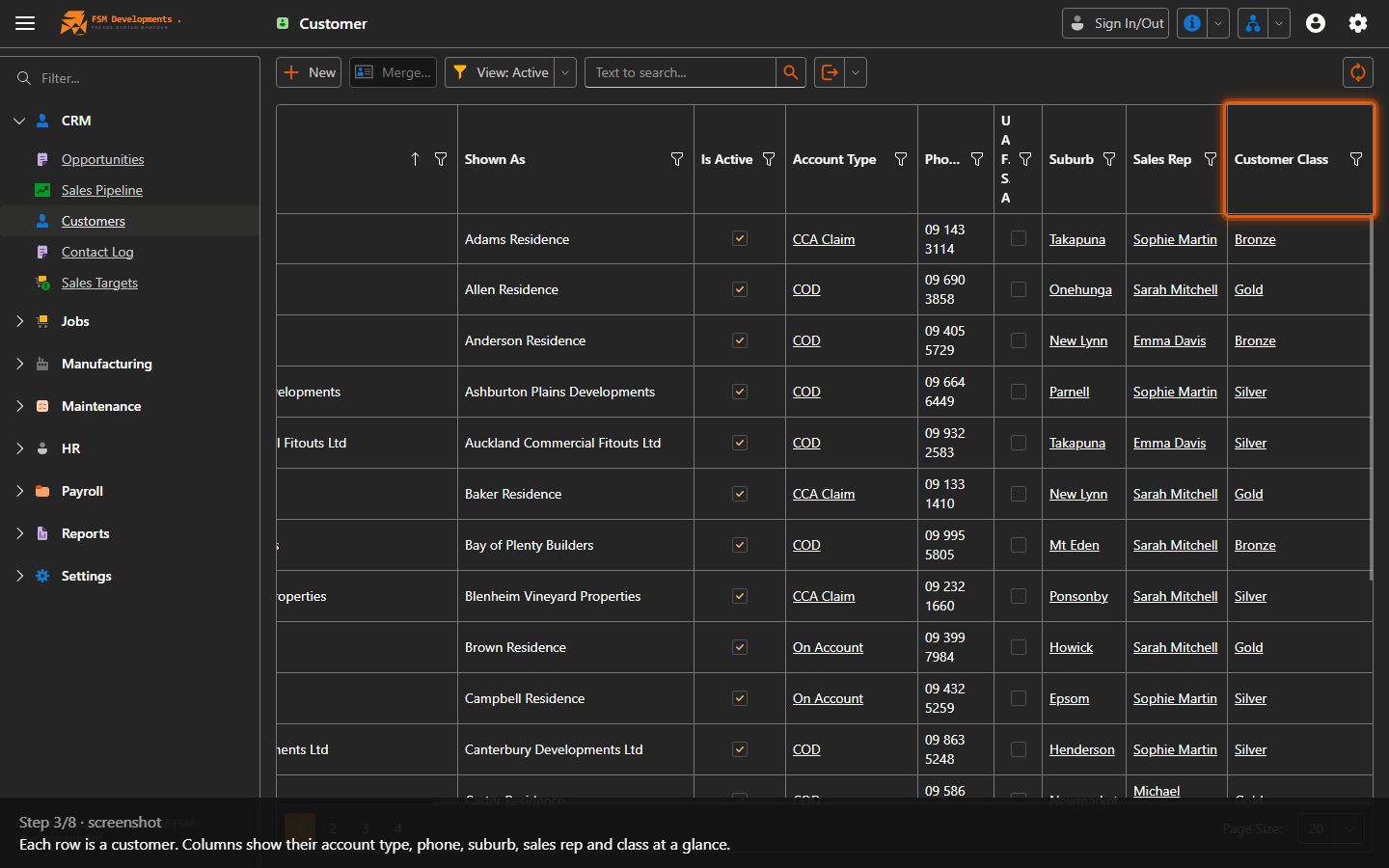
2. Each row is a customer. Columns show their account type, phone, suburb, sales rep and class at a glance.
View: Active (toolbar button)
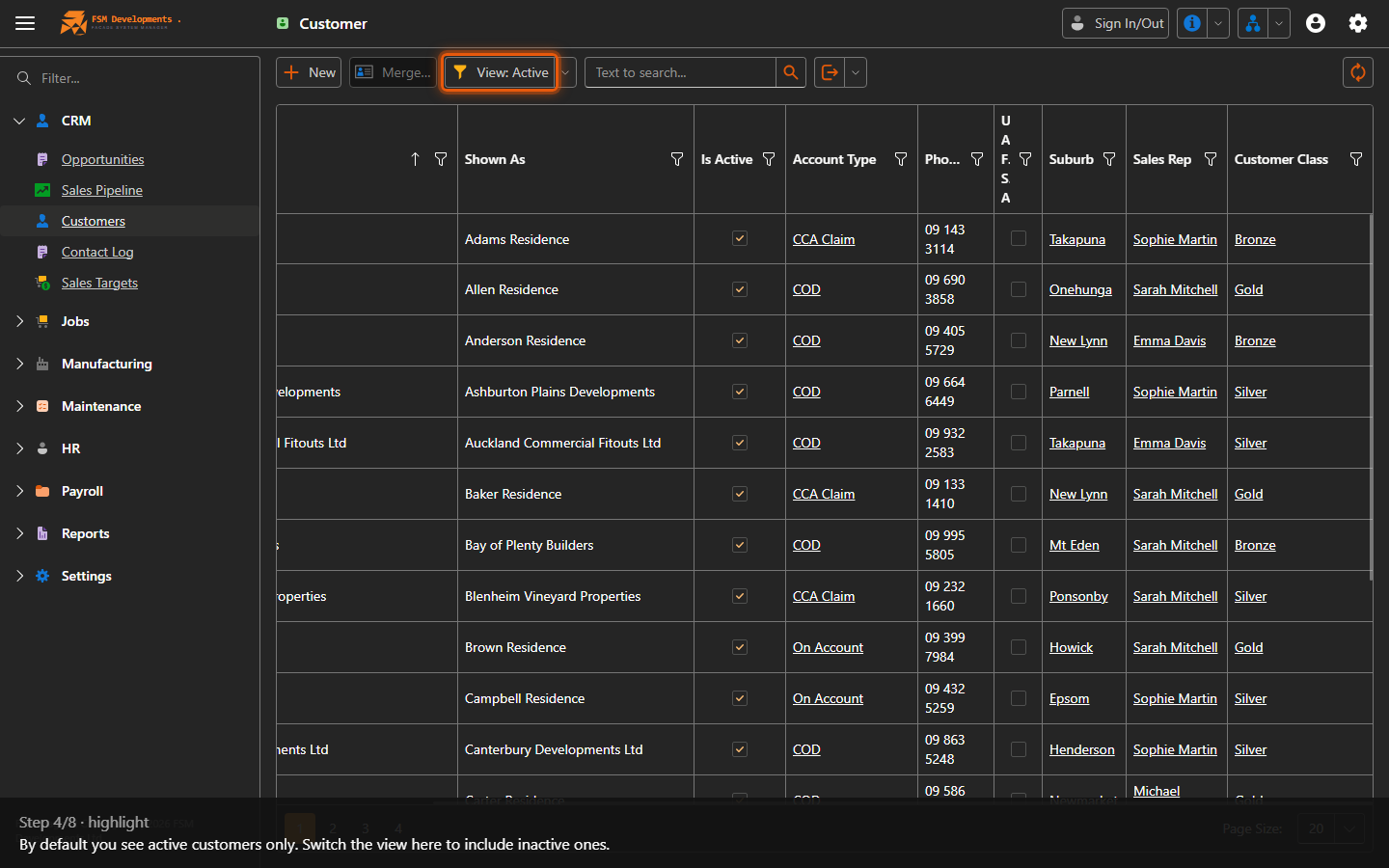
3. By default you see active customers only. Switch the view here to include inactive ones.
Filter by Text (textbox)
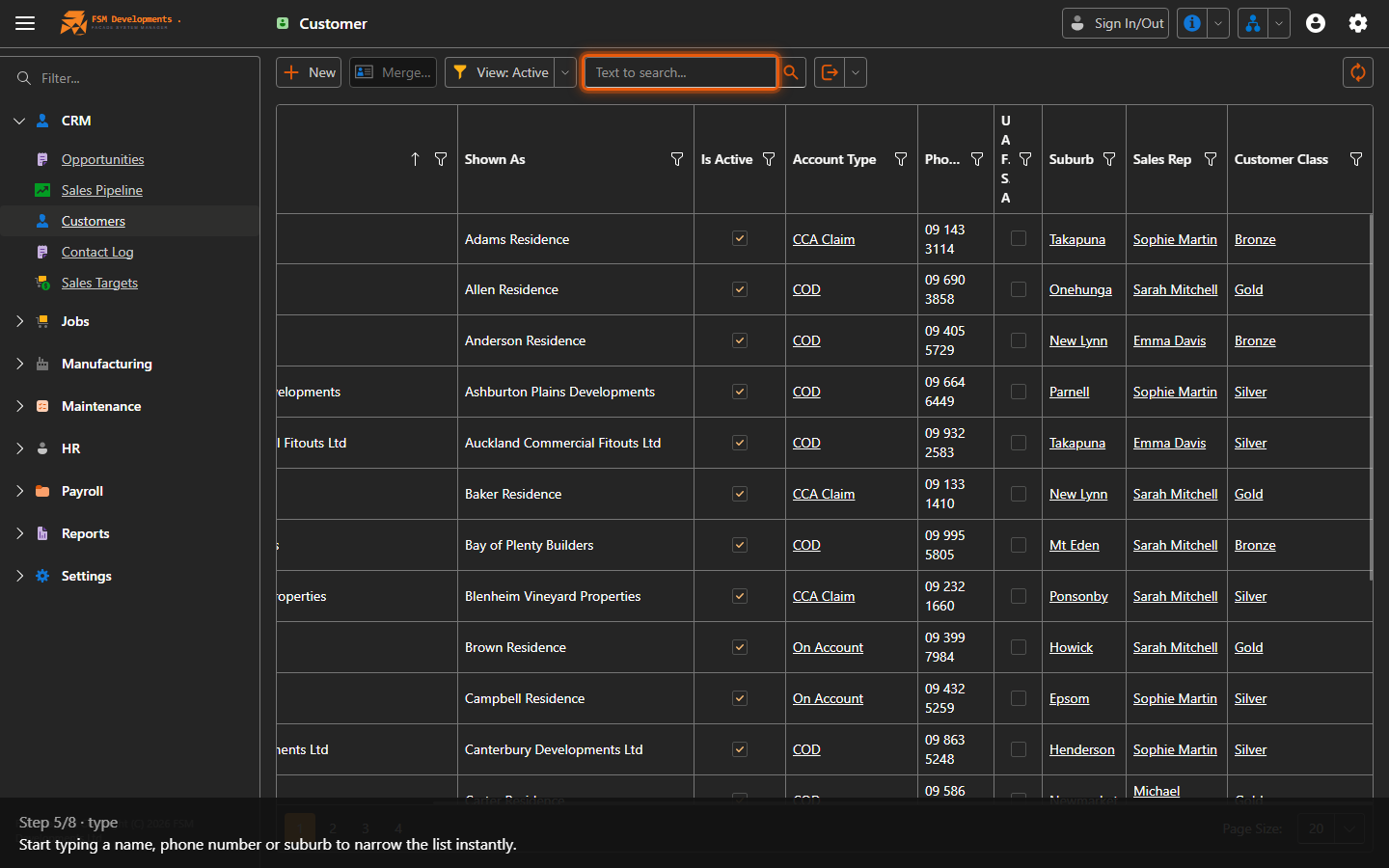
4. Start typing a name, phone number or suburb to narrow the list instantly.
Filter records by text (toolbar button)
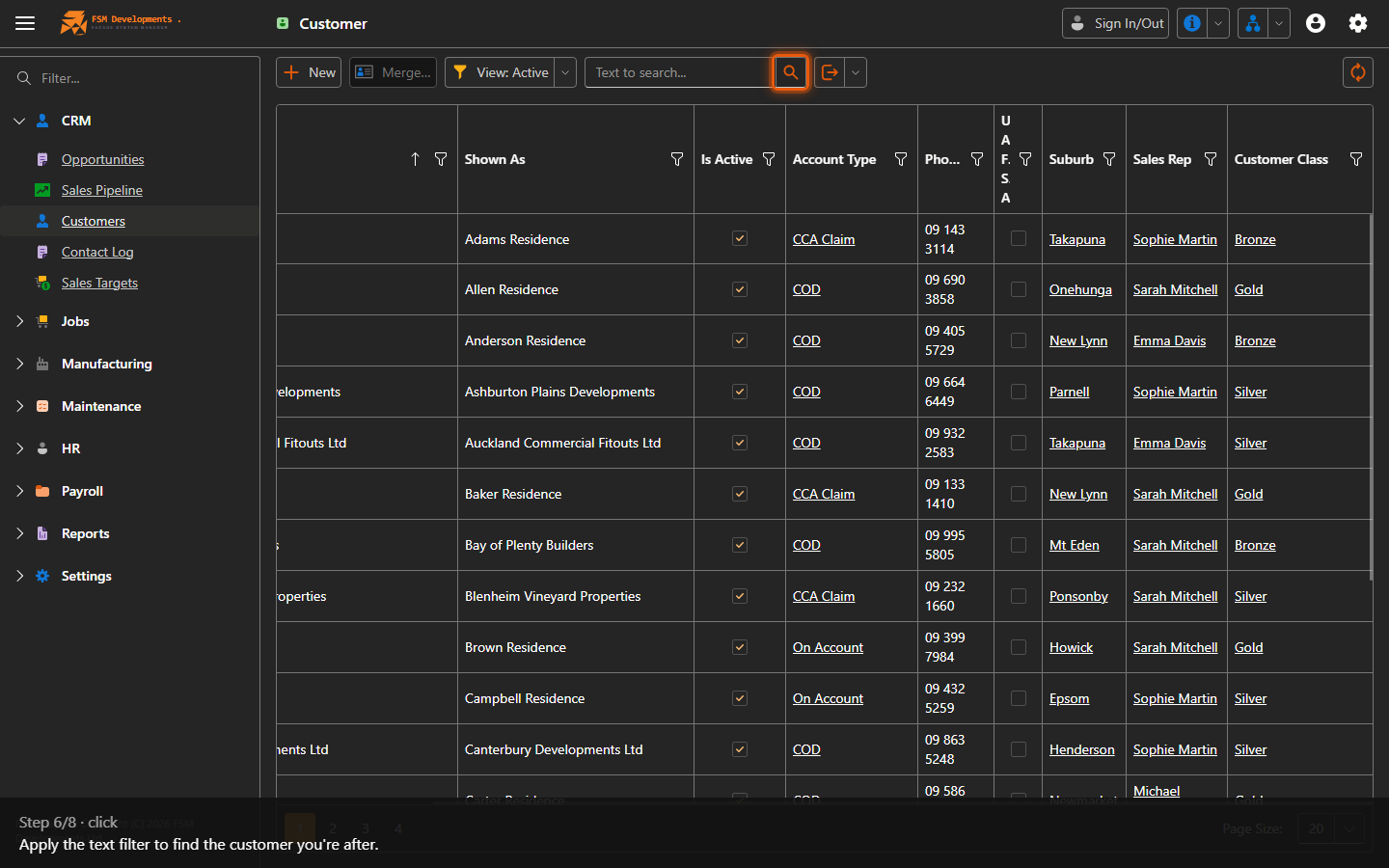
5. Apply the text filter to find the customer you're after.
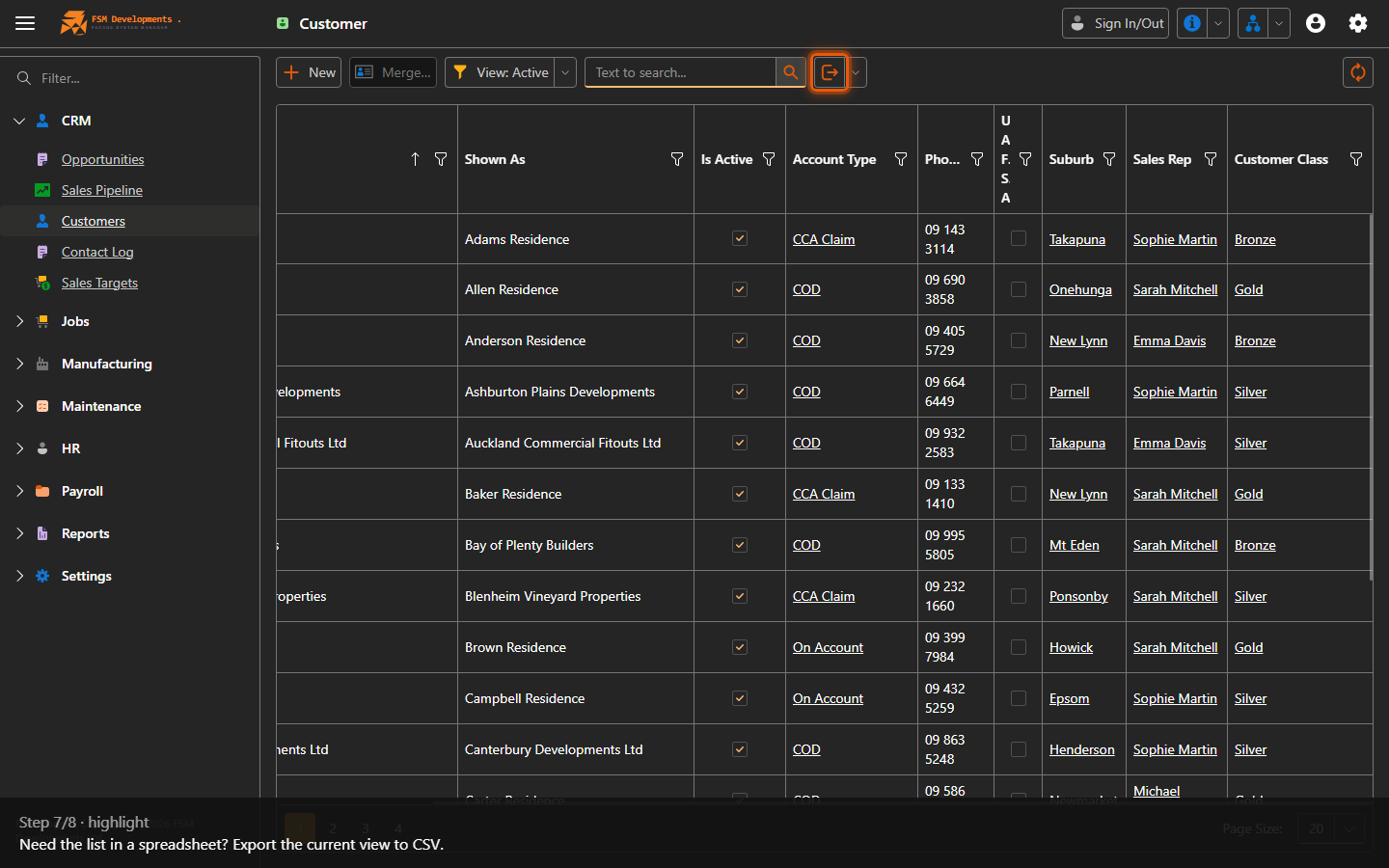
Export to CSV File (toolbar button)
6. Need the list in a spreadsheet? Export the current view to CSV.
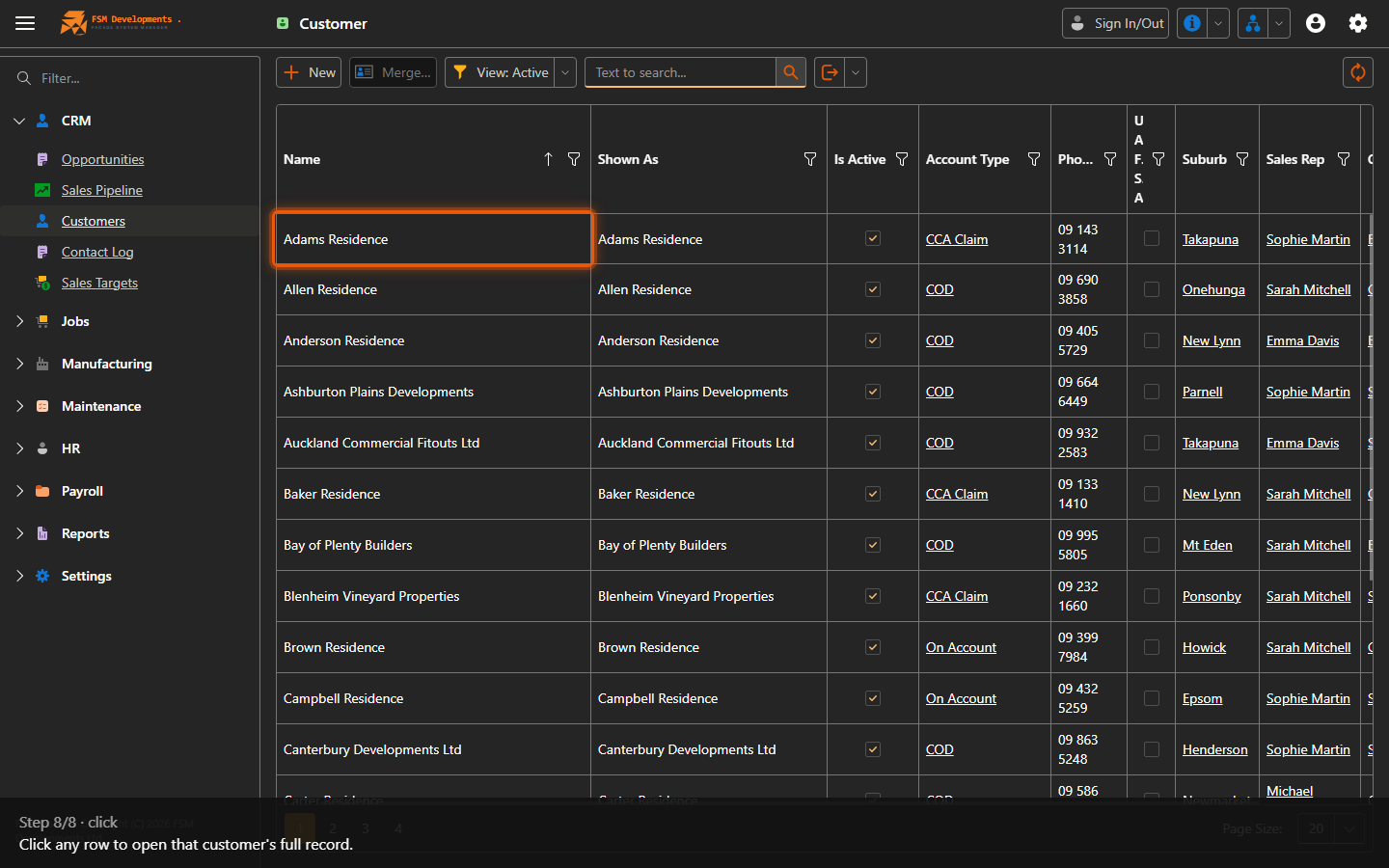
A customer row, e.g. 'Adams Residence'
7. Click any row to open that customer's full record.
Last updated on