Who can claim which tasks
Lite+Settings → Jobs → Job Settings → Task claim enforcement. The Job Manager only lets a worker clock onto tasks their department is responsible for. Everything else on the board stays visible — it’s the claim control that goes dead, not the row.
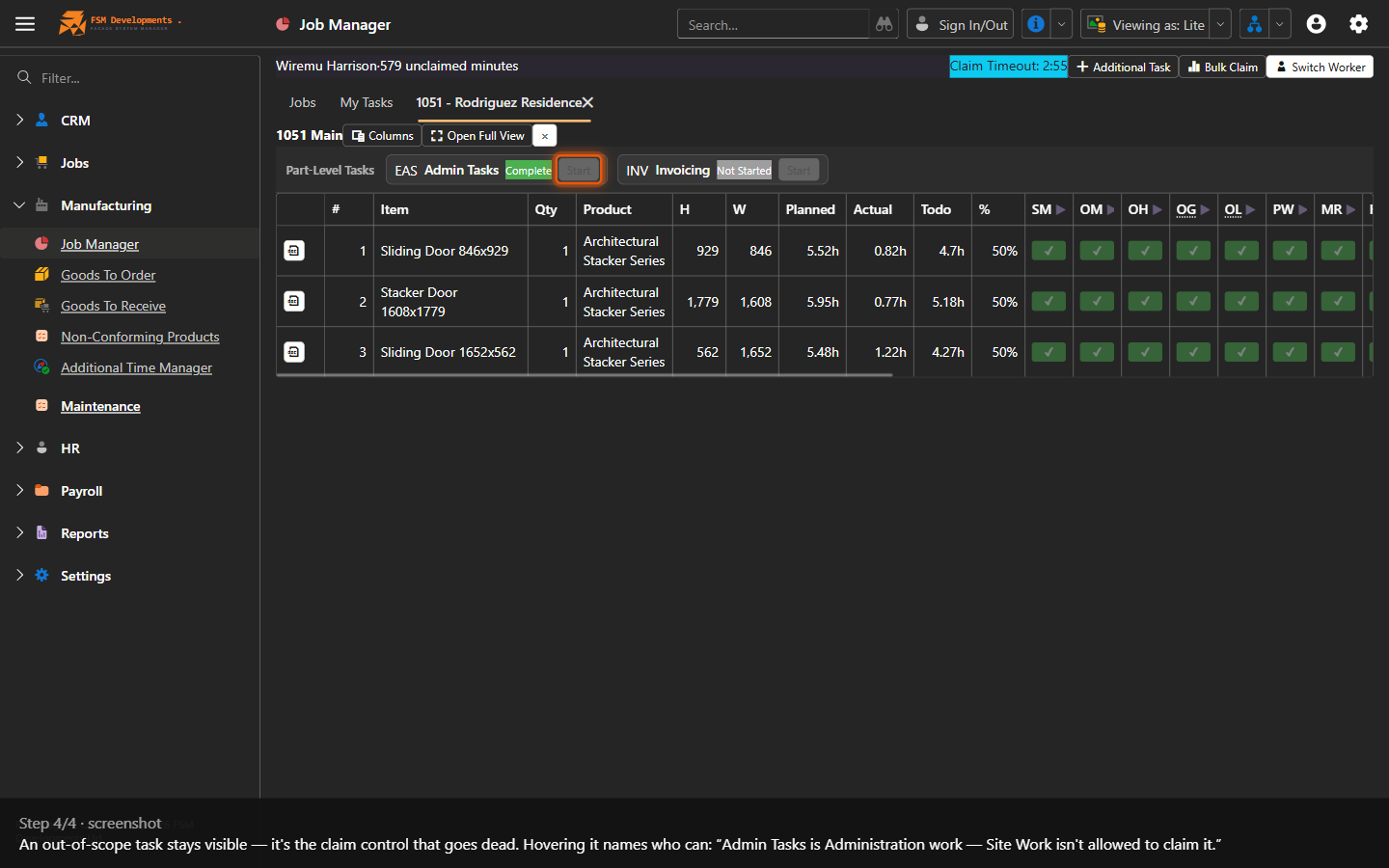
Everywhere else in FSManager, work you can’t do is work you can’t see. The Job Manager is deliberately the opposite: showing the whole factory on one board is the point of the screen. So an out-of-scope task still appears — its ▶ is greyed out, and hovering it tells you who can claim it: “Glazing is Manufacturing work — Site Work isn’t allowed to claim it.”
Worth knowing before anyone asks, because “why can I see it if I can’t press it” is the first question a foreman raises.
When to use
Setting up a new site, or working out why a worker can’t clock onto a task they believe they should be able to.
How the rules work
Four things decide it, each building on the last.
1. Every task has a responsible department
Settings → Jobs → Task Definitions → Responsible Department. If it’s blank, FSManager falls back to the department on the task’s Task Type.
All 24 seeded task definitions have one set — Glazing → Manufacturing, Order Metal → Production, Invoicing → Administration, and so on.
2. Every worker has a department
Taken from the employee record — HR → Employees → Department. It’s the same field that already drives their work calendar, productivity reporting and payroll code, so there’s nothing new to maintain.
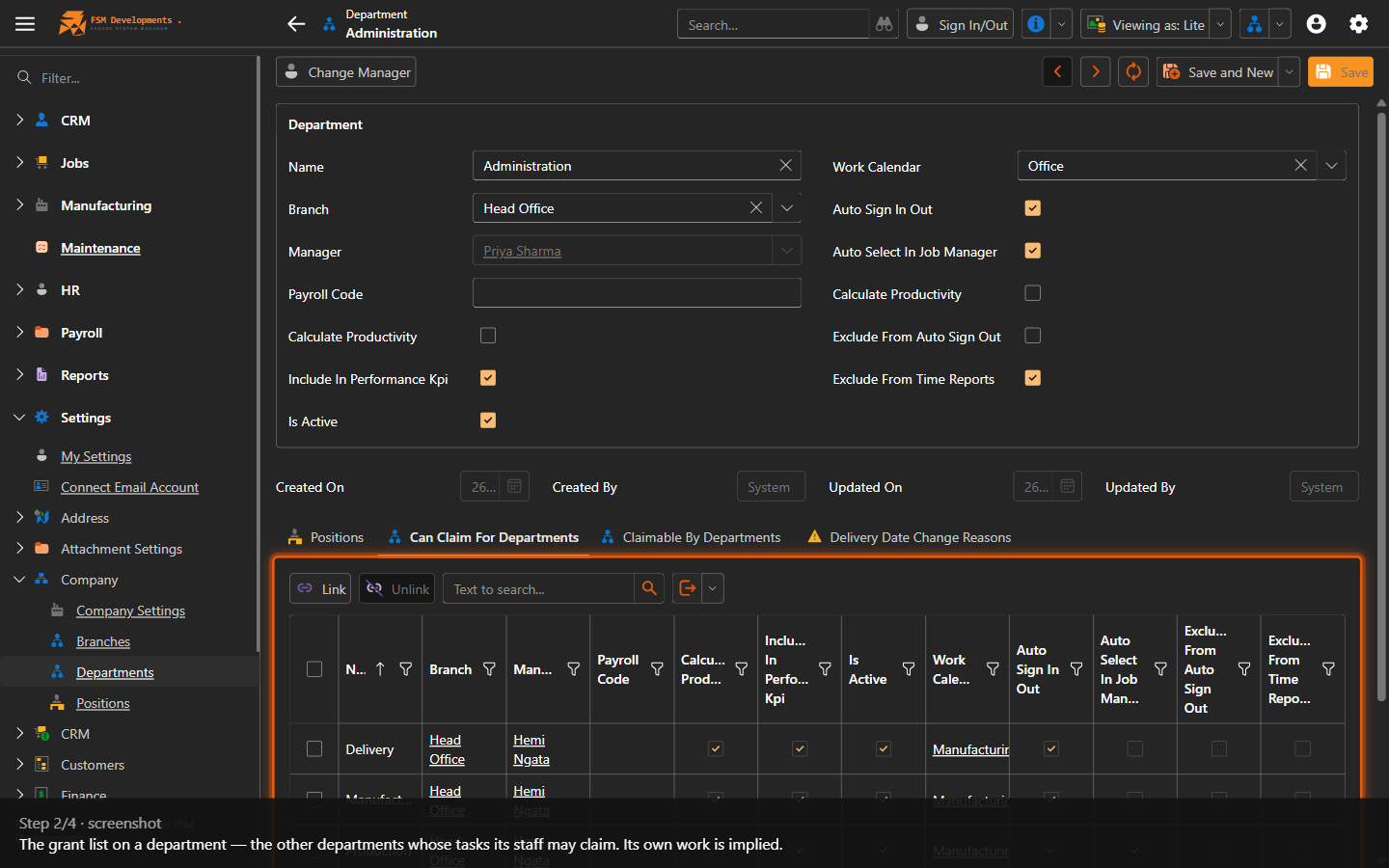
3. Departments grant each other access
Settings → Company → Departments → Can Claim For Departments. List the departments whose work this department is allowed to claim.
A department can always claim its own work. That’s automatic and never appears in the list.
4. Individual tasks can make exceptions
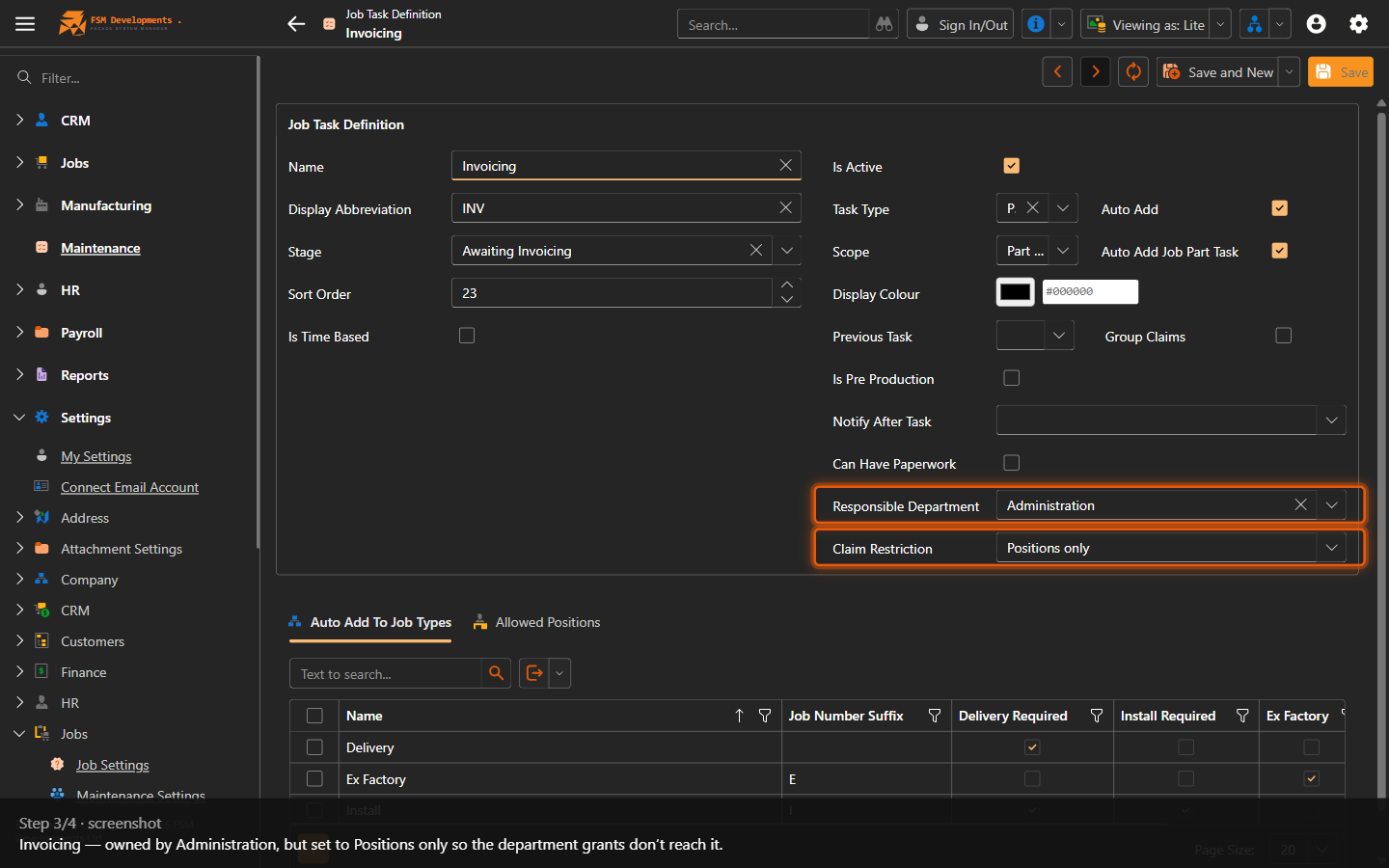
Settings → Jobs → Task Definitions → Claim Restriction has two modes:
| Claim Restriction | What it means |
|---|---|
| By department (default) | The department grants apply, and anyone holding a position listed under Allowed Positions can claim it as well. |
| Positions only | The grants are ignored entirely — only the listed positions can claim it. Use this to lock a task down tighter than its department would allow. |
What ships configured
| A worker in… | can claim work owned by… |
|---|---|
| Administration | every department |
| Production | every department |
| Sales | Administration |
| Manufacturing | Manufacturing, Delivery, Site Work |
| Delivery | Delivery, Manufacturing, Site Work |
| Site Work | Site Work only |
Plus two deliberate exceptions, one of each kind:
- Site Measure — an Administration task that additionally allows the Project Manager position, because project managers sit in Site Work and genuinely do site measures.
- Invoicing — set to Positions only for Office Administrator, Management Accountant and General Manager. Sales is granted Administration so reps can claim the site measure on their own jobs; this stops that also handing them Invoicing.
Turning it on, off, or down
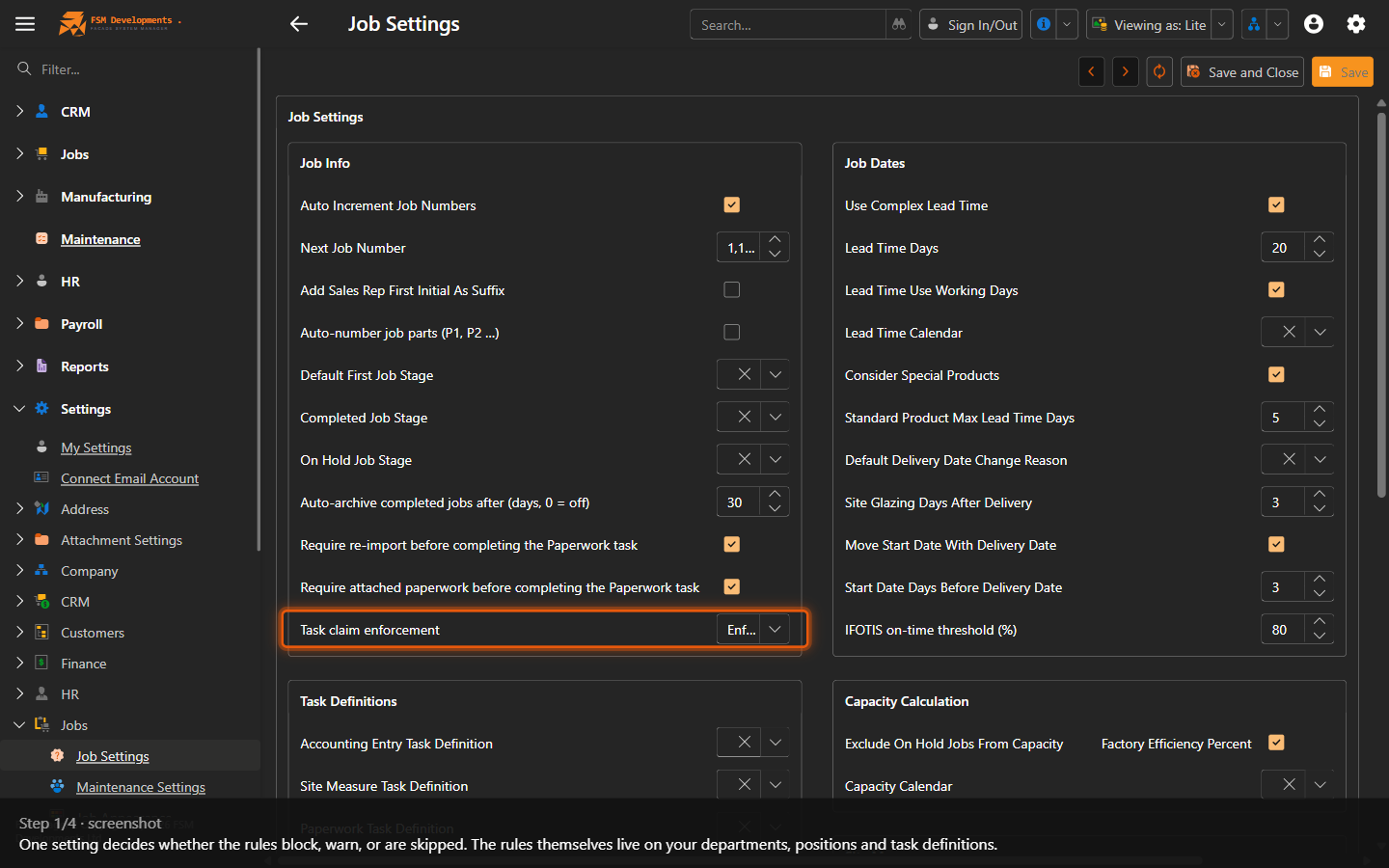
Settings → Jobs → Job Settings → Task claim enforcement.
| Mode | What happens |
|---|---|
| Enforce (default) | Out-of-scope tasks stay visible but can’t be claimed — on the board, in bulk claim, and in the per-item claim paths. |
| Warn | Nothing is greyed out and every claim goes through, but claims that break the rules are stamped with the reason and listed on the Claims Outside Scope report. |
| Off | The rules aren’t applied at all. |
On an existing site, run Warn first. Give it a couple of weeks, then read the Claims Outside Scope report. Each row is either configuration to fix or a genuine exception that needs an Allowed Position. Switch to Enforce once the list is clean, and nobody gets locked out on the Monday morning.
Reviewing out-of-scope claims
Reports → Manufacturing → Claims Outside Scope. Administrators only.
While enforcement is set to Warn, every claim that breaks the department rules is allowed through and recorded — who claimed it, which task, and the reason it was out of scope. The report lists them over a date range you choose, defaulting to the last 30 days. Running a report is the same as any other — see Run a report.
This is what makes Warn → review → Enforce a safe rollout rather than a guess. Work down the report and each row resolves one of two ways:
| What the row shows | What to do |
|---|---|
| A worker filed under the wrong department, a task pointed at the wrong responsible department, or a missing grant | Fix the configuration |
| A genuine cross-department exception — someone who really does need to claim that task | Add an Allowed Position on the task definition |
Once the report comes back clean, switch to Enforce.
An empty report means two opposite things, so it tells you which. Empty on Enforce or Off is empty by construction — the claim was refused, so there was never anything to record. Empty on Warn means your configuration already matches how people actually work. The report says which case you’re in rather than showing a blank page.
The reason is stored as it was at the time, not recalculated when you open the report — an audit row still has to explain itself after you’ve re-tuned the departments, which is exactly what reviewing this report leads you to do. The records are historical: switching to Enforce stops new ones being written, but never clears the ones already there.
When a worker can’t claim something they should
Work through these in order — it’s the order that resolves fastest.
- Read the tooltip on the greyed-out button. It names the task’s owning department and the worker’s own, which usually identifies the problem on its own.
- Check the worker’s department — HR → Employees. A worker filed under the wrong department is the most common cause by a distance. A worker with no department can’t claim anything that has a responsible department.
- Check the task’s Responsible Department — Settings → Jobs → Task Definitions.
- Add the grant — Settings → Company → Departments → Can Claim For Departments, if the two departments genuinely should work on each other’s tasks.
- Add an Allowed Position on that one task, if it’s a one-off rather than a general rule.
- Last resort: Can Claim Any Task on the worker’s position (Positions). It overrides everything, including Positions-only tasks.
Things that surprise people
Being a manager grants nothing. A Factory Foreman is Is Manager, but that’s scoped to the factory — they still can’t claim Admin Tasks or Invoicing. Nobody is seeded with a blanket override.
Can Claim Any Task is on the position, not the employee. It affects everyone holding that position, and the Job Manager never displays a worker’s position — so when it “doesn’t work”, the usual cause is ticking it on a different position from the one the worker actually holds.
A task with no responsible department can be claimed by anyone. That’s deliberate: an incomplete setup must never stop the factory working. It’s also the first thing to check when a task looks ungoverned.
The rules aren’t tied to system logins. They follow the worker selected on the Job Manager, so they apply to floor staff who have no FSManager login at all. That’s why the settings live under Departments and Positions rather than under users and security.
Sales staff can claim Site Measure. Not a bug — Sales is granted Administration so reps can claim the site measure on their own jobs.
What the rules don’t cover
- Additional Task claims. Only job task claims are governed — see Claim & progress work.
- Marking a task complete. Only claiming time against it is governed.
- Visibility. The rules never restrict what a worker can see, anywhere.
Related
- Claim & progress work — the board itself
- Bulk claim time — the same rules apply
- Branches, Departments & Positions
- Job Settings reference
- Run a report — for the Claims Outside Scope report