Skip to Content

Price & send

Lite+

The sales step: review the estimator’s draft, tweak the markup, then put the quote document in front of the customer.

Sending the quote to the customer with Send Documents.

When to use

A revision has been estimated (Draft) and you’re ready to price it and send it.

Step by step
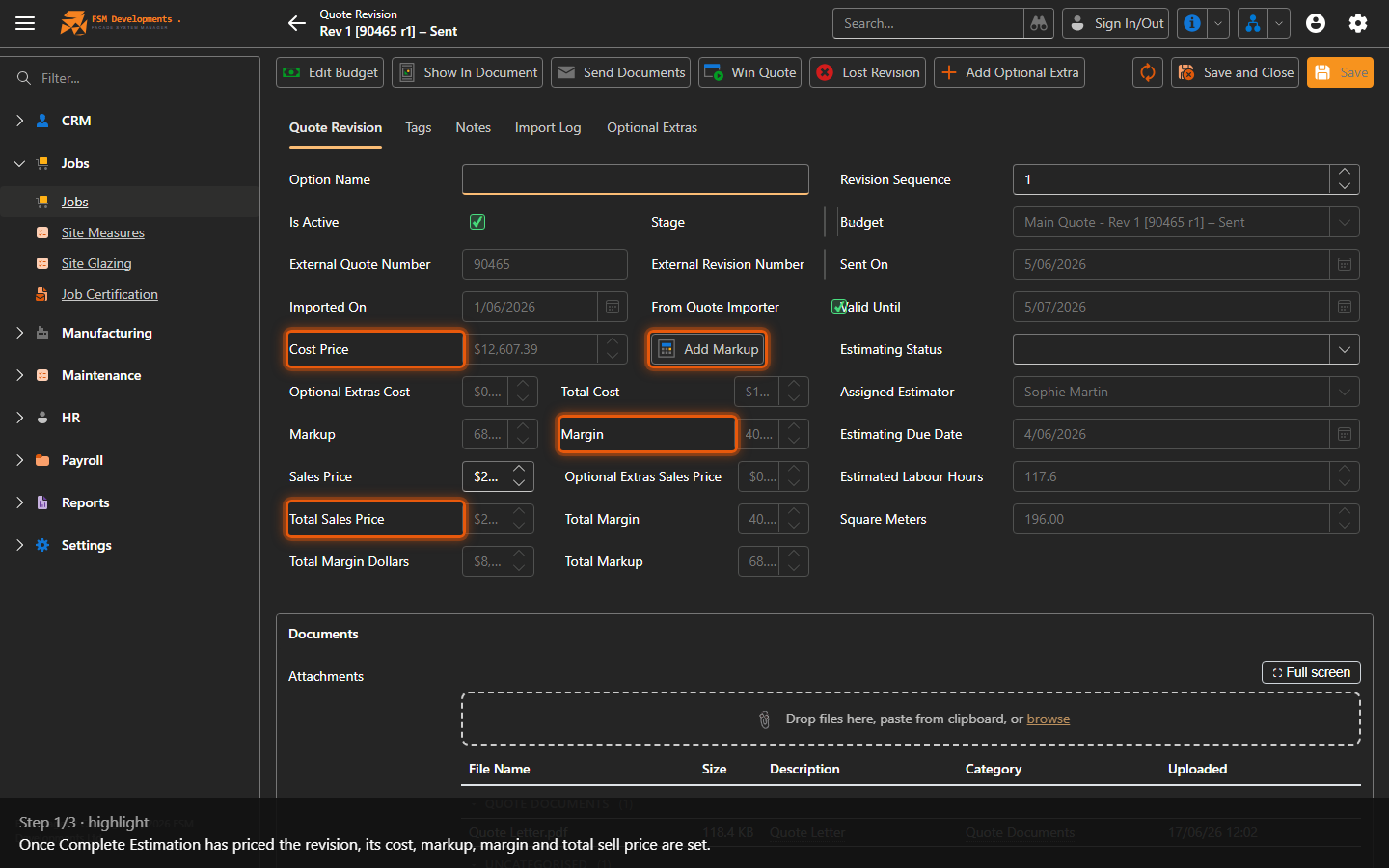
Cost Price / Markup / Margin / Total Sales Price
1. Once Complete Estimation has priced the revision, its cost, markup, margin and total sell price are set.
Show In Document (toolbar button)
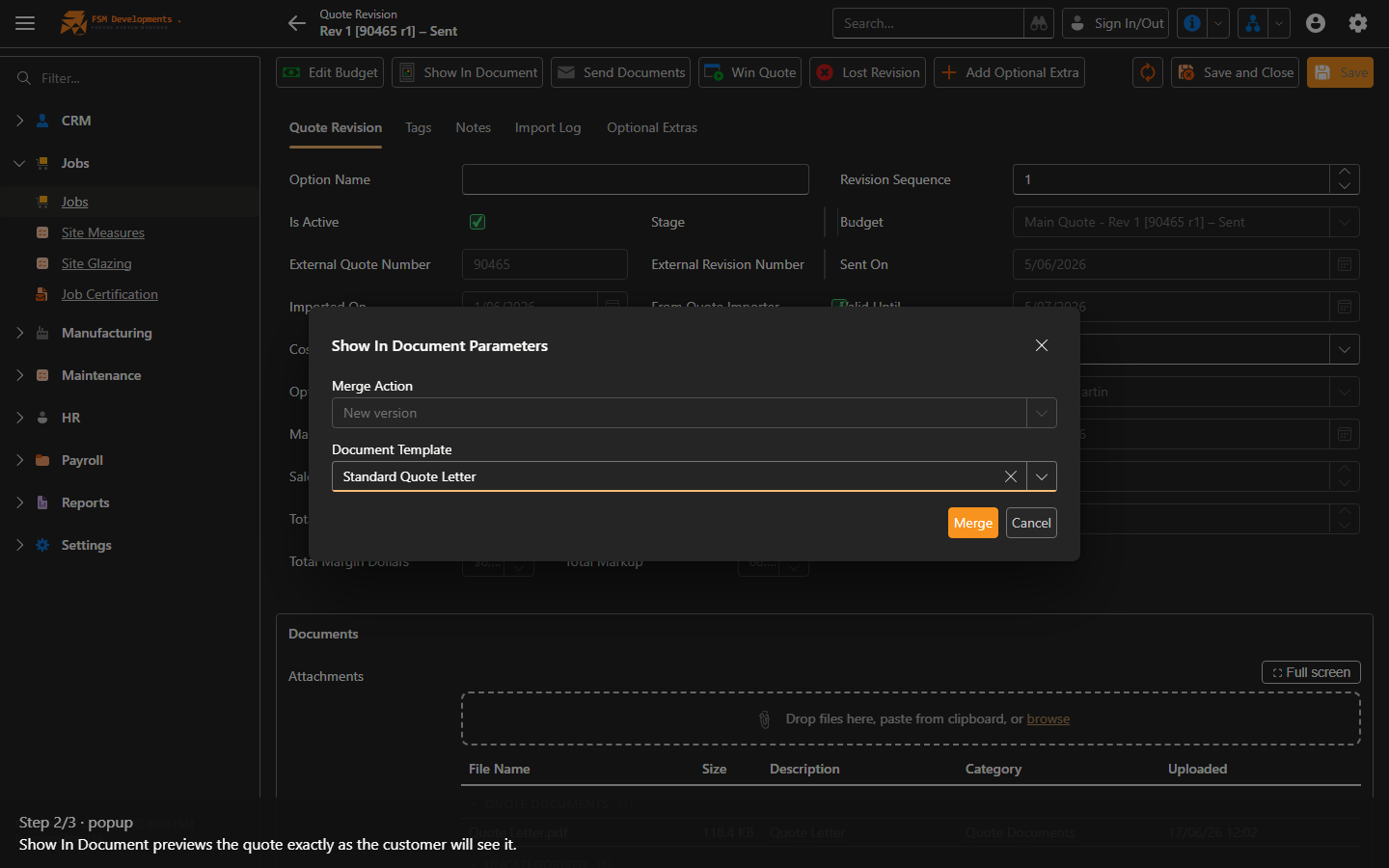
2. Show In Document previews the quote exactly as the customer will see it.
Send Documents (toolbar button)
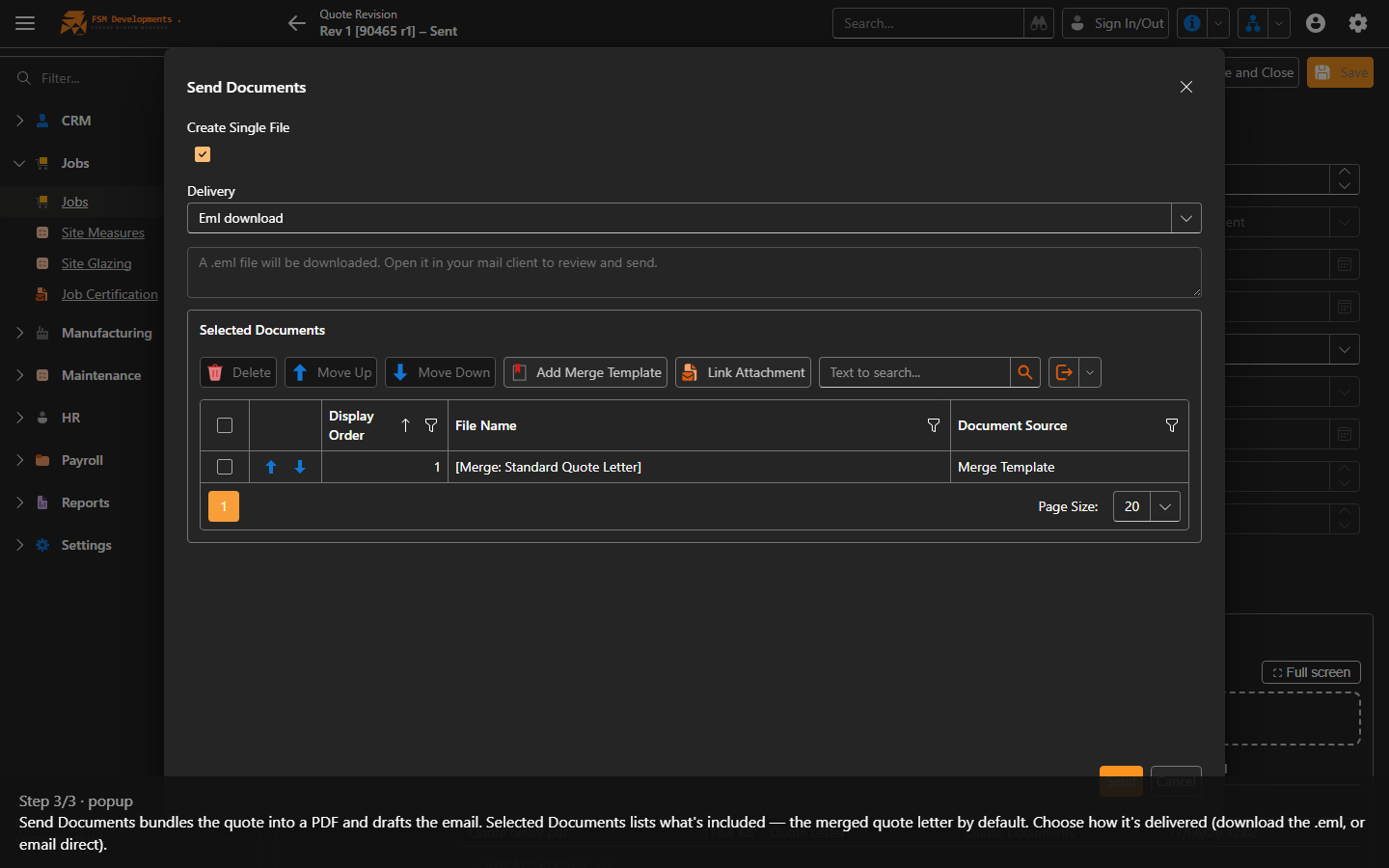
3. Send Documents bundles the quote into a PDF and drafts the email. Selected Documents lists what's included — the merged quote letter by default. Choose how it's delivered (download the .eml, or email direct).
Send Documents (toolbar button)
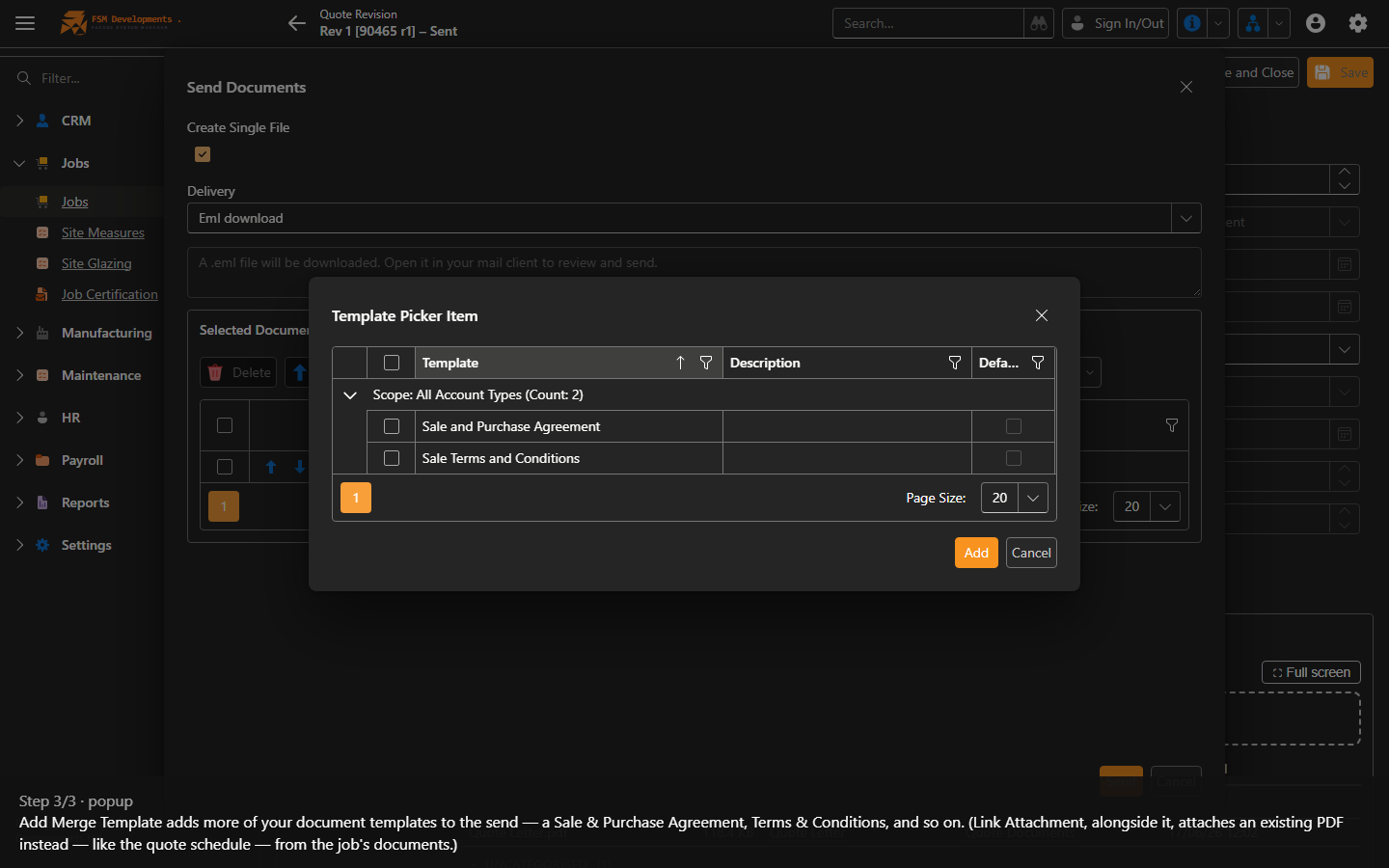
4. Add Merge Template adds more of your document templates to the send — a Sale & Purchase Agreement, Terms & Conditions, and so on. (Link Attachment, alongside it, attaches an existing PDF instead — like the quote schedule — from the job's documents.)
Last updated on