Job Management
Lite+Track jobs from won quote through to completion — work packages, tasks, deliveries, and the customer history.
When to use
Use Job Management for everything that happens after a quote is won. The Job is the contract record between you and the customer; it’s where your factory, install, and account teams work.
You won’t create jobs here — they’re created automatically when a quote is won. Job Management is where you:
- See the status of every active job.
- Update delivery dates with an auditable reason.
- Track tasks through the stages of work.
- Capture contact logs for in-job conversations.
- Log maintenance requests against installed jobs.
- Invoice and record payment.
Overview
The hierarchy:
Job  (the contract — one Customer, one PO)
 └─ JobPart  (a work package — typically one per job)
     ├─ JobPartItem  (a single window, door, panel, etc.)
     ├─ JobPartTask  (a unit of work — manufacture, finish, install, etc.)
     │   └─ JobPartItemTask  (per-item task progress)
     ├─ SiteMeasure  (1-1 — visit-to-measure paperwork)
     ├─ SiteGlazing  (1-1 — only if site glazing is required)
     ├─ IFOTIS  (1-1 — In Full, On Time, In Spec KPI)
     └─ Certification  (1-1 — building consent / producer statement)
A simple job has one part; a complex job (e.g. separate manufacture and site-glazing scopes) may have several.
Jobs cannot be created or deleted manually. A job exists because a quote was won; to remove it, Cancel the JobPart instead. This protects sales reporting and prevents accidental data loss.
Key features
Job creation from a won quote
When you click Win Quote on a quote, the system:
- Creates a Job with a fresh Job Number (from
JobSettings.NextJobNumber). - Copies the Customer, Account Type, Sales Rep, Branch, and Job Category from the quote.
- Captures the Site Contact and Site Measure Date chosen in the Win Quote dialog (see Site contact) and stamps them on the new job and its
SiteMeasure. - Creates a JobPart for each work package and copies the specification (product type, colours, glass types, hardware, install/delivery flags, building consent details, R-value, etc.) from the winning quote revision.
- Creates the JobPart’s
SiteMeasureand (if site-glazing applies)SiteGlazingSchedule. - Adds the starter tasks for the job’s stages based on
Job Task Definitionsconfigured for that JobType.
Locked fields and Admin Edit
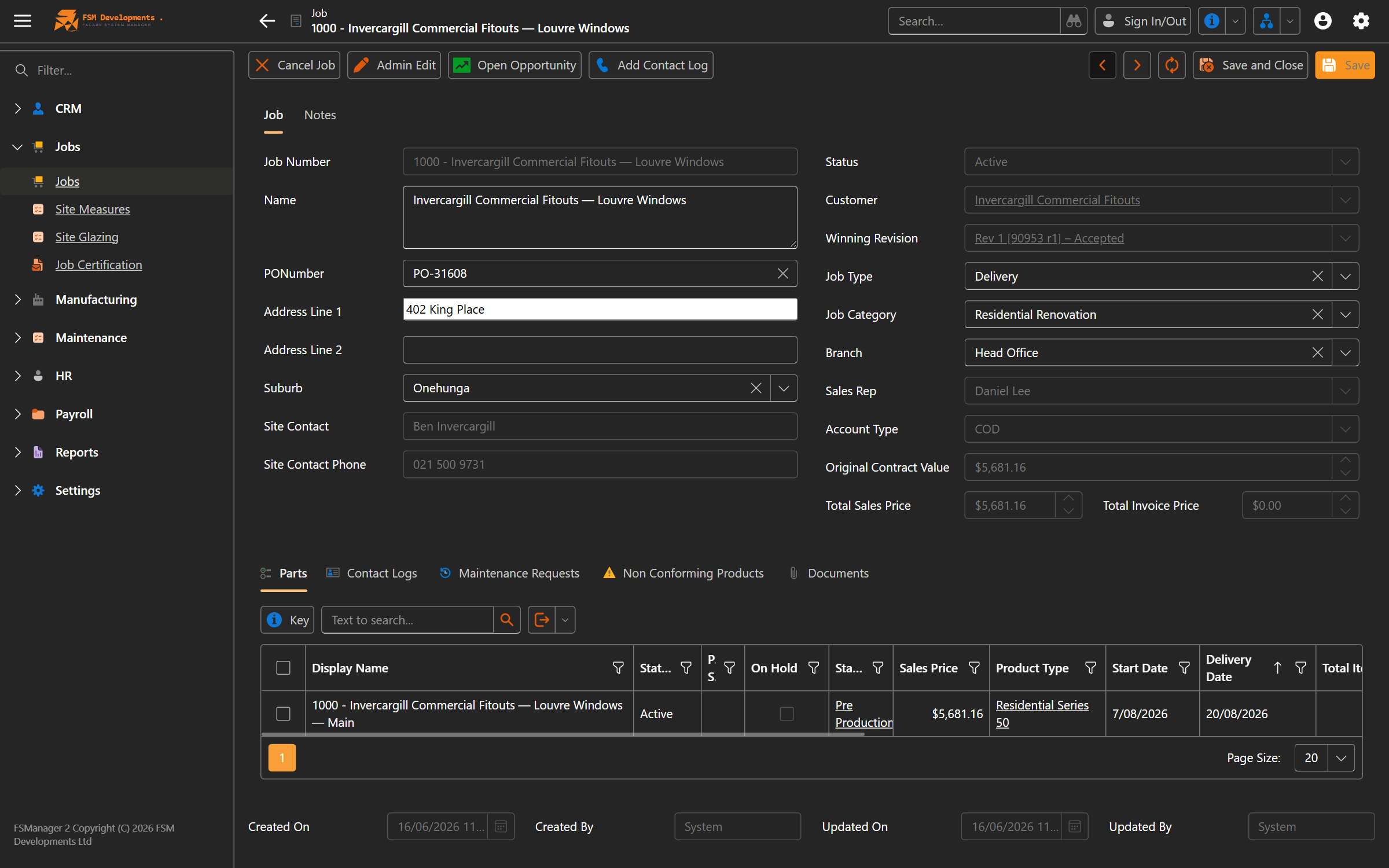
A handful of fields on the Job header are the contractual record of the deal — they came from the won quote and shouldn’t drift without a deliberate, audited change. These are read-only on the job form:
- Status
- Customer
- Winning Revision
- Sales Rep
- Account Type
To change one of them, use the Admin Edit action on the job. The action requires the Job · Admin Edit permission and prompts for a reason that’s written to the job’s audit history. Use it for genuine corrections (wrong customer linked, wrong sales rep credited) — not for routine workflow changes.
Everything else on the job header (PO number, address, suburb, job type, job category, branch) is freely editable.
JobPart status
| Status | Meaning |
|---|---|
| Active | The job is being worked on. |
| On Hold | Work is paused. Tick OnHold on the JobPart. Reasons vary — OnHoldForPayment (waiting for deposit), OnHoldForNCP (non-conformance unresolved). |
| Cancelled | The job was cancelled (a reversing negative opportunity is created to back out the sales figure). |
| Complete | All terminal-stage tasks are done. Stage progression marks this automatically. |
| Archived | The job is finished and accounting-closed. |
Stages and tasks
Each JobPart progresses through stages (Manufacturing, Powder Coat, Glazing, Delivery, Install, etc. — configured per business). The current stage is computed from task completion, not set manually. On the JobPart form, Stage is read-only display text — not a clickable link or editable dropdown.
Tasks are units of work assigned to a stage. Each task has:
- Scope —
Part Level(one record per part),Item Level(one record per item, e.g. per window), orBoth. - Status — Not Started / In Progress / Complete.
- Planned vs Actual minutes — for time-based tasks (
Is Time Based). - Pre-production fields — Ordering and Receiving tasks track supplier, order date, lead time, received date.
A task has a Display Abbreviation (e.g. MFGD, PWDC, GLZE) used in dashboard columns.
Delivery dates
Two dates that matter:
- Delivery Date — what you’ve promised the customer. Read-only on the form — to change it, use the Change Delivery Date action, which captures an auditable reason.
- Actual Delivery Date — stamped when the job actually goes out.
Every change is recorded in Delivery Date Changes (you’ll see a tab on the JobPart). Changes start as pending until someone confirms the reason — pending changes appear in a dedicated “Pending Date Changes” view for review.
The reason matters: reasons flagged Affects On-Time = false (i.e. customer-requested change) don’t count against your on-time KPI.
Site contact
The site contact is who to ring on the day — the person on site for the measure, delivery, or install. It can be different from the customer’s primary CRM contact (e.g. the customer is a builder’s head office, but the site contact is the project manager on site).
The job stores Site Contact as a link to a Customer Contact record, sourced from the linked customer’s contacts list. The form’s Site Contact and Site Contact Phone text boxes are populated from the selected contact and are read-only.
If the person on site isn’t in the customer’s contacts list — a one-off subcontractor, a homeowner you don’t have on file — tick Site Contact is manual. The contact lookup hides and the text boxes unlock for free typing. Untick to switch back to picking from the customer’s contacts.
The Site Contact is set when the quote is won: the Win Quote dialog prompts for it (default is the opportunity’s primary contact) alongside the Site Measure Date. You can change it on the job at any time afterwards.
IFOTIS (In Full, On Time, In Spec)
A KPI record created with every JobPart. Once the part reaches a terminal stage with an Actual Delivery Date:
- In Full — all items delivered.
- On Time — delivered on or before the promised Delivery Date (after honouring customer-caused changes).
- In Spec — no defects (currently defaults to true; full automation will follow the Non-Conformance module).
IFOTIS = In Full AND On Time AND In Spec. The Reporting module rolls these up for management.
Contact logs on the job
Every customer interaction during the job — phone call, email, in-person — can be logged as a Contact Log. Logs are stored on the parent opportunity, but visible (and addable) directly from the job. Logs can carry a follow-up due date so nothing falls through the cracks.
Maintenance requests
After install, customers sometimes report issues. Create a Maintenance Request against the JobPart with the site contact, address, reason, and items requiring attention. Maintenance requests live on the job for history; they’re chargeable or warranty as appropriate.
Manual invoicing (Lite)
Lite tier supports manual invoice tracking on each JobPart:
- Invoiced (tick when the invoice is issued)
- Invoice Amount, Invoice Number, Invoice Date
Use these for spot-checking and reporting; deeper financial integration ships in higher tiers.
How to: find and open a job
- From the main menu, open Jobs.
- The list view shows all active jobs with their JobNumberDisplay, customer, stage, status, and key dates. Filter or search as needed.
- Click into a job to see its parts, tasks, contact logs, and history.
The JobNumberDisplay is the job number plus the first part’s suffix (e.g. 1234-I for an Install job). Each JobType can have its own suffix.
How to: change a delivery date
- Open the JobPart.
- Click Change Delivery Date.
- Pick the new date, a Reason (from the dropdown), and any notes.
- Save. A Delivery Date Change record is created in Pending state.
- A team lead reviews and confirms the reason in Pending Date Changes. Once confirmed, IFOTIS recalculates if the part has been delivered.
How to: log a contact against a job
- Open the job and go to the Contact Logs tab.
- Click New.
- Set the Type (e.g. Job Stage, Send Quote, Job), Communication Method (Phone / Email / In Person / Letter), and Logged On date (defaults to now — back-date if needed).
- Fill in Contact With, About, and any contact email/phone.
- If a follow-up is required, tick Requires Action and set the due date.
- Save. The log appears on both the job and the parent opportunity.
How to: raise a maintenance request
- From the JobPart, open the Maintenance Requests tab and click New.
- The Job is auto-filled from the part; confirm the site contact, phone, and address.
- Pick the Reason (your maintained list of reasons).
- Set Is Chargeable based on whether this is warranty work or a billable callback.
- Add Maintenance Items for each thing being fixed.
- Save. The request flows into your maintenance dashboard.
How to: cancel a part
- Open the JobPart.
- Click Cancel Job Part.
- Confirm. The part’s Status moves to Cancelled. A reversing (negative) Opportunity is created automatically to back out the sale from your reporting.
- To restore, click Uncancel Job Part.
Cancellation is the only way to remove a job — there is no Delete. Don’t use cancel-then-uncancel as a workflow; the reversing entries can clutter sales reports.
How to: print job paperwork
From the JobPart, open the Reports dropdown for:
- Site Measure Summary — a checklist for the site measure visit.
- Job Bag, Delivery Sheet, Factory Sheet, Job Order — stubbed for higher tiers; Lite shows the Site Measure Summary.
Tips & gotchas
- Don’t fight the stage engine.
JobPart.Stageis computed from task completion. To move a stage forward, complete its tasks; to push it backward, uncomplete them. Setting Stage directly is not supported. - Delivery Date is the promise; Actual Delivery Date is the truth. Use Change Delivery Date for both — it captures a reason that the IFOTIS calculation uses to attribute on-time correctly.
- Pending Date Changes need confirming. They sit pending until someone picks the real reason; review this view weekly so KPIs stay accurate.
- Use FactoryNote for shop-floor instructions that shouldn’t be on customer-visible paperwork.
Noteshows on documents;FactoryNotedoes not. - Item-level tasks roll up to the part task automatically. When all items hit Complete on an Item-Level task, the parent JobPartTask is Complete.
OnHoldon a JobPart pauses the stage engine. Use it deliberately — a job that’s “on hold for a week to wait for a customer answer” is a different situation to “on hold for payment” or “on hold for NCP”.
Related
- Quoting & Sales — the source of every job
- Time Recording — how labour minutes get attributed to JobPartTasks
- CRM — opportunities and contact logs persist into the job
- Reporting & Analytics — IFOTIS, job dashboard, delivery performance
- Administration → Settings — Job Settings, Job Types, Stages, Task Definitions, Delivery Date Change Reasons