Quoting & Sales
Lite+Create, revise, and send quotations — with multiple options, optional extras, and deposit tracking.
When to use
Use the Quoting module whenever you want to produce a priced offer for a customer. Every quote belongs to an Opportunity, so before quoting you’ll have an opportunity in place (even if it’s just a prospect enquiry with no linked customer yet).
You’ll use this module to:
- Estimate the cost and price of a job.
- Present multiple options to a customer (e.g. Option A — Aluminium, Option B — uPVC).
- Revise a quote when the spec changes — without losing the prior version.
- Track deposits through to invoice.
- Win or lose the quote, which is what creates the Job downstream.
Overview
A quote sits between an opportunity and a job:
Opportunity → Quote(s) → QuoteRevision(s) → Win → JobTwo records to understand:
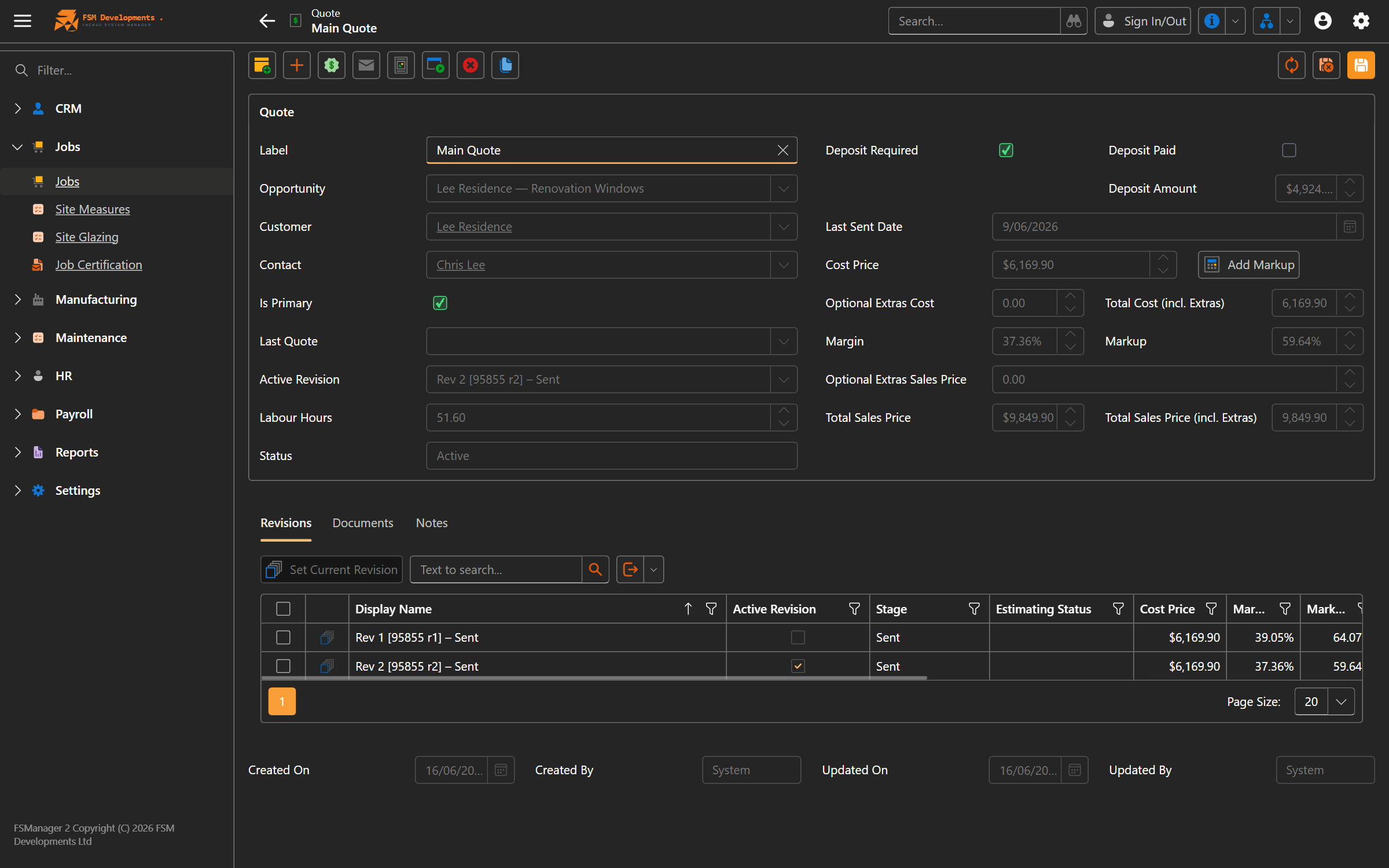
- Quote — a named offer under an opportunity. Has a Label (e.g. “Option A — Aluminium”), an optional separate Customer (for multi-customer projects), and one or more revisions.
- Quote Revision — a specific version of the priced offer. Carries the cost, sales price, scope, specs, optional extras, and a stage (Estimating → Draft → Sent → Accepted / Lost / Cancelled).
Only one revision per quote is active at a time — the active revision is what the customer is currently being offered.
Key features
Quote revision lifecycle
| Stage | What it means | Key transitions |
|---|---|---|
| Estimating | Estimator is still costing the job. All fields editable; Estimating Status (In Progress / Awaiting Info / Awaiting Supplier Quote / Ready for Review) tracks where it’s at. | → Draft (via Complete Estimation) or Cancelled |
| Draft | Costed and priced; ready for internal review. Deposit fields hidden. | → Sent (via Mark Sent) or Lost |
| Sent | Delivered to the customer. Sent On is stamped; Valid Until auto-fills from CRM settings. Deposit fields visible. | → Accepted (via Win Quote) or Lost |
| Accepted | Customer accepted. Quote is locked. A Job is created from this revision. | — (use Reopen to reverse if needed) |
| Lost | Customer declined. Quote is locked; a Lost Reason is required. | — (use Reopen to revisit) |
| Cancelled | Withdrawn before sending. | — (use Reopen to revisit) |
Cost, markup, and sales price
Every revision tracks two prices:
- Cost Price — what it costs you to build (driven by the Budget — see below).
- Sales Price — what you’re charging.
Two derived figures (auto-computed, can be edited either way):
- Margin % = (Sales − Cost) / Sales × 100 — the percentage of the sale that’s profit.
- Markup % = (Sales − Cost) / Cost × 100 — the percentage above cost.
You can:
- Type a Sales Price directly → Margin and Markup recalculate.
- Type a Markup % → Sales Price recalculates from cost.
- Use the Add Markup action → pops up a markup percentage, applied to the cost.
Budget
The Budget is the cost breakdown behind the revision — material, hardware, glass, labour, install, delivery, etc. It’s set when you run Complete Estimation, which moves the revision from Estimating to Draft.
Optional extras
Add-ons that may or may not make it onto the final quote. Each extra has:
- Include — when ticked, the extra rolls into the revision’s totals and appears on the customer quote.
- Pinned — when ticked, the extra carries forward to new revisions (great for “we usually offer this but the customer always declines”).
Extras can be either dollar snapshots (set the cost directly) or percentage-based (linked to an OptionalExtraTemplate — these auto-refresh when the Budget changes).
Multiple quotes per opportunity
An opportunity can have several quotes:
- Primary — the one whose value drives the sales pipeline. First quote is set primary automatically; Set as Primary moves the flag.
- Add Option — creates a sibling quote that shares the opportunity, with the active revision cloned. Use for “same job, different spec” alternatives.
- Copy for Customer — creates a separate quote for a different recipient (e.g. you’re quoting the head contractor, but a copy goes to the sub). The customer copy can be re-targeted when the primary is revised.
Revisions
When the spec or pricing changes, add a new revision rather than editing the sent one:
- Add Revision clones the active revision into a fresh Estimating stage.
- Pinned optional extras carry across.
- The estimator defaults to the previous estimator.
- Sales Price, Cost Price, and Budget reset — you re-enter them after re-estimating.
The history of all revisions stays on the quote, so you always know what you offered when.
Deposit handling
If the customer’s Account Type requires a deposit, the deposit fields appear on the quote once a revision reaches Sent:
- Deposit Amount is auto-calculated from Sales Price × deposit percentage × GST. You can override.
- The Deposit Paid action records the payment (date, invoice number, who received it). Once recorded, those fields lock.
If the active revision’s Sales Price changes before the deposit is paid, the deposit amount re-syncs automatically.
How to: estimate a new quote
From an opportunity:
- Open the opportunity and click Add Estimation. A new Quote with one Estimating revision is created and opened.
- Optionally Assign Estimator — defaults to the opportunity’s sales rep.
- Fill in scope:
Scope Description,Site Notes,Estimator Notes, the product/colour/glass specs. - While estimating, set Estimating Status to reflect what you’re waiting on (
Awaiting Info,Awaiting Supplier Quote). Fill inAwaiting Info Detailsso the team knows what’s needed. - When you’ve costed everything, click Complete Estimation. A two-step popup walks you through the Budget then the Sales Price. The revision transitions to Draft.
How to: send a quote
From a Draft revision:
- Review the pricing — adjust Markup or Sales Price if needed.
- Click Mark Sent.
Sent Onis stamped,Valid Untilauto-fills. - Send the quote document to the customer through your usual channel (the Document Creation module produces the PDF).
How to: present multiple options
You’ve sent a quote for aluminium and the customer asks “what about uPVC?”:
- From the quote, click Add Option. Enter an option name (“uPVC”).
- A new sibling quote is created with the active revision cloned. The new quote’s Label gets the option name suffixed (e.g. “Skylight Frame - uPVC”).
- Edit the new quote’s revision — change specs and pricing, Complete Estimation, Mark Sent.
- Both options sit under the same opportunity. The customer picks one — Win Quote on the chosen quote.
How to: revise after the customer asks for changes
- From the quote, click Add Revision. A new revision is created at Estimating stage, with pinned optional extras carried forward.
- Re-estimate with the updated spec, Complete Estimation, Mark Sent.
- The previous revision stays on the quote for history.
If you have customer copies of this quote, you’ll be prompted to propagate the new revision to them.
How to: win the quote
- Once the customer accepts, open the quote (with the active revision in Sent stage).
- Click Win Quote on the quote — or Win Quote on the parent opportunity, which wins the primary quote.
- In the Win Quote dialog, pick the Site Contact (defaults to the opportunity’s primary contact; choose any contact on the linked customer) and the Site Measure Date. These flow onto the new job and its SiteMeasure record.
- Confirm. The revision transitions to Accepted; the quote locks; the opportunity becomes Won; and a Job is automatically created from the winning revision.
How to: record a deposit
- With the active revision at Sent or Accepted, click Deposit Paid on the quote.
- The popup pre-fills the deposit amount from your account-type rules — adjust if the customer paid differently.
- Enter the date, invoice number, and who received the payment.
- Save. Deposit fields lock; the deposit is now in the books.
Tips & gotchas
- Don’t edit a Sent quote. Add a revision instead — the customer is looking at a specific Sent revision and you don’t want it shifting under them.
Sent Onis what drives sales reporting, not when you clicked Complete Estimation. The gap between Estimating Completed and Sent is the “sales rep fluff time” the reports separate out.- Pin your common extras. Anything you nearly always offer should be a Pinned optional extra so it carries to every new revision — saves you re-typing.
- Deposit re-syncs when you change pricing, but only until the deposit is paid. Once paid, edits to Sales Price won’t touch the recorded deposit.
- Customer copies inherit revisions, not edits. A customer copy is a separate quote — when you revise the primary, you’re offered to propagate. Editing the primary’s revision after propagation does not update copies.
- Reopen handles the awkward cases. Won the wrong quote? Lost it by mistake? Reopen walks the quote back to its previous stage (Sent, Draft, or Estimating) based on what existed before.
Related
- CRM — opportunities are the parent record for every quote
- Job Management — what a Won quote becomes
- Document Creation — producing the customer-facing quote PDF
- Reporting & Analytics — Sales Pipeline, Sales Predictor, Estimator Performance
- Administration → Settings — CRM defaults, validity periods, optional extra templates