Approve & send
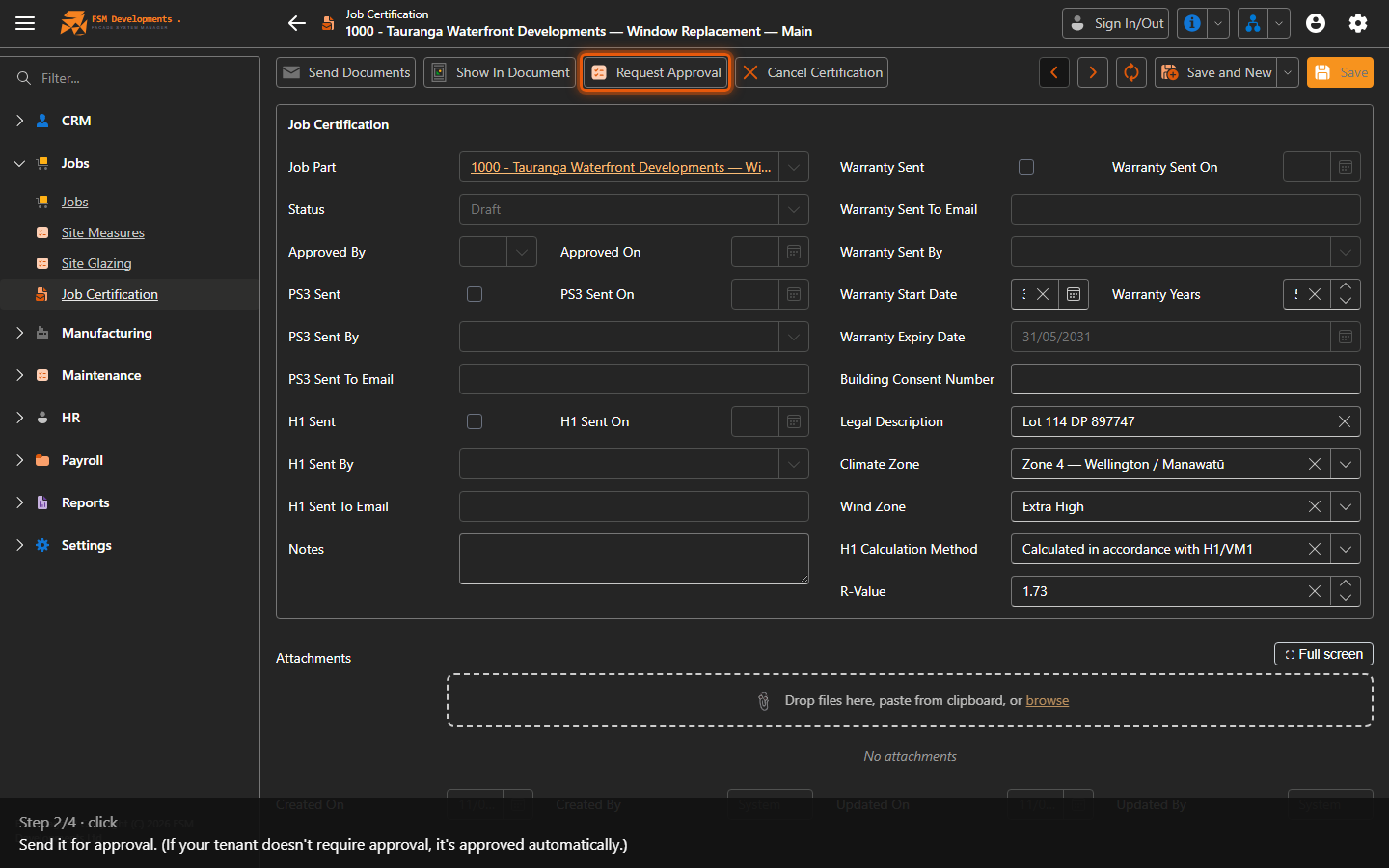
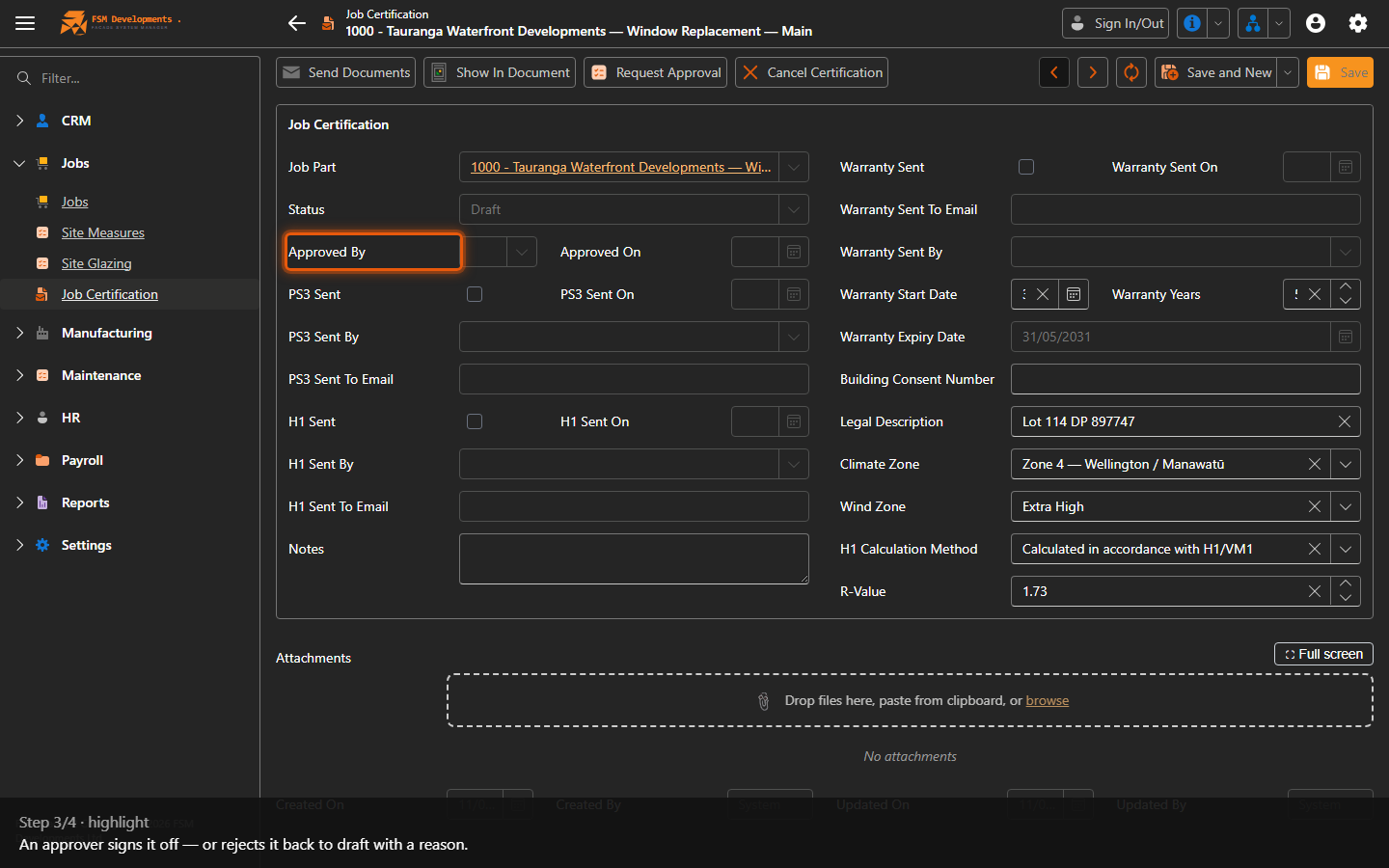
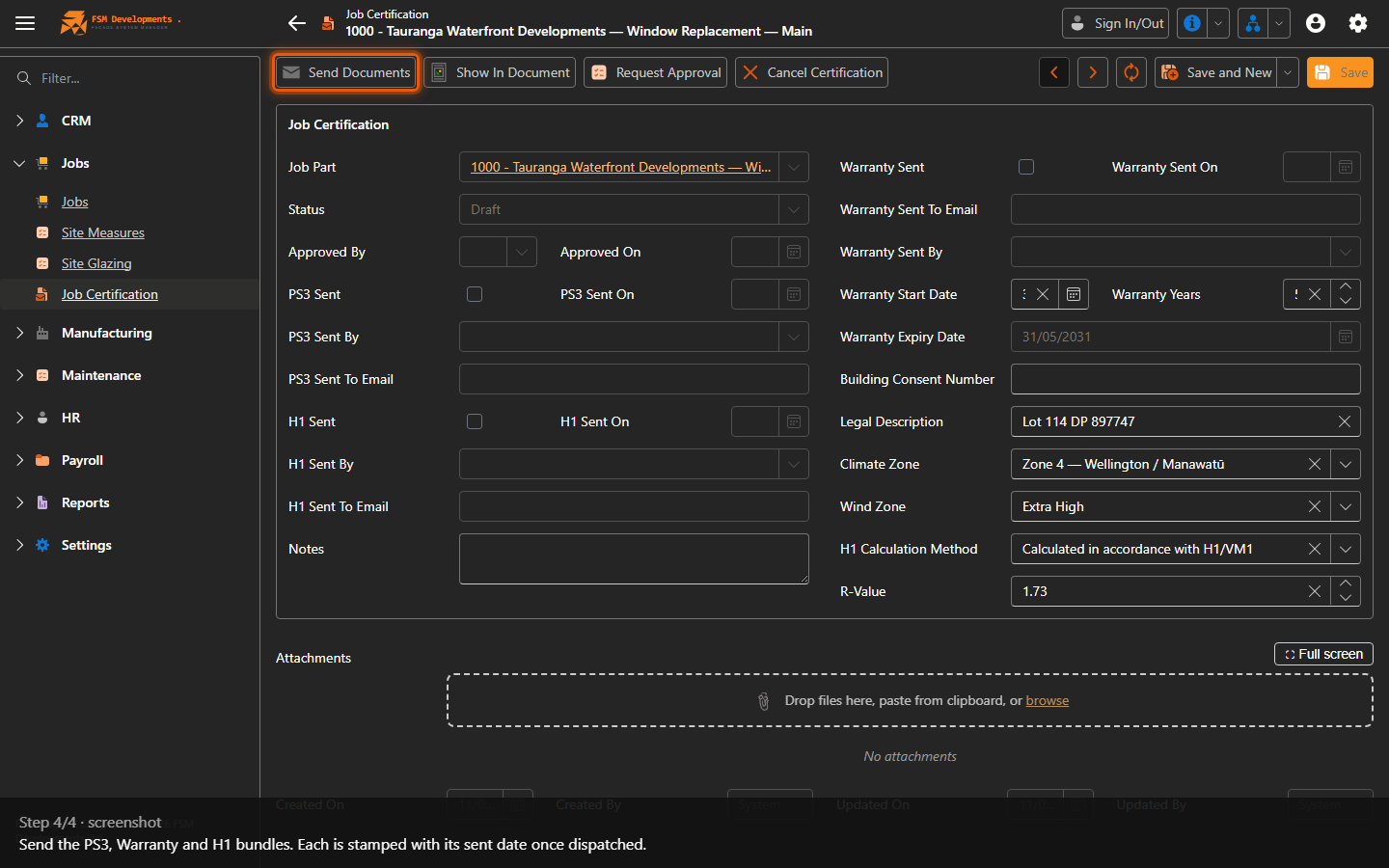
Lite+The approval and dispatch workflow: get the certification signed off, then send the PS3, Warranty/O&M and H1 document bundles to the customer.
When to use
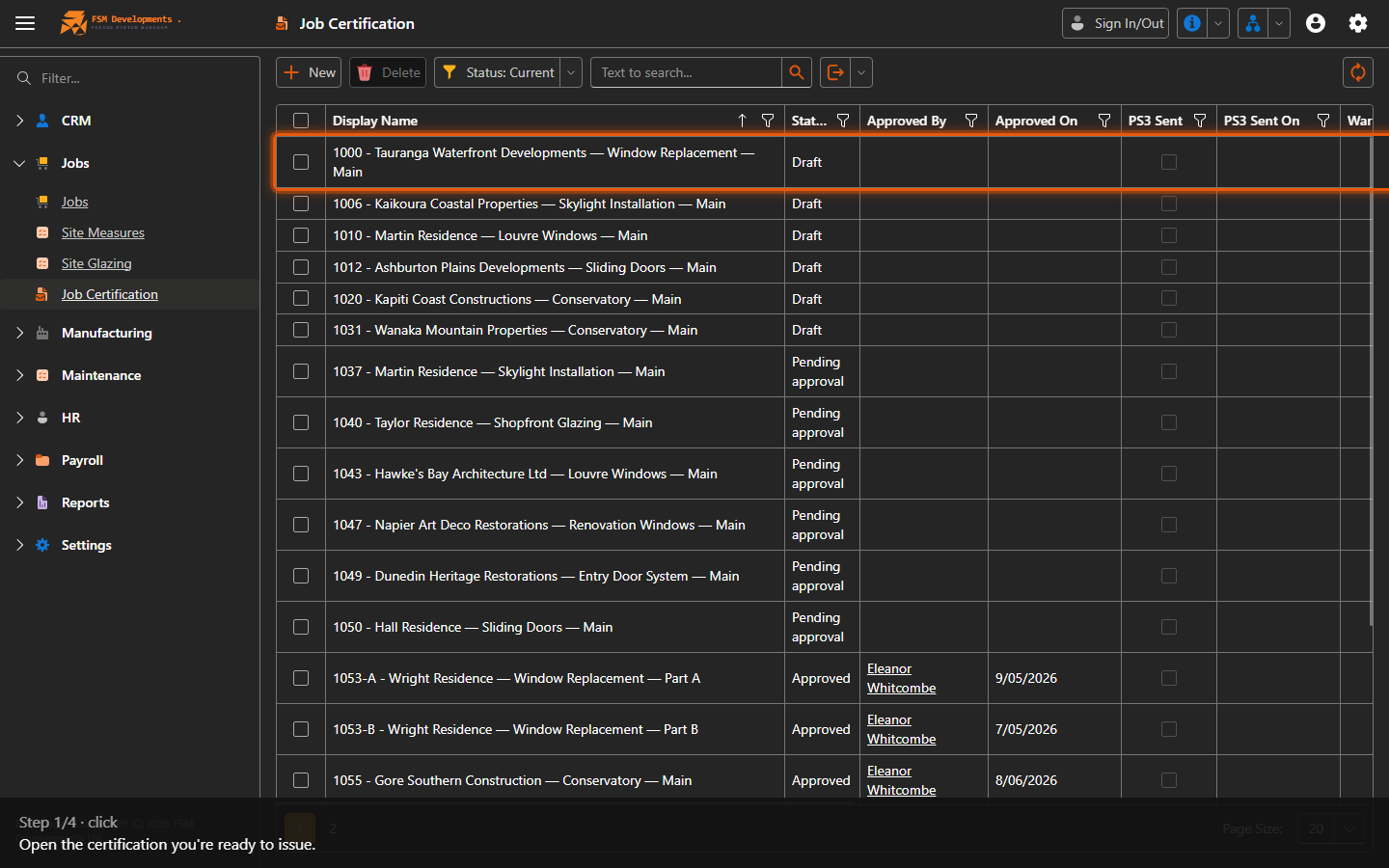
Once a certification is filled in and you’re ready to issue the paperwork.
Step by step
Other certification actions
- Show In Document — merge the certification into a document template and open it in the built-in Word editor to review or tweak before sending (the same editor used for quote letters).
- Cancel Certification — void a certification that was raised in error or no longer applies, with a reason. It drops out of the current list but stays on record.
A certification holds the compliance detail for the part — PS3 and H1 sign-off, warranty start/years and expiry, building consent number, and the climate/wind zone and R-value used. Fill these in before you request approval.
Last updated on