Document Creation
Lite+Merge your quotes, producer statements, and compliance documents from Word templates — branded with your company details, ready to send.
When to use
Use Document Creation when you need to produce a customer-facing PDF from data already in FSManager:
- A quote to send to a customer.
- A producer statement / compliance certificate when a job is signed off (PS3, warranty, O&M, H1 declaration).
- A multi-quote comparison showing several options side by side.
The system runs your data through a Word template, fills in the merge fields, and either downloads a PDF or generates a draft email with the PDF attached.
Overview
Three pieces fit together:
- Document Template — a
.docxfile you (or an admin) author in Word, with{{merge tokens}}and a small number of named placeholders where lists and tables go. Stored under Administration → Document Templates. - Merge data provider — the engine that reads the source record (a quote revision, a job certification) and fills the tokens.
- Output Attachment — the merged document, saved against the source record so it sits in the audit trail.
Key features
Template types
| Template Type | Source record | What it produces |
|---|---|---|
| Quote | QuoteRevision | The customer-facing quotation PDF |
| Compliance Certificate | JobCertification (linked to JobPart) | Producer Statement (PS3), Warranty, Operations & Maintenance, H1 Declaration |
| Site Measure Report | SiteMeasure | Printable site-measure summary (XtraReport, not mail-merge) |
You can have multiple templates of the same type — e.g. a Standard Quote and a Renovation Quote with different layouts. Templates can be flagged:
- Is Default — pre-selected when generating a document of this type.
- Applies to All Account Types — or restricted to specific Account Types (e.g. On Account vs COD).
- Is Multi-Quote — for quote templates that show multiple options in one document.
- Is Warranty / O&M / H1 Document — for compliance documents.
Merge tokens
Templates use {{TokenName}} syntax. The available tokens depend on the template type — for a Quote template, you have ~45 to choose from:
Customer & quote — {{CustomerName}}, {{CustomerEmail}}, {{QuoteNumber}}, {{RevisionNumber}}, {{Date}}, {{ValidUntil}}, {{OptionName}}
Pricing — {{SalesPrice}}, {{SalesPriceIncGst}}, {{GstAmount}}, {{TotalSalesPrice}}, {{CostPrice}}, {{Margin}}, {{DepositAmount}}, {{BalanceRequired}}
Specification — {{ProductType}}, {{GlassType}}, {{HardwareType}}, {{AluminiumColour}}, {{RevealType}}, {{WindZone}}, {{TotalItems}}, {{SquareMeters}}
Sales rep & company — {{SalesRepName}}, {{SalesRepEmail}}, {{CompanyName}}, {{CompanyAddress}}, {{CompanyPhone}}
For Compliance Certificate templates the catalogue shifts to job-centric tokens — {{JobNumber}}, {{BuildingConsentNumber}}, {{RValue}}, {{LegalDescription}}, {{PracticalCompletionDate}}, {{ApprovedBy}}, {{WarrantyExpiryDate}} etc.
The “Edit Template” popup in Administration shows the full token reference for the chosen type.
Placeholders for lists and tables
Some content can’t be a single token — it’s a list. Use named placeholders in the template body:
LineItemsPlaceholder— replaced with the quote’s line items table.OptionalExtrasPlaceholder— replaced with the included optional extras table.AdditionalTagsPlaceholder— replaced with specification tag values.MultiQuoteComparisonPlaceholder— replaced with the side-by-side comparison block (multi-quote templates only).
You insert these as plain text in the right spot in the .docx; the merge engine swaps them for the rendered content.
Generating from a quote
Two actions on the quote revision toolbar:
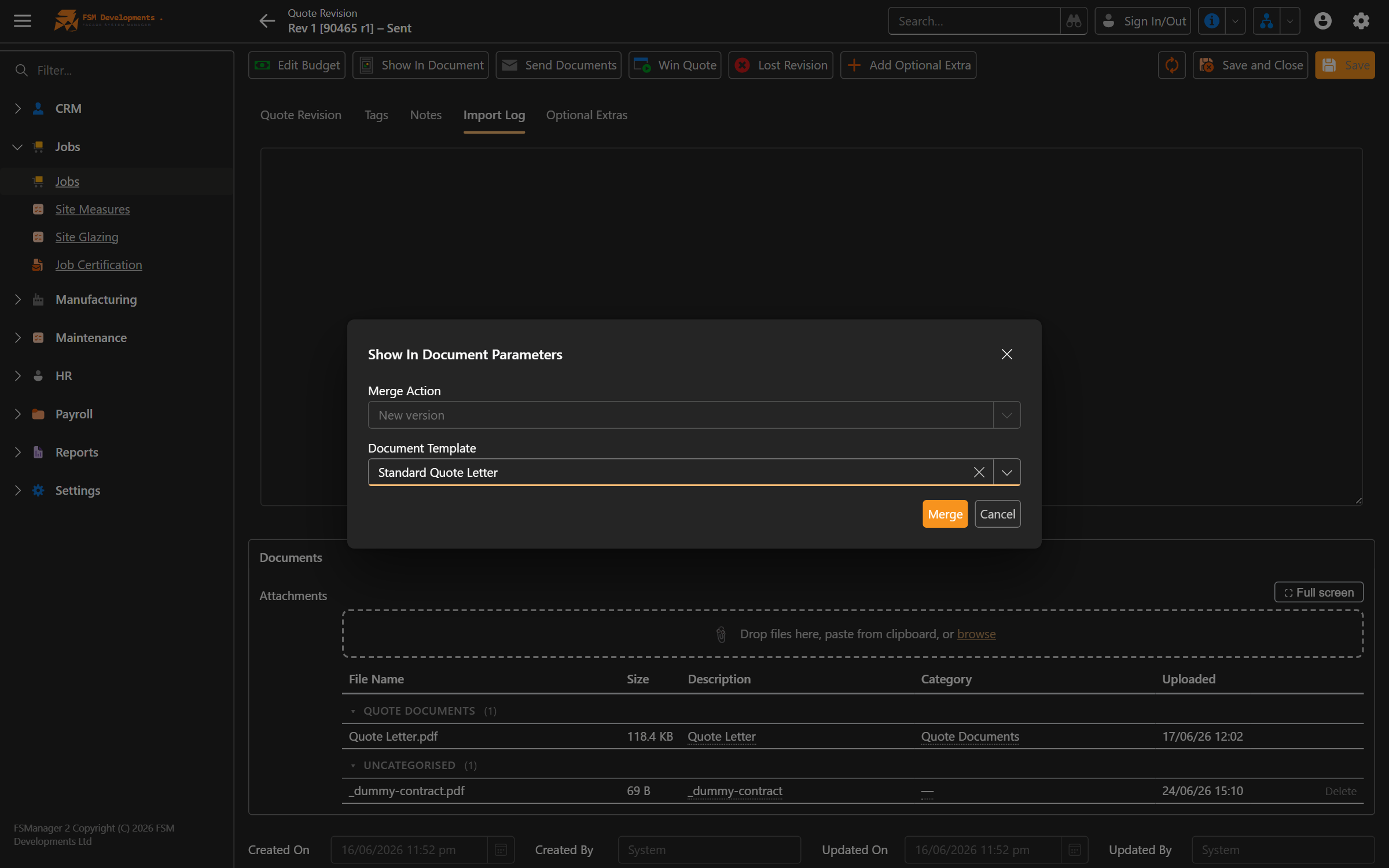
- Show In Document — picks a template, merges, and saves the output as an Attachment on the revision. You can either create a new version, update fields on an existing merge, or download for manual editing in Word.
- Send Documents — picks a template, optionally bundles other attachments, combines everything into a single PDF, and generates a
.emlemail file you can open in Outlook to address and send.
Generating from a compliance certificate
The JobCertification record (1-1 with each JobPart) carries the compliance data — approved by, approved on, warranty start/end, plus everything the merge engine reads from the JobPart and Job.
Trigger from the JobCertification detail view — same template-pick → merge → attach flow.
Company branding
The merge engine pulls company details from your default Branch:
{{CompanyName}},{{CompanyAddress}},{{CompanyPhone}},{{CompanyEmail}}— from Branch.{{CompanyIndustryAssociationNumber}}— your industry body member number (e.g. WGANZ), from Tenant settings.
Logos and imagery live in the template .docx itself. There’s no logo-upload field in FSManager — you put the logo into the Word template using Insert → Image, and the merge engine preserves it.
Setup health check on templates
Seeded default templates carry a CustomizedOn flag that’s null until an admin opens and customises them. The Setup Health Checker raises an informational issue for each uncustomised template, so you can see at a glance which templates are still on the out-of-the-box layout.
How to: send a quote to a customer
- Open the quote’s active revision (must be in Sent or Draft stage).
- Click Show In Document.
- Pick a template from the dropdown.
- Choose New Version (creates a fresh merged document) and confirm.
- The merged document appears as an Attachment on the revision.
- Open the attachment to review the PDF.
- To email it: click Send Documents, pick the same (or another) template, tick any extra attachments to bundle, and confirm. The system generates a
.emlfile — open it in Outlook to address it and click send.
How to: customize a template
Admin-only:
- Go to Administration → Settings → Document Templates.
- Open the template you want to change.
- Click Edit Template to see the available merge tokens.
- Click the attachment link to download the
.docxfile. - Open in Word, edit text, tokens, and layout. Insert your logo. Save.
- Back in FSManager, Upload the edited file to replace the existing one.
Customized Onis stamped — the template is now your version.
How to: produce a producer statement
- When a JobPart is built, signed off, and ready for compliance handover, open its Certification record.
- Fill in
Approved By,Approved On,Warranty Start Date,Warranty Years. - Click Show In Document, pick the PS3 (or equivalent) Compliance Certificate template, generate.
- The producer statement is attached to the certification record.
Tokens like {{BuildingConsentNumber}}, {{RValue}}, {{LegalDescription}} resolve from the JobPart’s existing specification fields — make sure those are filled before generating.
How to: produce a multi-quote comparison
- Build out the quotes (e.g. Option A — Aluminium, Option B — uPVC) under one opportunity using Add Option on the primary quote.
- From any of the active revisions, click Show In Document and choose a template flagged Is Multi-Quote.
- The
MultiQuoteComparisonPlaceholderin the template is replaced with the side-by-side block.
Tips & gotchas
- Tokens are case-sensitive.
{{SalesPrice}}works;{{salesprice}}does not. - Placeholders are plain text in the
.docx, not Word fields. Insert them as you’d type any other word — the merge engine looks for the literal stringLineItemsPlaceholder. - One default per type. Marking a second template as Default doesn’t replace the first — manage default-ness deliberately.
- Logos live in the template, not in FSManager. If you re-brand, edit your templates’ Word files.
- The Industry Association Number is a tenant-level setting — find it under Administration. Without it,
{{CompanyIndustryAssociationNumber}}resolves blank. - Send Documents produces a
.eml, not a sent email. You still address it and click send in Outlook. This is deliberate — keeps your customer’s email and CCs in your usual mail client, and the sent record stays in your Sent folder. - Uncustomised templates raise Setup Health issues. That’s a feature, not a bug — the seeded layouts work, but you almost certainly want your own.
Related
- Quoting & Sales — the source record for Quote templates
- Job Management — the source for Compliance Certificate templates (via the JobPart’s Certification record)
- Administration → Settings — Document Templates, Branches, Tenant settings (Industry Association Number)