Time Recording
Lite+Sign employees in and out, and claim their time against the jobs and tasks they actually worked on.
When to use
Use Time Recording to:
- Clock in and out — a shared shop-floor kiosk where each employee signs in with a PIN.
- Claim time to jobs — either in real time (start/stop) or by allocating hours after the fact.
- Confirm breaks — the employee ticks the breaks they actually took at sign-out.
- Approve timesheets — supervisors review and lock the day.
Lite tier covers the shop-floor recording workflow. Payroll export and pay-run processing are higher-tier features.
Overview
Three records to understand:
- StaffWorkDay — one record per employee per calendar date. The master timesheet for the day, with sign-in / sign-out times, break minutes, approval status, and a notes field.
- StaffWorkDayBreak — break periods within the day (e.g. Morning Tea, Lunch). Each has a window and a Paid/Unpaid flag.
- StaffWorkDayClaim — time claimed against a specific job task, additional task, or break.
A signed-in employee accrues minutes. Those minutes get assigned to a job task (or “additional task” like training/cleaning) via claims. Whatever isn’t claimed remains as unclaimed minutes until the employee allocates them at sign-out.
Key features
The sign-in kiosk
A shared screen (typically a touchscreen at the factory entrance) running the Sign In/Out action on the main window. The kiosk shows everyone on shift today with their status:
- Green — signed in and on time.
- Red — past expected sign-out time and not signed out.
- Purple — currently marked Away.
Double-click your name (or use the buttons), enter your PIN, and you’re signed in. The same flow signs you out and prompts you to confirm breaks.
Sign-in / sign-out flow
Signing in
- Tap your name on the kiosk.
- Enter your PIN.
- Your StaffWorkDay is created (or updated) with
SignInTimestamped.
Signing out
- Tap your name and enter your PIN.
SignOutTimeis stamped.- Confirm breaks — a popup lists every break configured for today. Tick the ones you took. Unchecked breaks remain unpaid; checked breaks deduct from your paid minutes only if they’re flagged as paid breaks.
- Allocate unclaimed minutes (if any) — if you didn’t run real-time claims during the day, allocate your remaining minutes across the jobs/tasks you worked on.
Real-time vs proportion claiming
Two ways to attribute time to a job task:
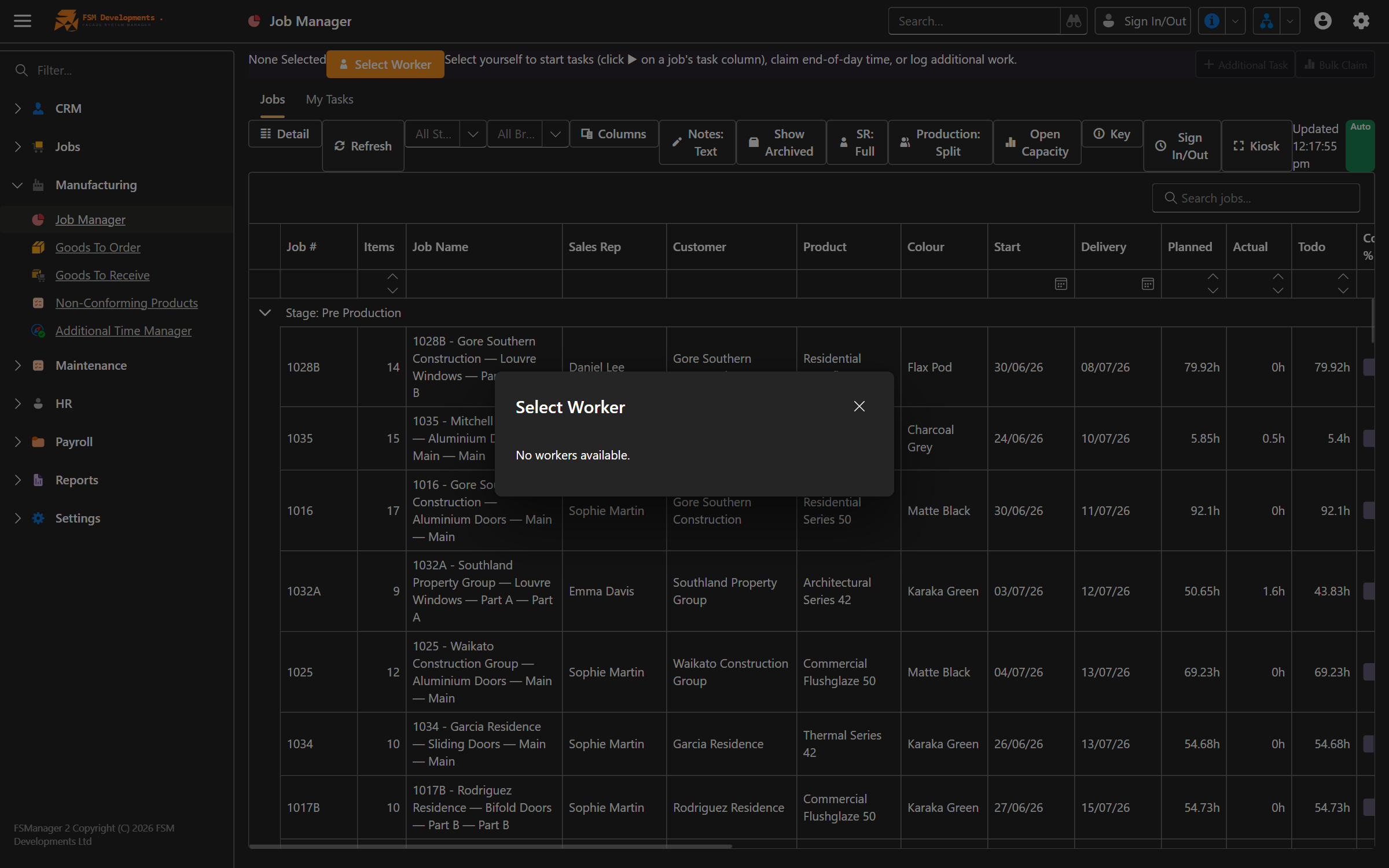
Real-time mode — click Start Task on a JobPartTask. The clock runs. Click Stop Task when you’re done. Duration becomes Minutes.
Proportion mode — at sign-out, allocate the day’s unclaimed minutes across whichever jobs/tasks you worked on. Each claim has Minutes set directly; no start/end times.
You can mix both. Use real-time when you’re focused on one job; use proportion when you’ve been bouncing between several.
Inserted claims
You’re working on Job A and a foreman asks you to load a truck for 10 minutes for Job B. A supervisor can insert a historical claim for Job B without stopping your Job A claim — the 10 minutes is then subtracted from Job A’s total when you stop it. The inserted claim is flagged with IsInserted = true so it’s traceable.
Additional task types
Not all time is on a job. Additional Task Types capture non-job activity — training, cleaning, vehicle maintenance, etc. Some additional tasks RequireApproval so a supervisor signs off when they exceed a minute threshold.
Mark Away
When a signed-in employee leaves the site without signing out (sick mid-shift, off to a supplier), a supervisor can Mark Away. The employee stays in the system but their row goes purple. Requires the AllowedApproveLeave permission.
Supervisor edits
Sign-in times don’t always match reality. Supervisors with AllowedEditSignIn can:
- Edit Sign In Time for a single employee.
- Edit Sign In Time (multi) for a group of selected employees.
Any time the StartTime or EndTime is changed away from the raw sign-in/sign-out times, TimesManuallyEdited is set and a TimeEditReason must be supplied.
Approval
Each day’s StaffWorkDay can be approved by a supervisor. Once IsApproved = true, the day is locked from further edits (Lite). This is your day-level sign-off before any onward payroll processing.
Breaks
Each break has:
- Name — Morning Tea, Lunch, Afternoon Tea, etc.
- Start / End time — the window in which the break is offered.
- Is Paid — does this break count as paid time?
- Pay If Not Taken — pay it even if the employee skipped it (used for legally-mandated short breaks).
- Taken — confirmed by the employee at sign-out.
The total Unpaid Break Minutes on the StaffWorkDay deducts from the day’s work minutes.
How to: sign in at the start of your shift
- At the kiosk, find your name (filter by department if the list is long).
- Tap your row and choose Sign In/Out.
- Enter your PIN. If it’s your first day, you’ll be prompted to set one.
- You’re signed in. Your name turns green.
How to: start a job task in real time
- Open the JobPart you’re working on (or scan its QR code if your shop is set up for it).
- Find the task you’re about to do.
- Click Start Task. The clock starts running.
- Work.
- Come back and click Stop Task when done. The minutes are saved as a Claim against that JobPartTask.
If you forget to stop and a supervisor needs to fix it later, they can stop it for you and edit the time.
How to: allocate time at sign-out (proportion mode)
- Tap your name at the kiosk and enter your PIN to start signing out.
- The break-confirmation popup appears — tick the breaks you took, untick the ones you didn’t.
- The allocation popup shows your Unclaimed Minutes for the day.
- Add a claim for each job/task you worked on — pick the JobPartTask (or AdditionalTaskType), enter the minutes.
- The remaining unclaimed minutes shrink as you allocate. Aim for zero.
- Save. Your day is now claimed and you’re signed out.
How to: log non-job time
Some activities don’t belong to a job — training, vehicle washing, monthly meetings. These are captured as Additional Tasks.
- From your StaffWorkDay or at sign-out, add a claim with
Claim Type = AdditionalTask. - Pick the Additional Task Type (set up under Settings).
- Enter the minutes.
- If the task
RequiresApprovaland you’ve claimed more than its threshold, the claim sits asIsApproved = falseuntil a supervisor signs off.
How to: review a day as a supervisor
- Open the Staff Work Day list view.
- Filter to today and the people you supervise.
- Open each day to see breaks, claims, and total paid hours.
- If sign-in/out times need adjustment, edit
StartTime/EndTimeand supply aTime Edit Reason. - When the day looks right, tick Is Approved. The day locks.
Tips & gotchas
- A PIN belongs to the employee, not the kiosk. Anyone can sign in at any kiosk with their own PIN — they share the same employee record.
- Unallocated minutes at sign-out are a problem. Encourage everyone to zero out their unclaimed minutes. Unallocated hours don’t appear on any job’s actuals.
- Inserted claims are tracked. When a foreman inserts a 10-minute Job B claim into your Job A window, the system handles the maths — you don’t need to deduct anything manually.
- Edit times responsibly. Manually editing
StartTime/EndTimerequires a reason. Reasons are searchable later, so be specific (“forgot to sign in, was on site by 7:30”). - Mark Away keeps the employee signed in — they’re still on the clock until they actually sign out (or are signed out by a supervisor). Use it for short absences, not full-day leave.
- Once approved, the day locks. If you need to fix something after approval, untick
Is Approvedfirst (subject to permissions).
Related
- Job Management — JobPartTasks are the targets of your claims; their actual minutes flow back from time recording
- Administration → Users — assigning PINs and time-related permissions (
AllowedApproveLeave,AllowedEditSignIn) - Administration → Settings — Additional Task Types, default break templates, work calendars
- Reporting & Analytics — planned vs actual minutes per task, employee productivity