Company profile
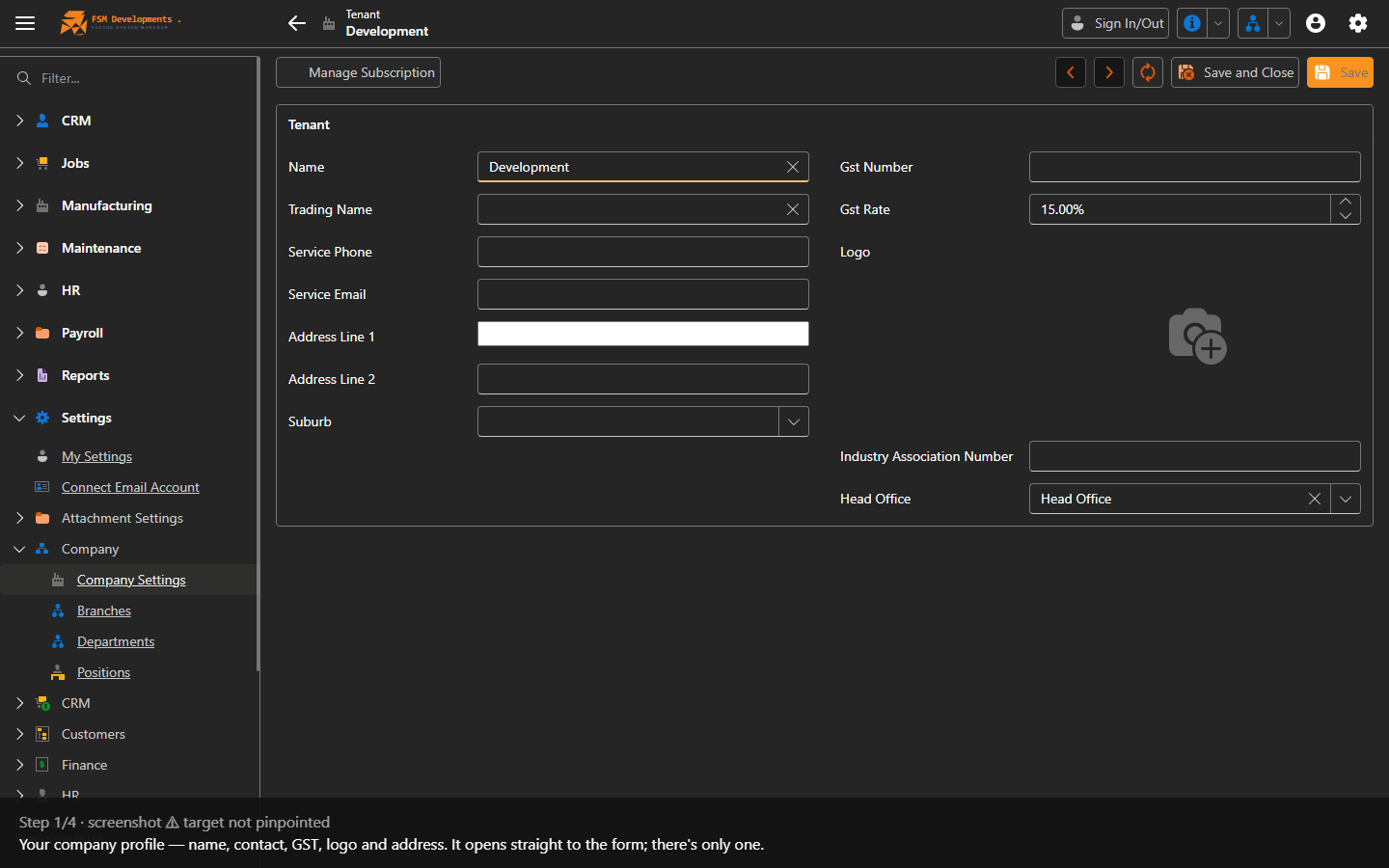
Lite+Your company’s profile — name, contact, GST, logo and address — plus the organisational structure (branches, departments, positions) the rest of the system hangs off.
When to use
During setup, or when company details, a branch or a role changes.
Step by step
Every field
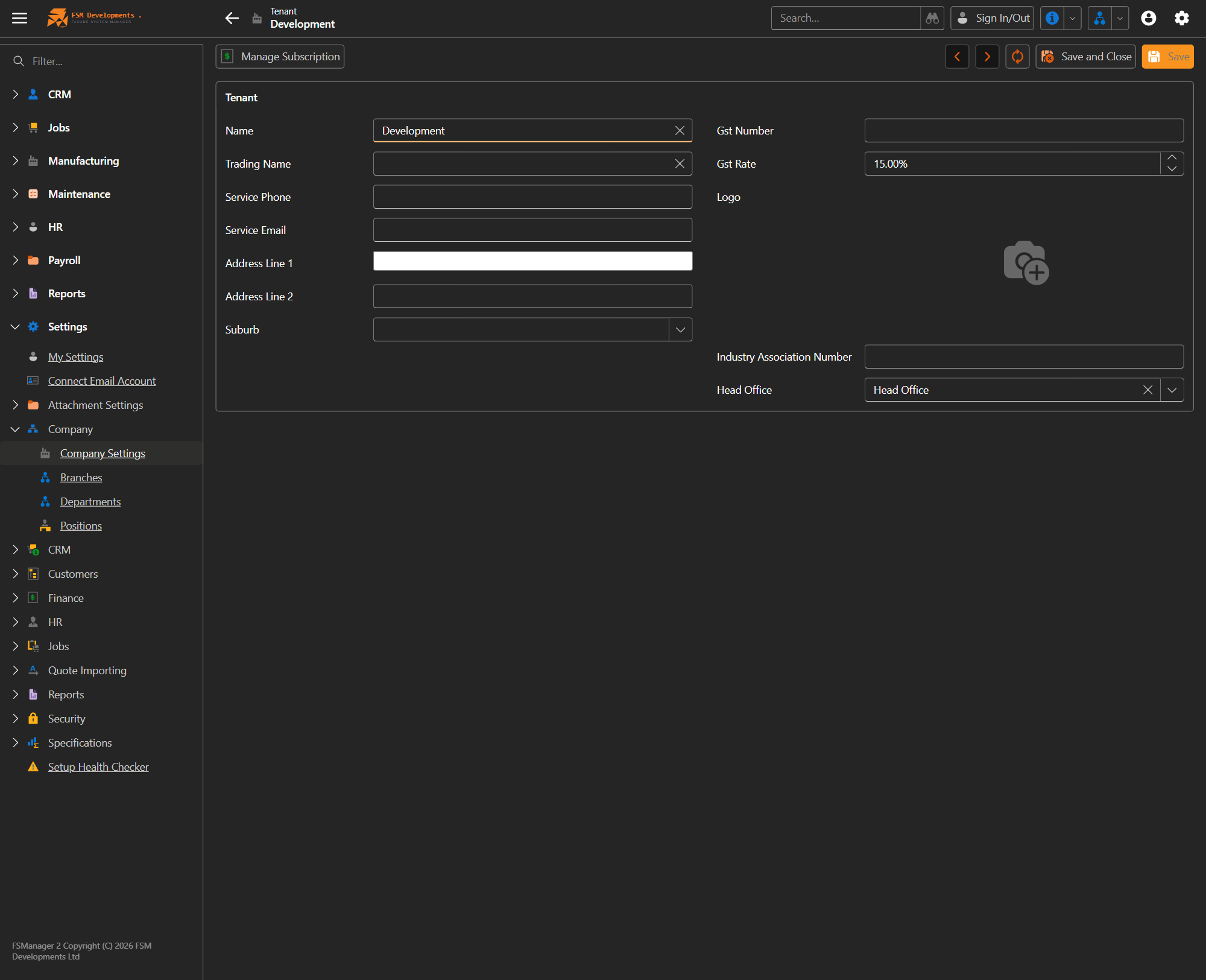
Company Settings is a single record (the tenant) — open it from Settings → Company → Company Settings and it goes straight to the form.
| Setting | What it does / affects |
|---|---|
| Name / Trading Name | Your legal name and the trading name shown on documents and correspondence. |
| Service Phone / Service Email | The contact details customers see on documents and automated emails. |
| Address / Suburb | Your company address, used on documents. |
| GST Number | Your GST registration number — printed on quotes and invoices. |
| GST Rate | The GST rate applied to pricing across the system (e.g. 15%). |
| Logo | The logo merged onto quote letters, invoices and other documents. |
| Industry Association Number | Your trade-association membership number, for documents that reference it. |
| Head Office | The branch treated as your head office by default. |
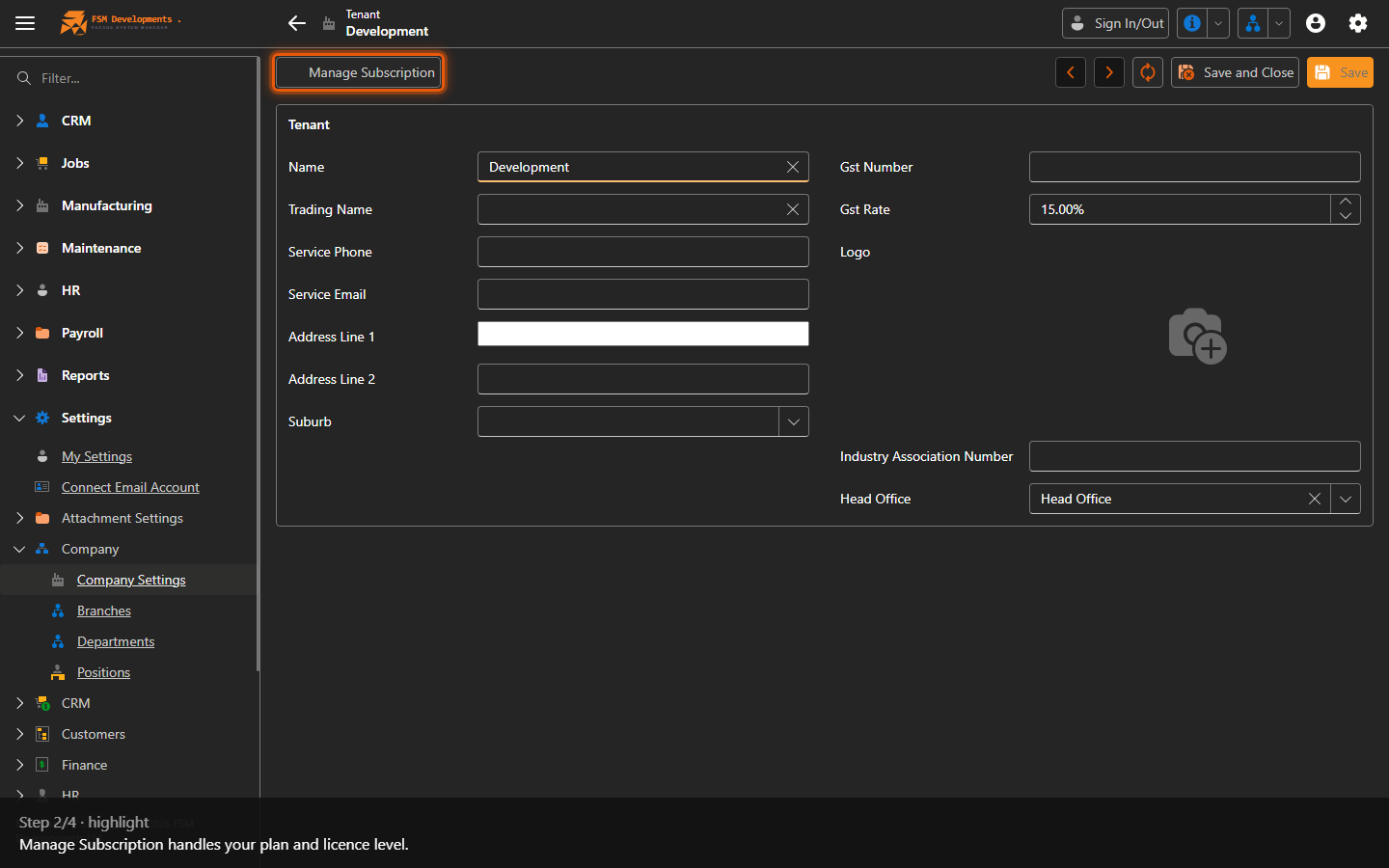
| Manage Subscription (toolbar) | Your plan and licence level — the tier you’re on and how many users you’re licensed for. |
Data sharing
Three opt-ins control whether your performance figures contribute to benchmark reporting. You’re asked about them during the Setup Wizard and can change them here at any time.
| Setting | What it does / affects |
|---|---|
| Share Benchmark Data with My Dieholder | Lets your dieholder see your benchmark KPIs alongside their other clients’. |
| Share Benchmark Data with FSM for My Dieholder | Lets FSM prepare that benchmark reporting on your dieholder’s behalf. |
| Share Benchmark Data with FSM | Lets FSM use your figures in wider industry benchmarking. |
Benchmark figures are always aggregated, and network comparisons are only shown when enough clients are sharing for no individual business to be identifiable. Nothing is shared beyond what you opt into here.
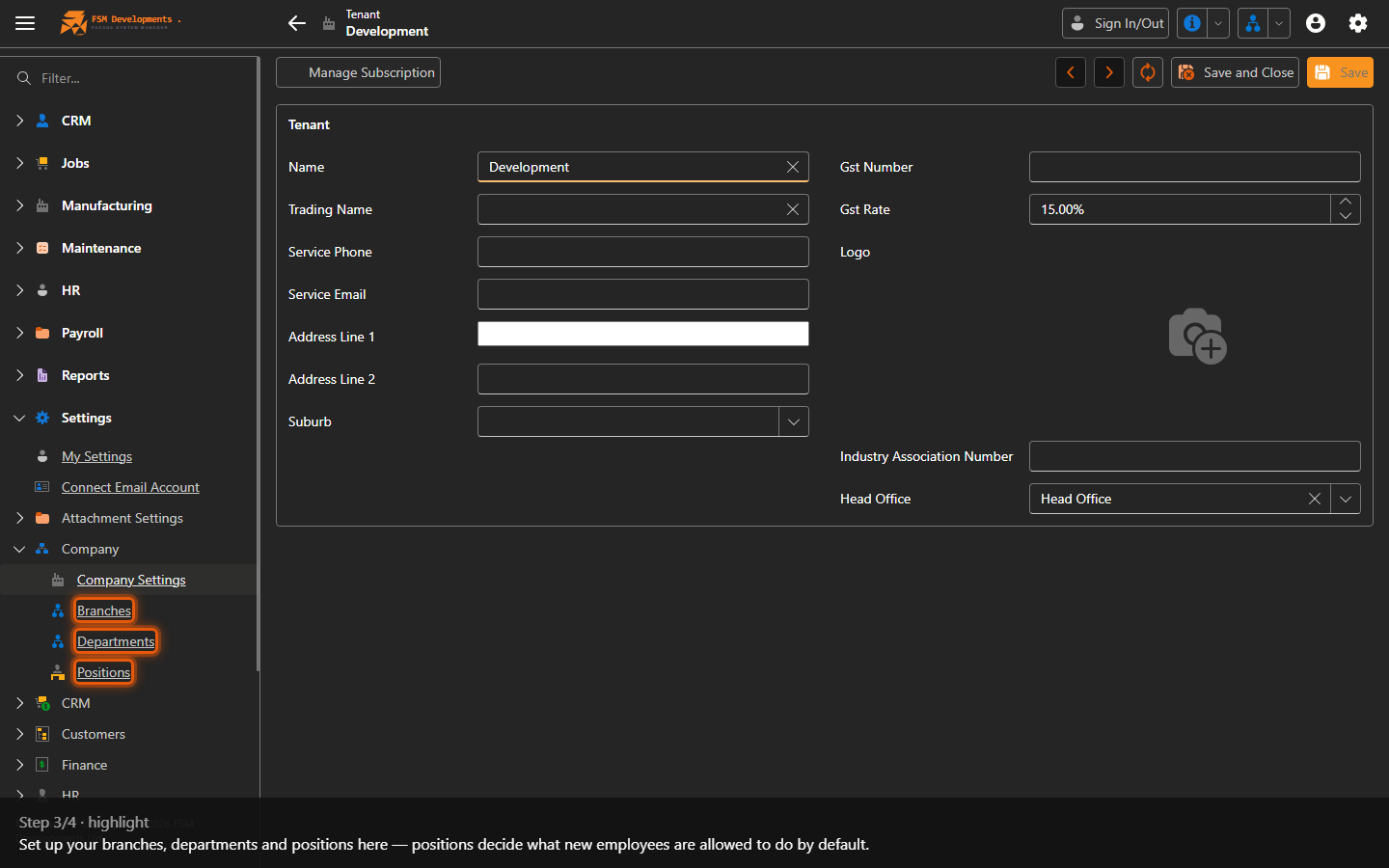
The organisational structure
The Branches, Departments and Positions under Company are the structure the rest of the system hangs off — and positions carry the capability flags that decide what staff can do. See Branches, Departments & Positions for a field-by-field breakdown.