Skip to Content

Inside a job

Lite+

The full job record: its identity and site details, the Parts that make up the work, and the linked logs, maintenance, non-conforming products and documents.

When to use

To track a job through production, update the site contact or PO number, or check where each part is up to.

Step by step
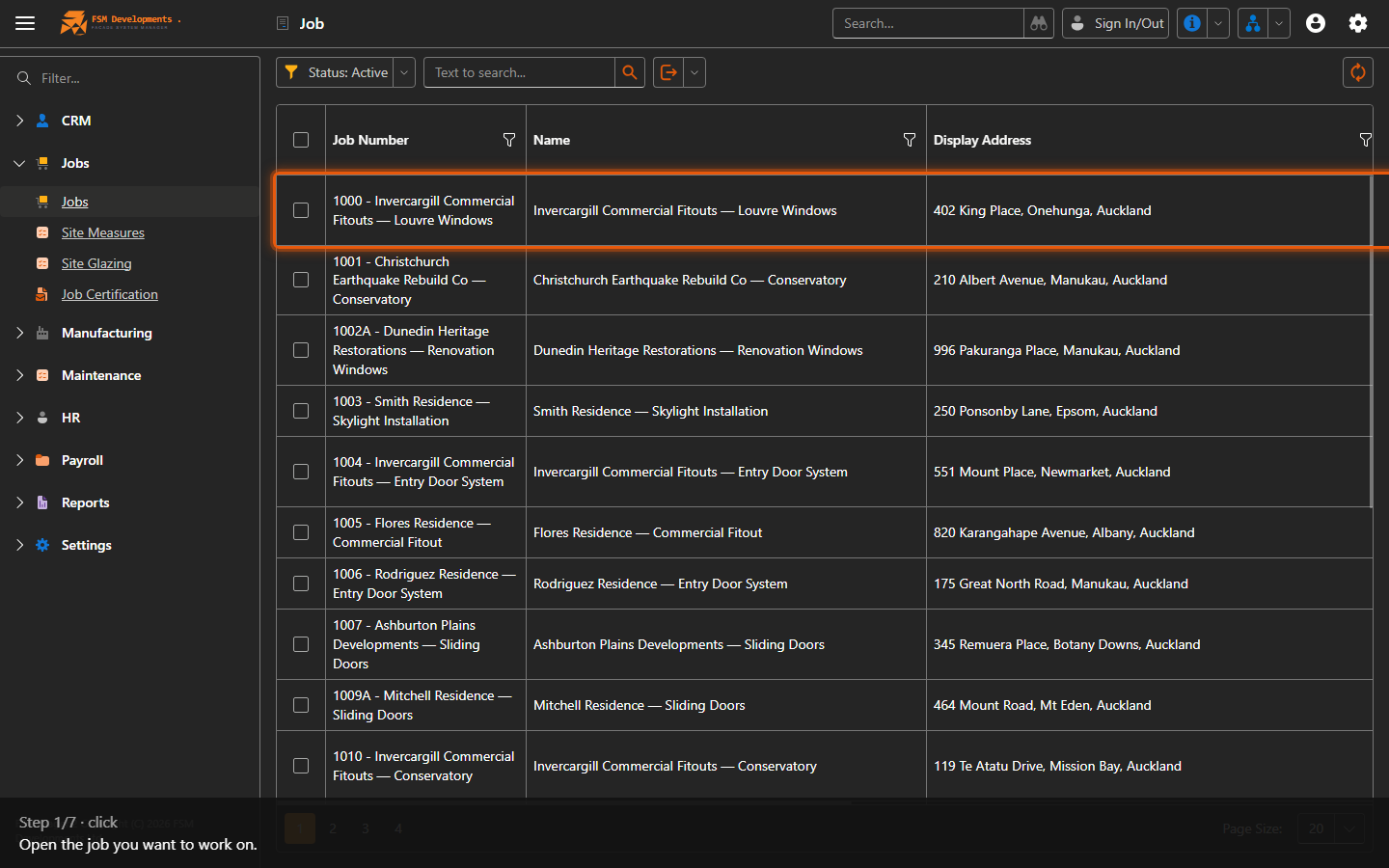
A job row
1. Open the job you want to work on.
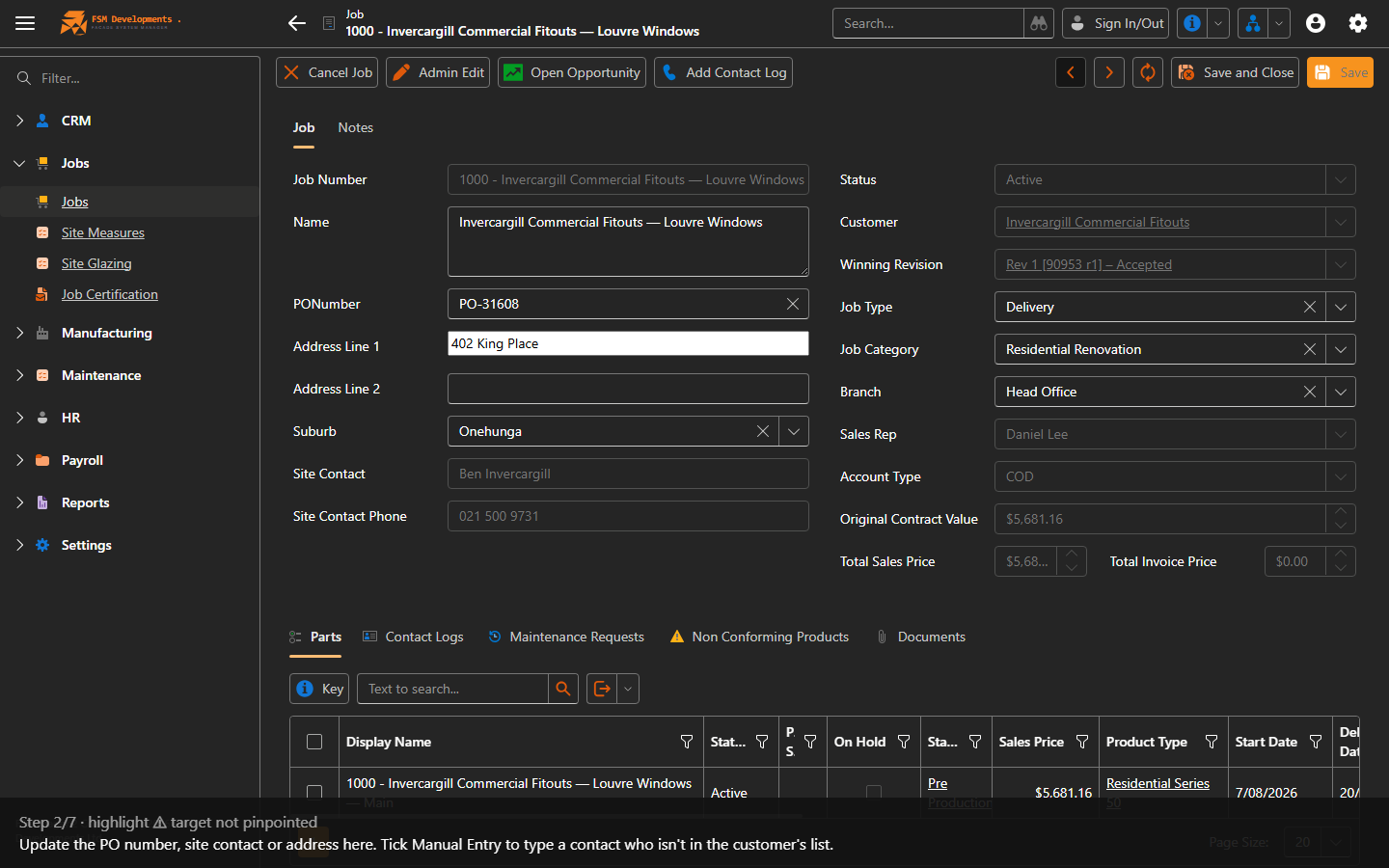
Job header (Name, PO Number, Site Contact, address)
2. Update the PO number, site contact or address here. Tick Manual Entry to type a contact who isn't in the customer's list.
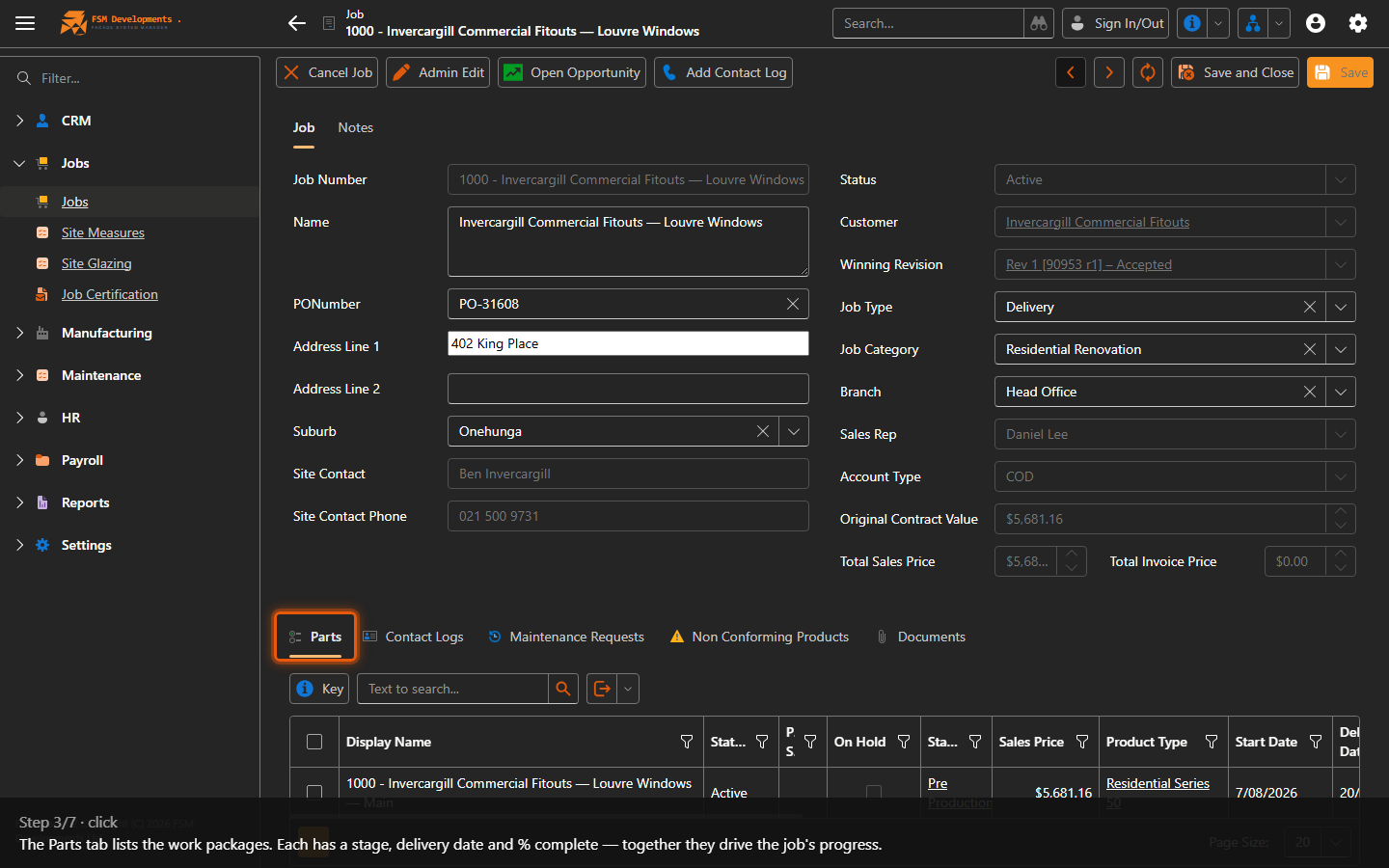
Parts (tab)
3. The Parts tab lists the work packages. Each has a stage, delivery date and % complete — together they drive the job's progress.
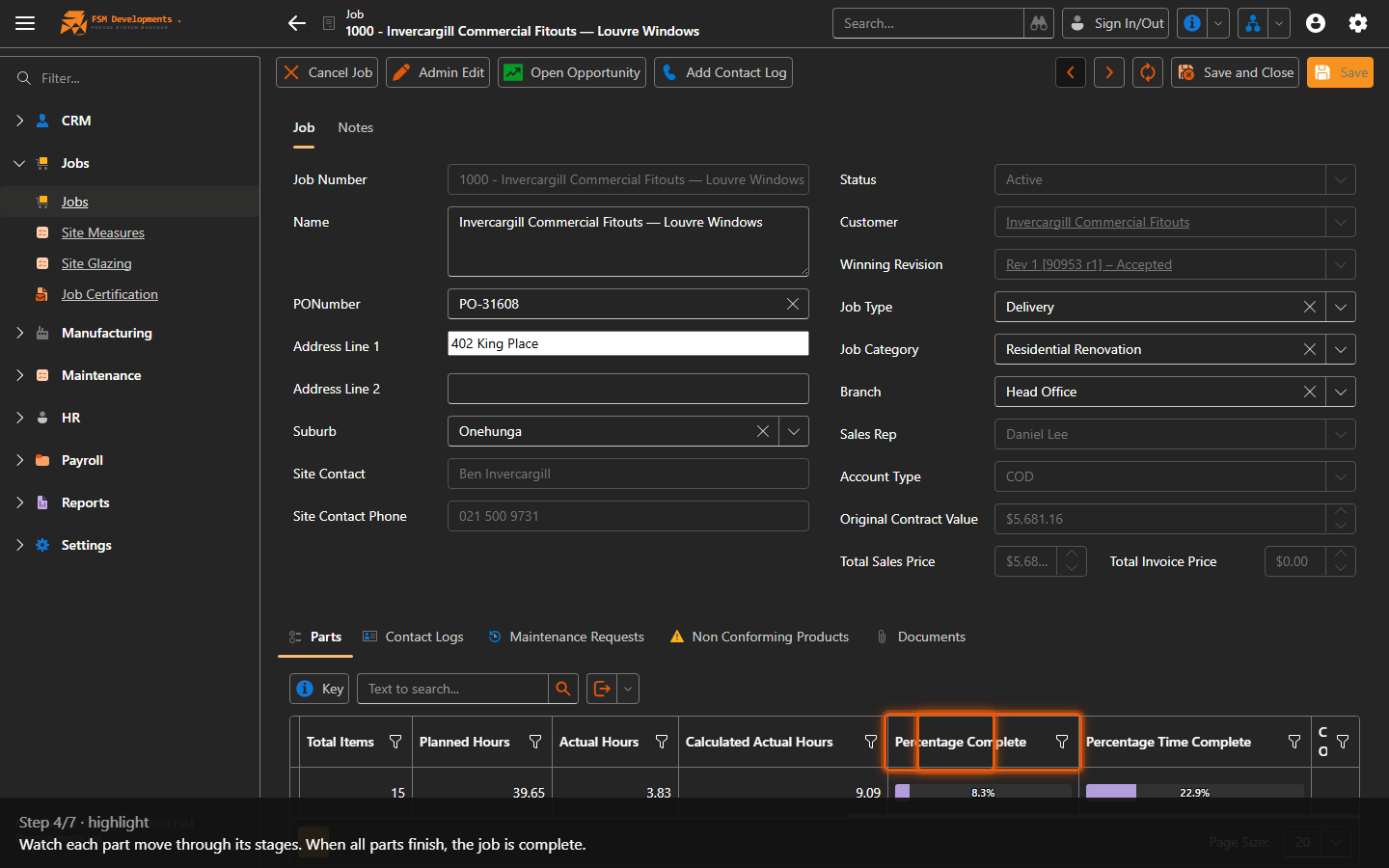
Stage / Percentage Complete (Parts columns)
4. Watch each part move through its stages. When all parts finish, the job is complete.
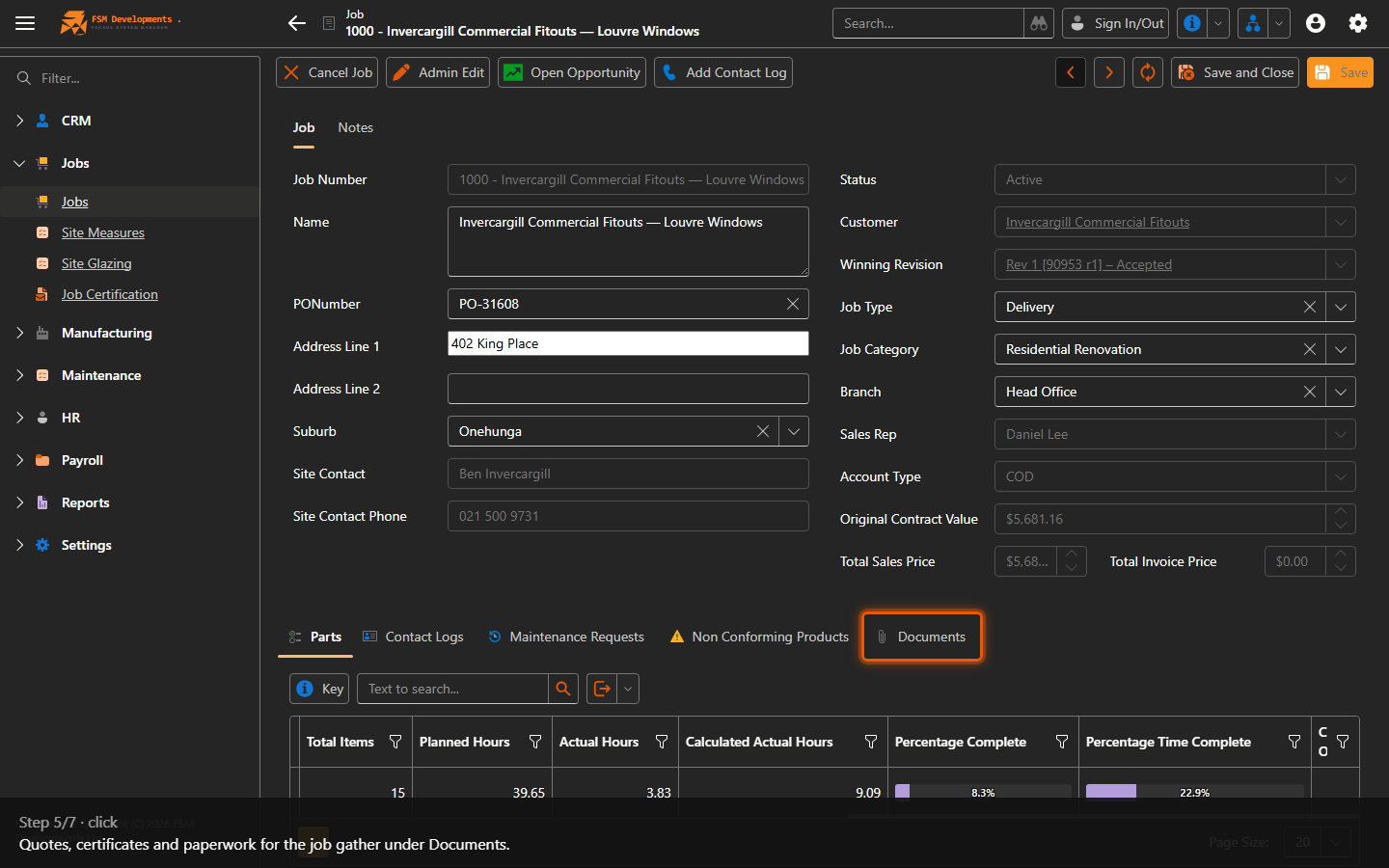
Documents (tab)
5. Quotes, certificates and paperwork for the job gather under Documents.
Admin Edit (toolbar button)
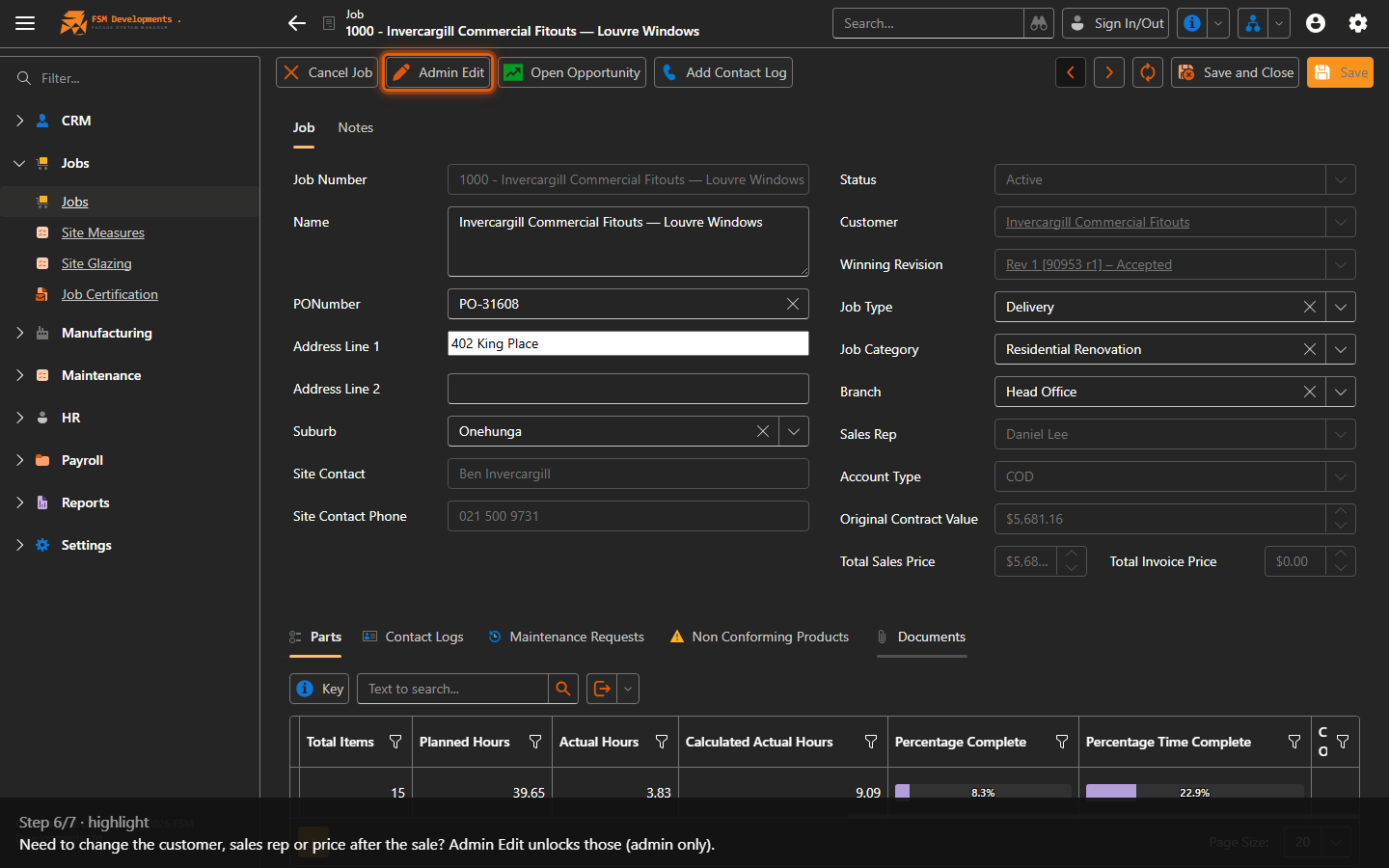
6. Need to change the customer, sales rep or price after the sale? Admin Edit unlocks those (admin only).
Open Opportunity (toolbar button)
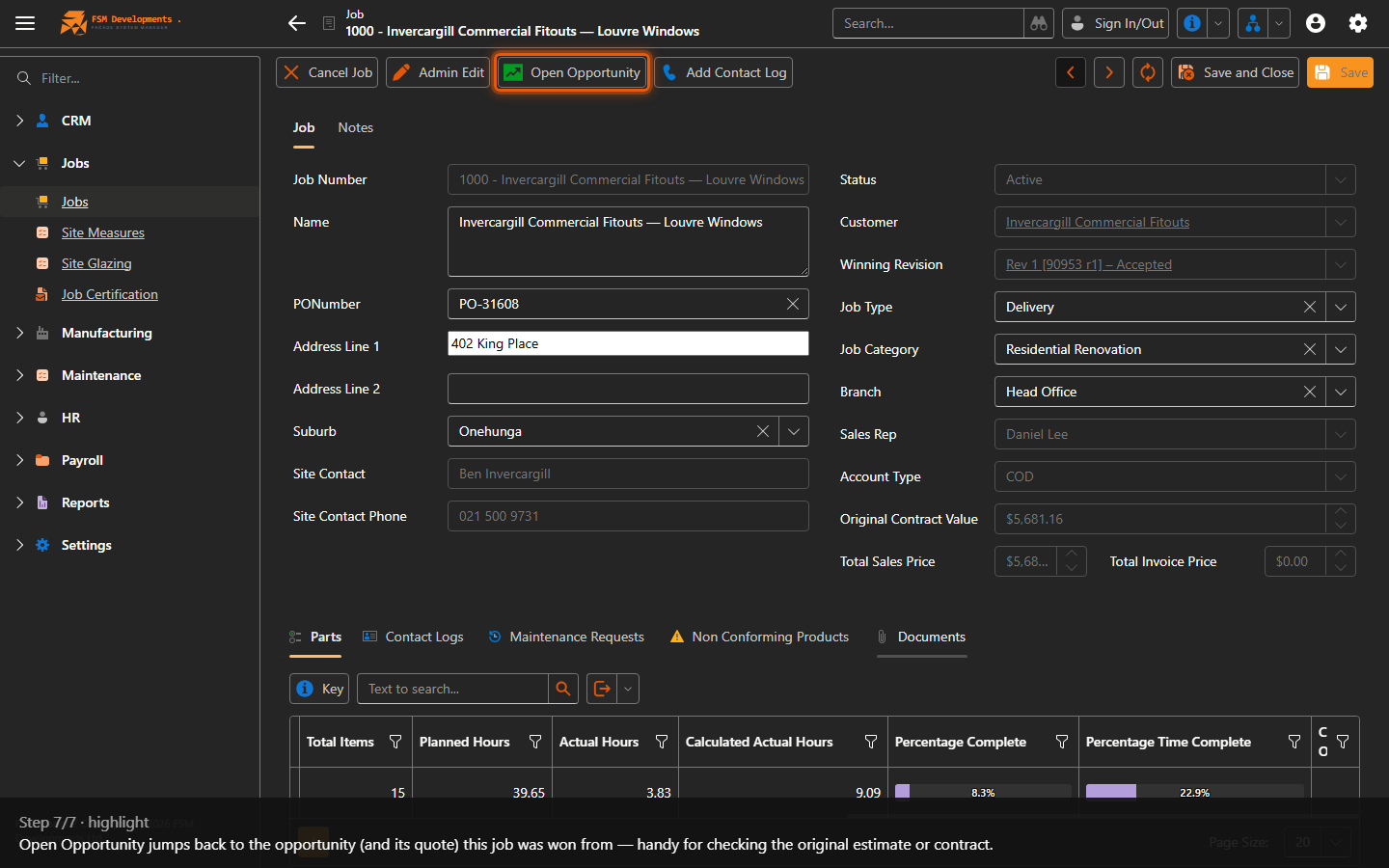
7. Open Opportunity jumps back to the opportunity (and its quote) this job was won from — handy for checking the original estimate or contract.
Last updated on