Job Settings reference
Lite+Settings → Jobs → Job Settings. One configuration record that sets the defaults and rules for how jobs number, schedule, complete and produce paperwork. Change a value here and it applies to every new job across the system.
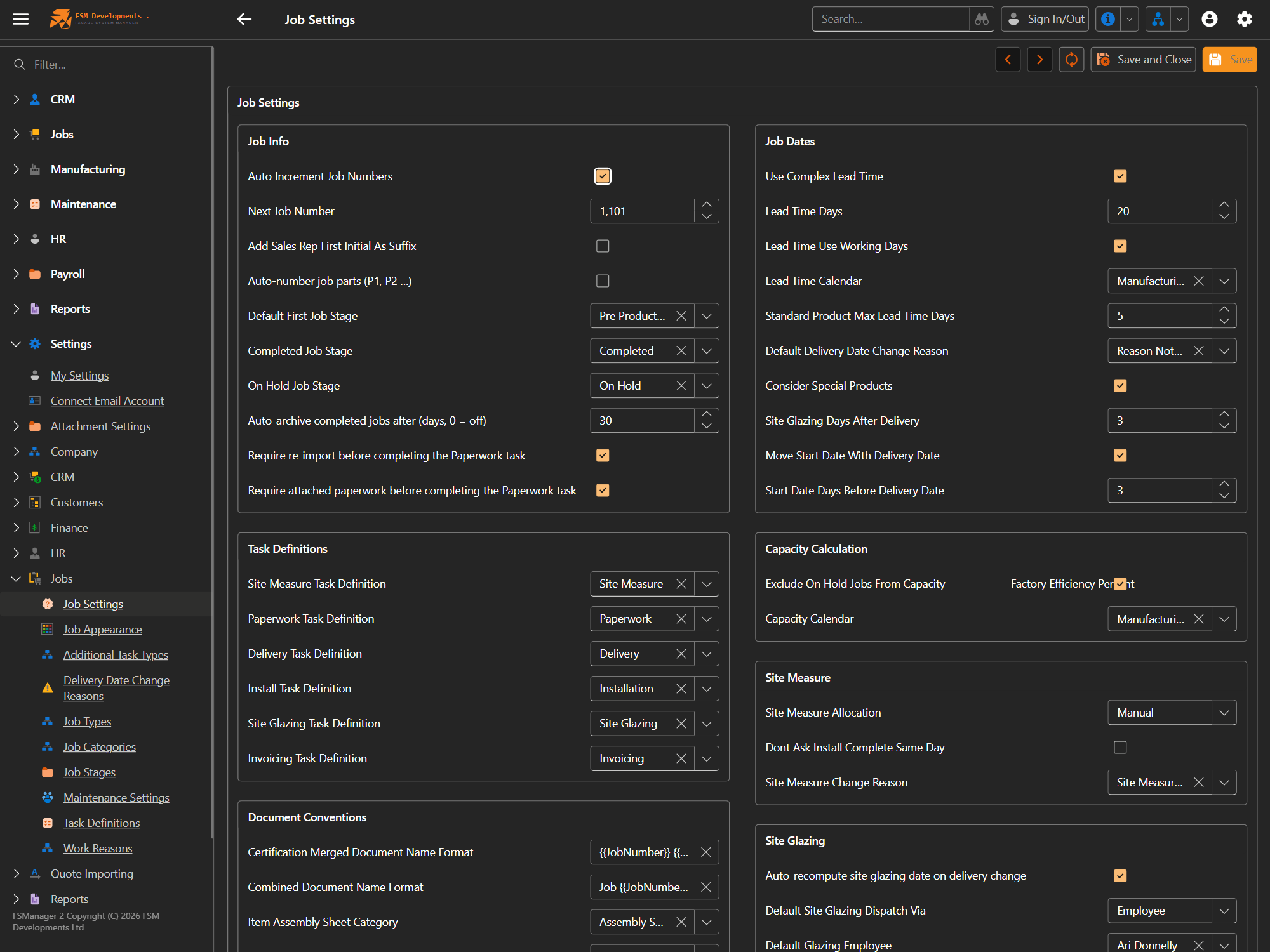
Job Info
| Setting | What it does / affects |
|---|---|
| Auto Increment Job Numbers | When on, each new job is numbered automatically from Next Job Number. Off means you type the number yourself. |
| Next Job Number | The number the next new job will take. Increments automatically as jobs are created. |
| Add Sales Rep First Initial As Suffix | Appends the selling rep’s first initial to the job number (e.g. 1101A), so you can tell at a glance who sold it. |
| Auto-number job parts (P1, P2 …) | Parts get sequential P-numbers automatically instead of being named by hand. |
| Default First Job Stage | The stage a job lands in when it’s created (e.g. Pre Production) — where it first appears on the Job Manager board. |
| Completed Job Stage | The stage that counts a job as finished. Drives completion reporting and the auto-archive timer below. |
| On Hold Job Stage | The stage a job moves to when it’s put on hold. |
| Auto-archive completed jobs after (days, 0 = off) | Completed jobs drop off the active board this many days after completion. 0 keeps them on the board indefinitely. |
| Require re-import before completing the Paperwork task | Blocks the Paperwork task from being marked complete until the part’s items have been re-imported — a guard against paperwork built from stale data. |
| Require attached paperwork before completing the Paperwork task | Blocks completing the Paperwork task until at least one document is attached to the part. |
Task claim permissions
| Setting | What it does / affects |
|---|---|
| Task claim enforcement | Whether the Job Manager restricts which workers may claim which job tasks. Enforce (the default) leaves out-of-scope tasks visible but greys out their claim control; Warn lets every claim through but stamps the ones that break the rules, listing them on the Claims Outside Scope report (Reports → Manufacturing, Administrators only); Off skips the rules entirely. |
This one setting only decides whether the rules block, warn, or are skipped — the rules themselves live on your departments, positions and task definitions. See Who can claim which tasks for the full picture, including what ships configured.
Job Dates
| Setting | What it does / affects |
|---|---|
| Use Complex Lead Time | Switches delivery-date calculation to the detailed model (base lead time + per-product extensions) instead of a flat number of days. Drives the View Lead Time breakdown on a part. |
| Lead Time Days | The base number of days used to work out a delivery date from the start date. |
| Lead Time Use Working Days | Counts only working days (skipping weekends/holidays) when adding lead time. |
| Lead Time Calendar | Which working-day calendar the lead-time calculation uses. |
| Standard Product Max Lead Time Days | Caps how many days a standard product can add to the lead time. |
| Default Delivery Date Change Reason | The reason pre-selected on the Change Delivery Date dialog. |
| Consider Special Products | Factors special-order product lead times into the calculated delivery date. |
| Site Glazing Days After Delivery | How many days after delivery a site-glazing visit is scheduled by default. |
| Move Start Date With Delivery Date | When a delivery date changes, the start date shifts by the same amount to keep the gap. |
| Start Date Days Before Delivery Date | The default gap between a job’s start date and its delivery date. |
Task Definitions
Each row maps a system role to one of your task definitions — so FSManager knows which task in your list plays each part of the workflow. Changing one re-points that role to a different task for new jobs.
| Setting | The role it fills |
|---|---|
| Site Measure Task Definition | The task that represents measuring on site. |
| Paperwork Task Definition | The task gated by the “require paperwork / re-import” rules above. |
| Delivery Task Definition | The task that represents delivering the job. |
| Install Task Definition | The task that represents installing on site. |
| Site Glazing Task Definition | The task that represents glazing on site. |
| Invoicing Task Definition | The task that represents invoicing the job. |
Capacity Calculation
| Setting | What it does / affects |
|---|---|
| Exclude On Hold Jobs From Capacity | On-hold jobs don’t count toward the factory load shown on the capacity graph. |
| Factory Efficiency Percent | De-rates available hours in the capacity calculation — e.g. 80% means only 80% of raw hours are treated as usable. |
| Capacity Calendar | The working-day calendar the capacity graph uses to work out available hours. |
Document Conventions
| Setting | What it does / affects |
|---|---|
| Certification Merged Document Name Format | The filename template for merged certification documents. Supports tokens like {{JobNumber}}. |
| Combined Document Name Format | The filename template used when documents are combined into one. |
| Item Assembly Sheet Category | Which document category holds item assembly sheets, so they’re filed and found consistently. |
Site Measure
| Setting | What it does / affects |
|---|---|
| Site Measure Allocation | How site measures are assigned — Manual (you assign them) versus automatic allocation. |
| Don’t Ask Install Complete Same Day | Suppresses the “was the install completed the same day?” prompt. |
| Site Measure Change Reason | The default reason recorded when a site-measure date changes. |
Site Glazing
| Setting | What it does / affects |
|---|---|
| Auto-recompute site glazing date on delivery change | Reschedules the glazing visit automatically when the part’s delivery date moves. |
| Default Site Glazing Dispatch Via | Whether glazing is dispatched via an Employee or a supplier by default. |
| Default Glazing Employee | The staff member pre-filled as the glazier on new site-glazing schedules. |
There’s one Job Settings record — edit it and Save. The neighbouring pages under Settings → Jobs hold the lists these settings point at: Job Stages, Types, Categories, Task Definitions and Work Reasons.