Edit a customer & manage its tabs
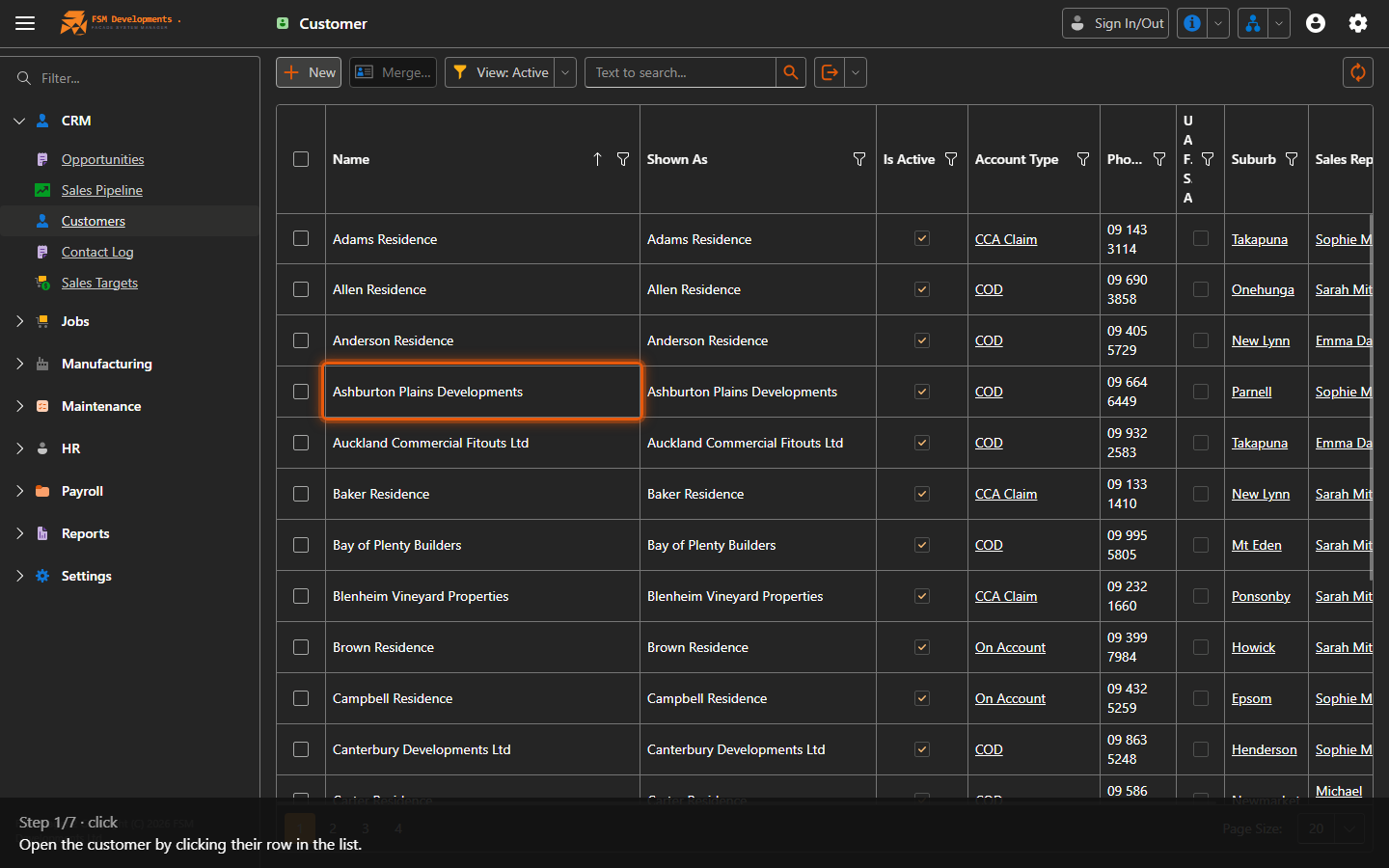
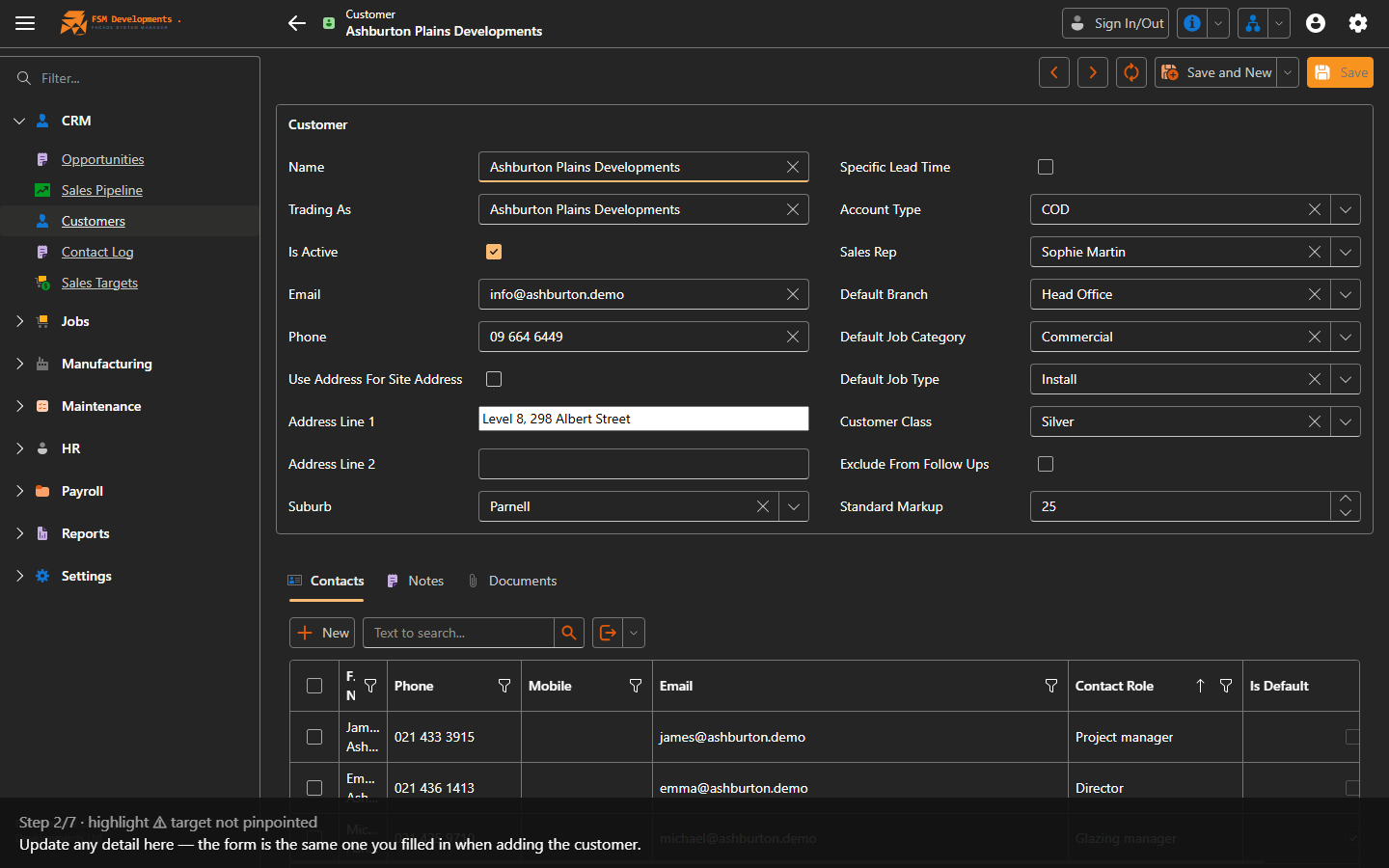
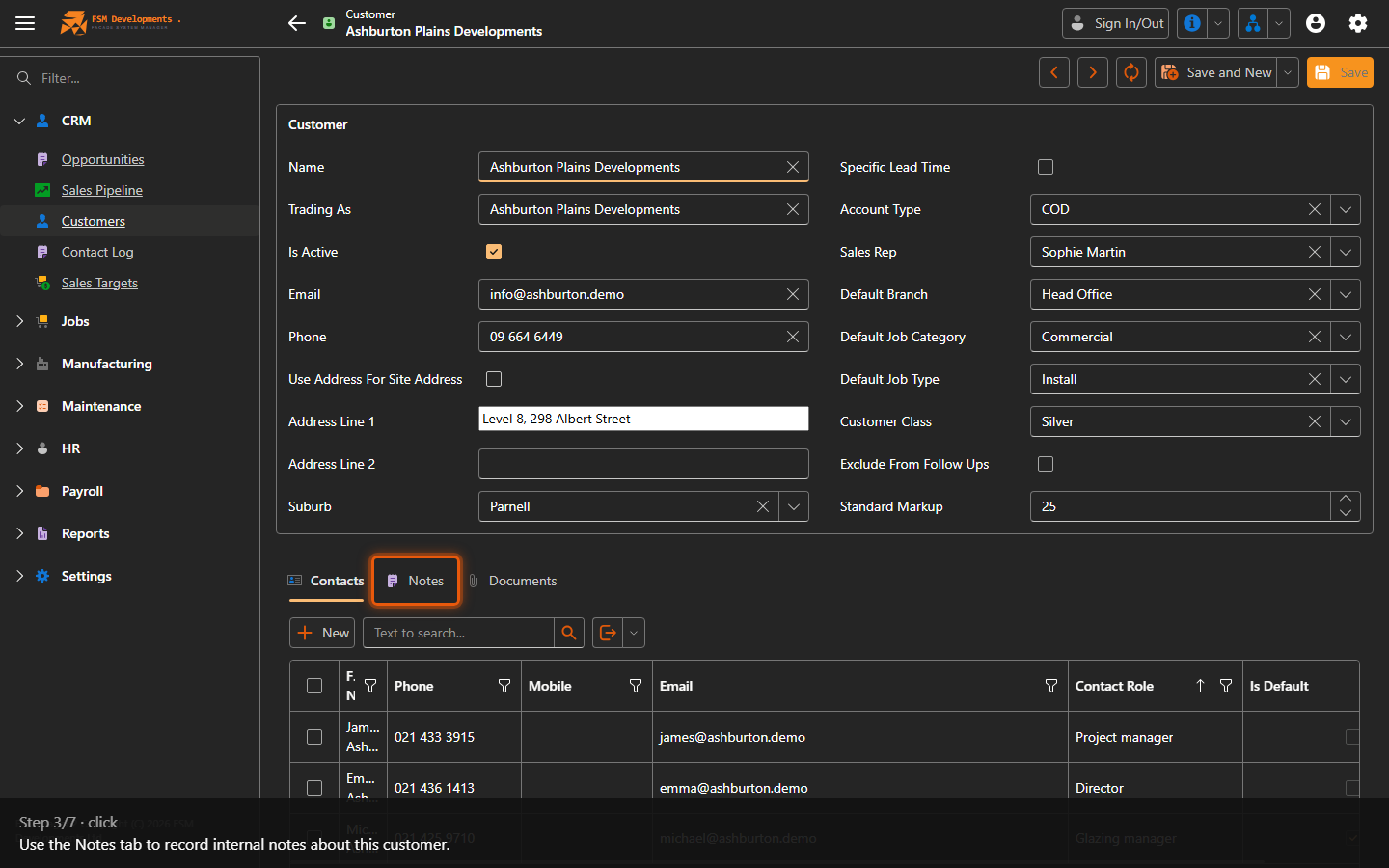
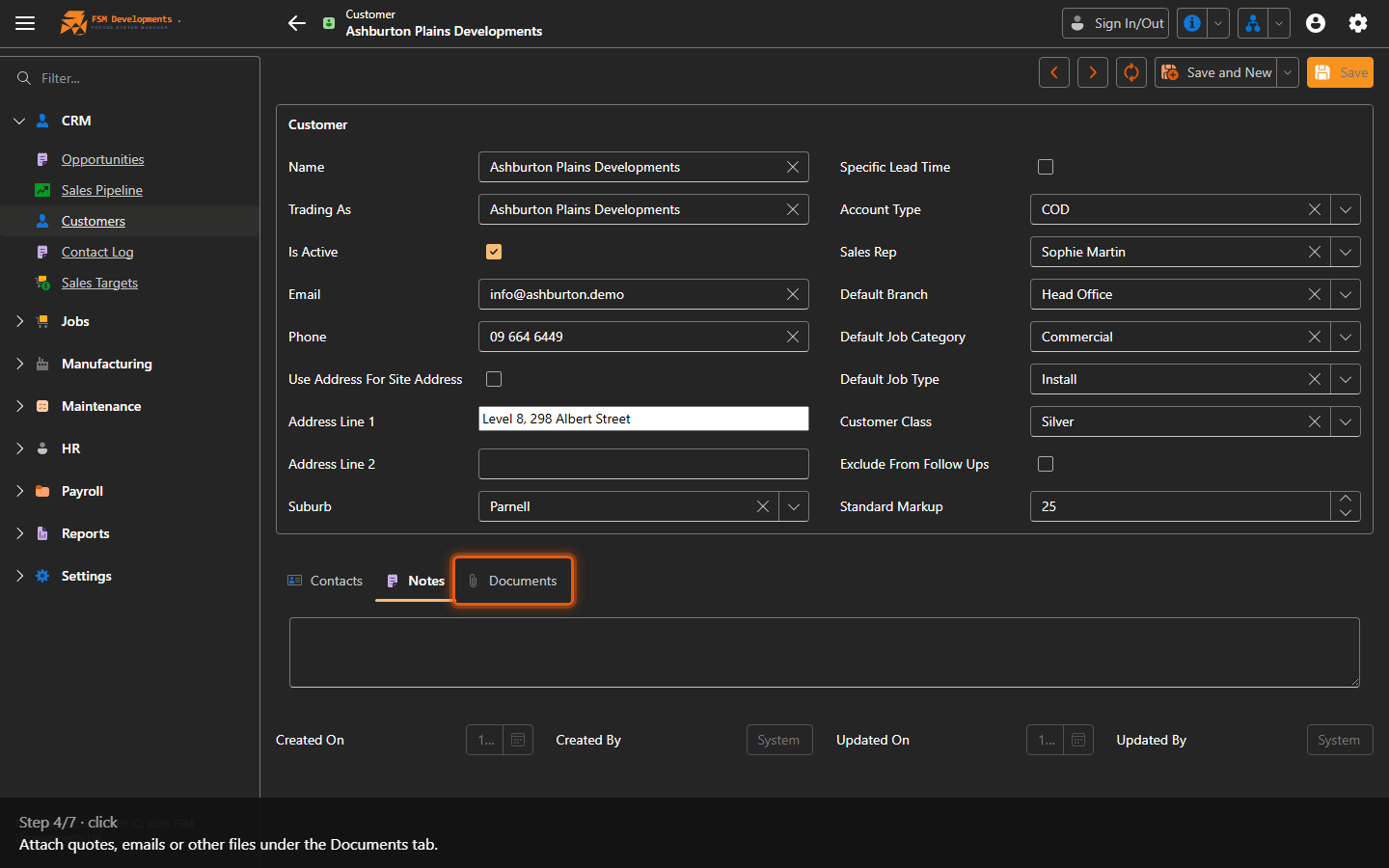
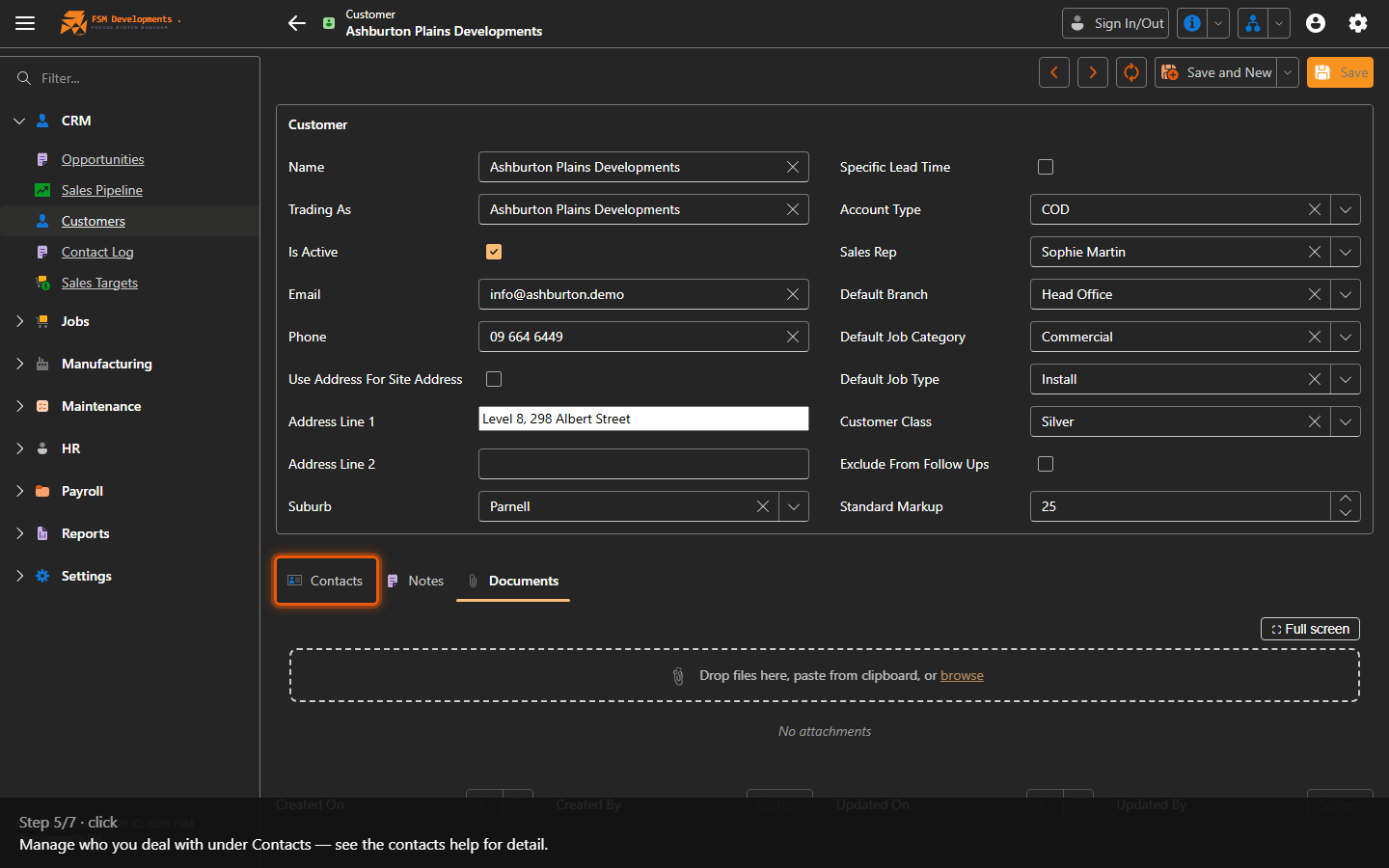
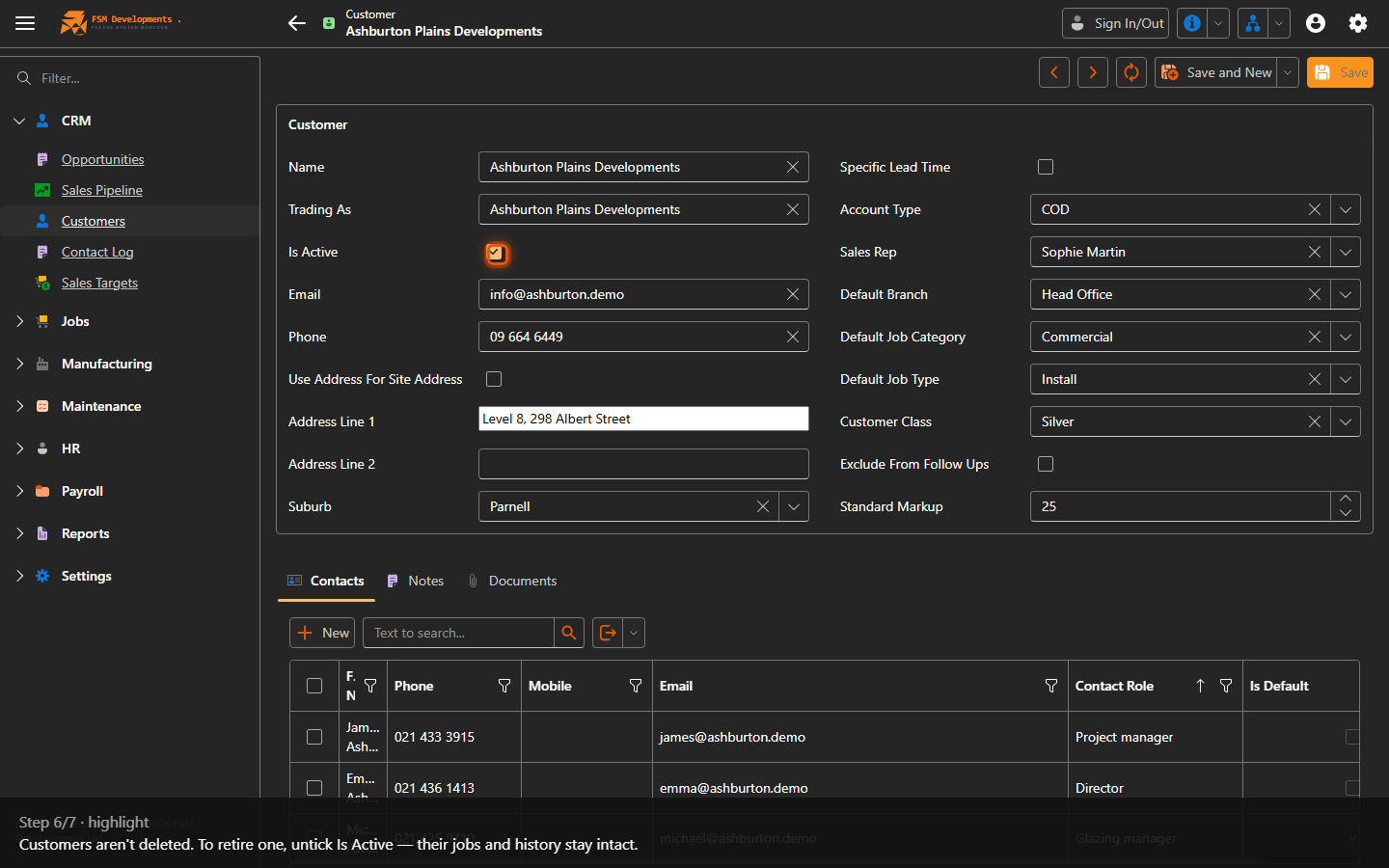
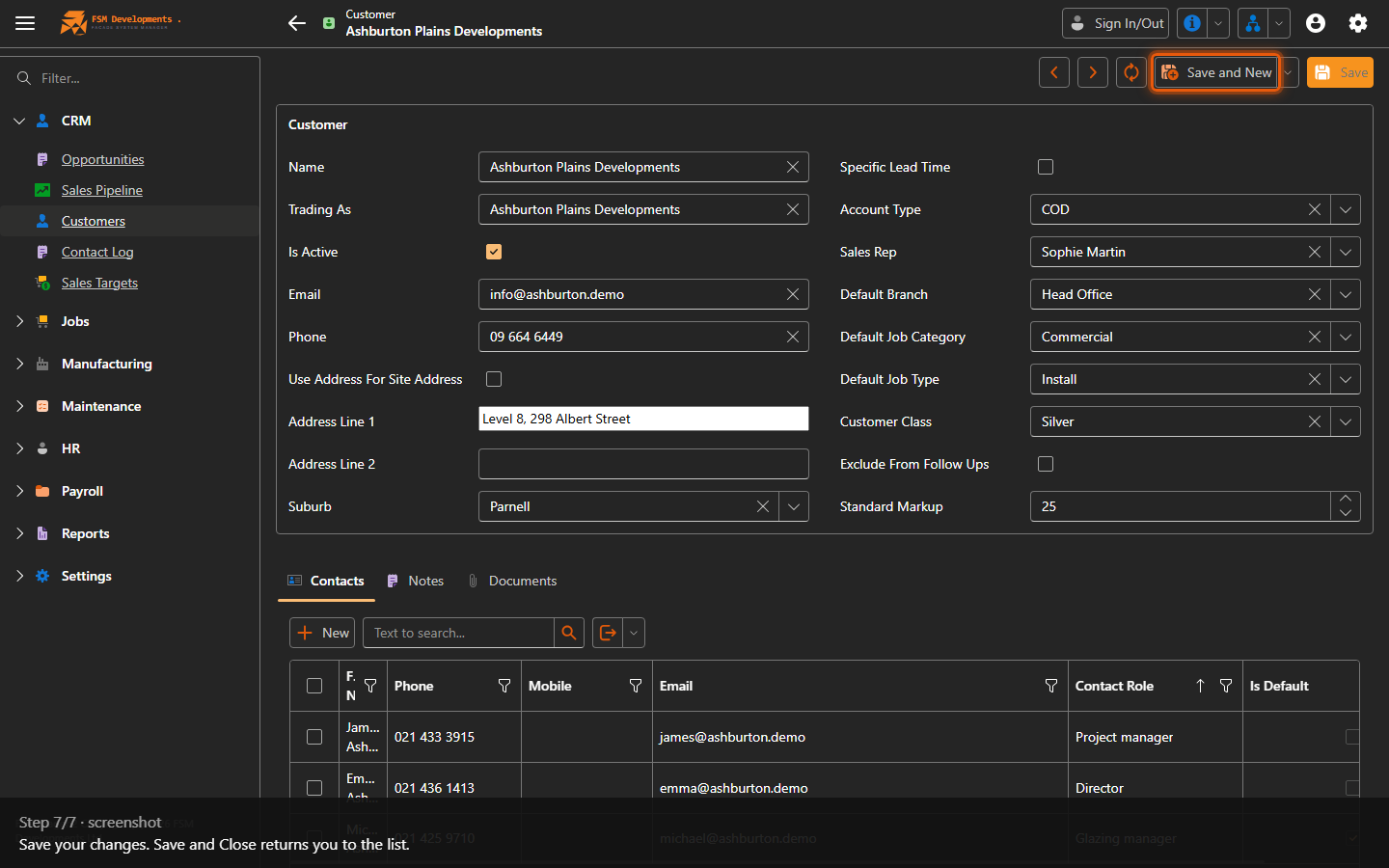
Lite+Opens an existing customer to update their details, work through the Contacts, Notes and Documents tabs, and deactivate them when they’re no longer trading.
When to use
A customer changes their phone number or sales rep; you want to jot an internal note; or you want to retire an old account without deleting its history.
Step by step
Project manager
Set a Project Manager on the customer and it carries through to every job won for them, so it’s clear who owns delivery once the quote becomes work.
Only current employees flagged as able to project manage appear in the list, so it stays short and relevant. You can still change the project manager on an individual job afterwards — the customer’s is the starting point, not a lock.
This is different from a contact whose role is Project Manager. That’s someone at the customer’s end; this is the person on your team responsible for the job.