Export your estimate from QuoteLinker V6
Complete from Import needs up to four files from QuoteLinker V6 — the quote XML plus three PDF reports. FSManager detects each file’s type when you drop it in, so the order doesn’t matter.
| File | V6 report | Needed |
|---|---|---|
| Import file (XML) | Send Quote export | Required |
| BOM / Costs PDF | Bill of Materials | Required |
| Schedule PDF | Quote No Price (or a similar schedule report) | Recommended |
| Labour PDF | Long Assembly with Labour | Recommended |
Step 1 — Export the quote XML
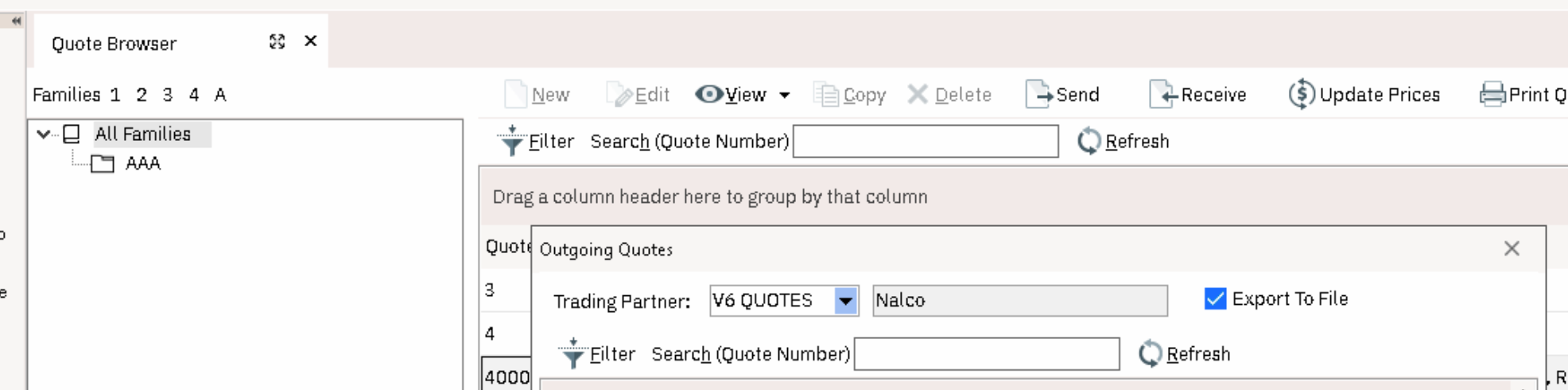
In the Quote Browser, select your quote and press Send. In the Outgoing Quotes window, choose the V6 QUOTES trading partner and tick Export To File — this saves the quote as an XML file.
Step 2 — Export the three report PDFs
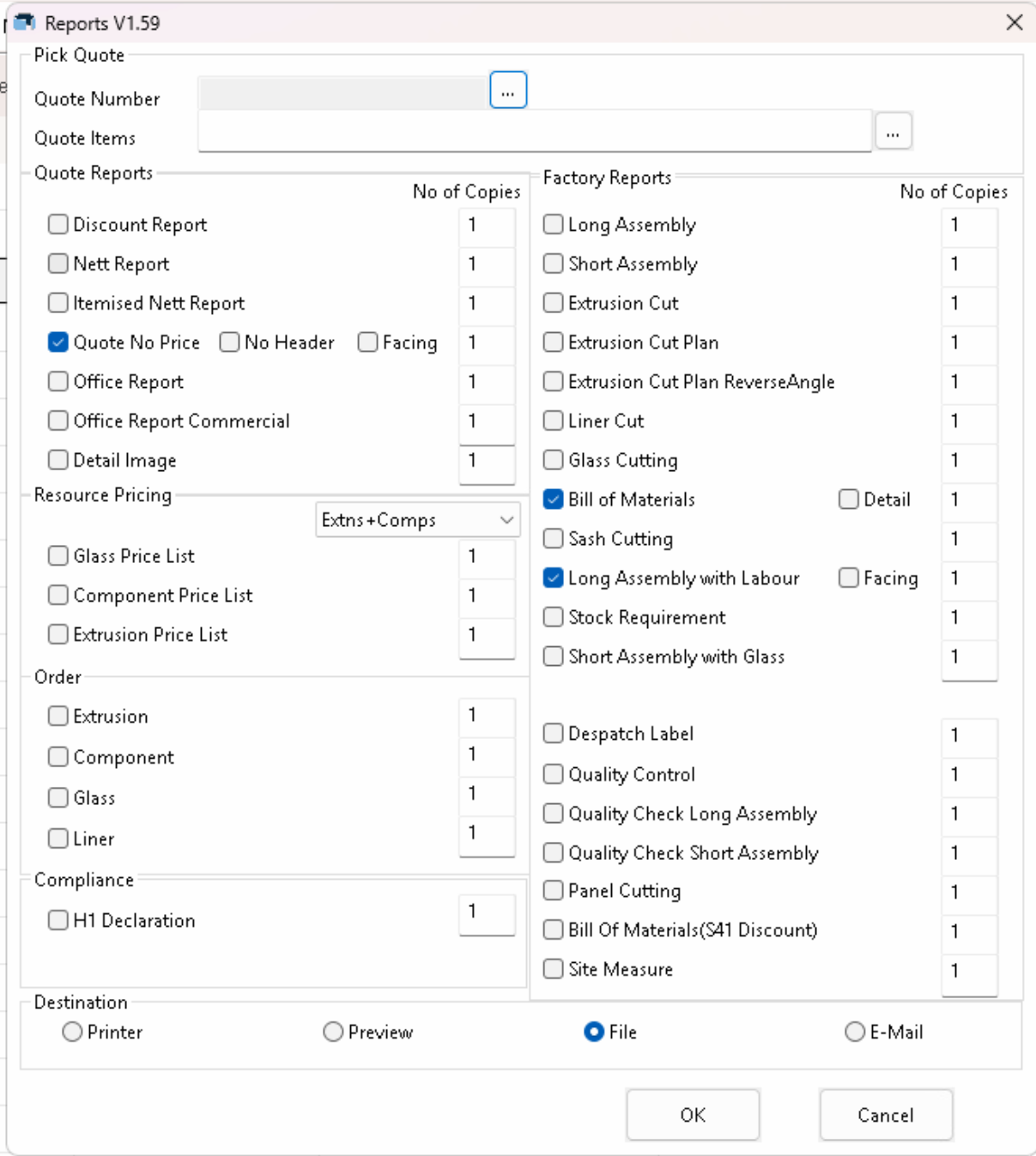
Open the Reports window, pick the same quote, and tick:
- Quote No Price (under Quote Reports) — the schedule. Any similar schedule-style report also works.
- Bill of Materials (under Factory Reports) — the BOM/costs.
- Long Assembly with Labour (under Factory Reports) — the labour.
Set Destination to File, then press OK. Each report saves as its own PDF.
Step 3 — Import into FSManager
Back in FSManager, open the quote revision and choose Complete from Import, then drop in all four files. See Import an estimate for the rest of the flow.
Last updated on